All guides
Change the hours a guard worked
See every guard's hours, day by day, in one table. Click a day to fix a clock-in or clock-out, on the computer or on your phone.
Version 2026-11-05 · TeamMap 3.0.49
Before you start
- An owner, admin, manager or dispatcher login. On a computer, sign in at app.teammap.co. On your phone, use the TeamMap app.
- Shifts turned on for your team (Team settings > Shifts).
- A guard's hours show here once they clock in and clock out.
On the computer
Step 1Open Hours
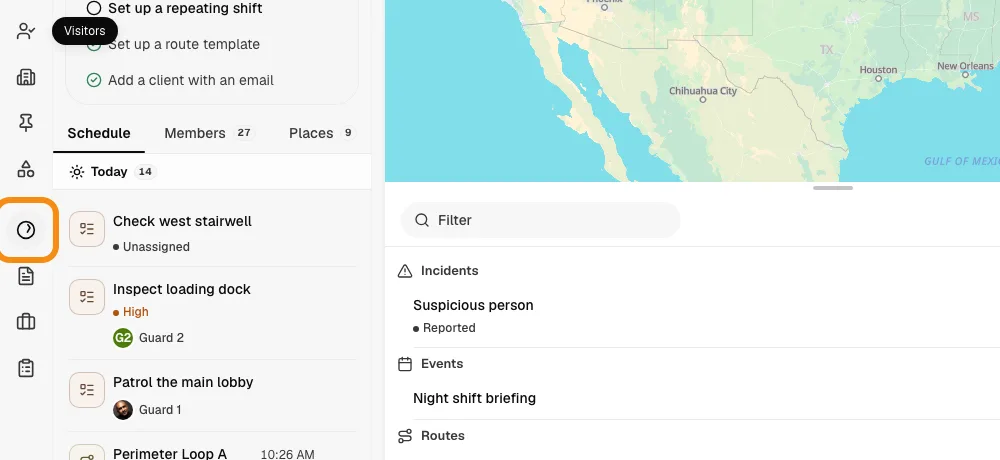
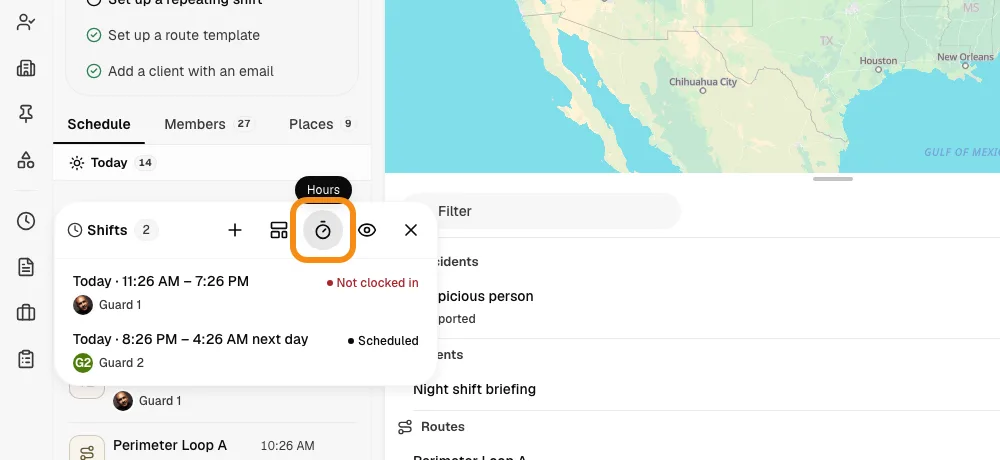
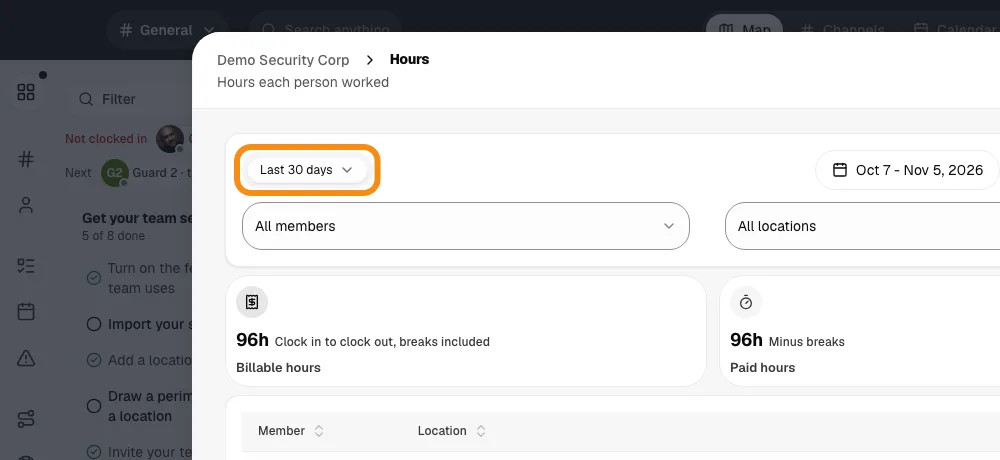
- In the bar on the left, click Shifts, then Hours.
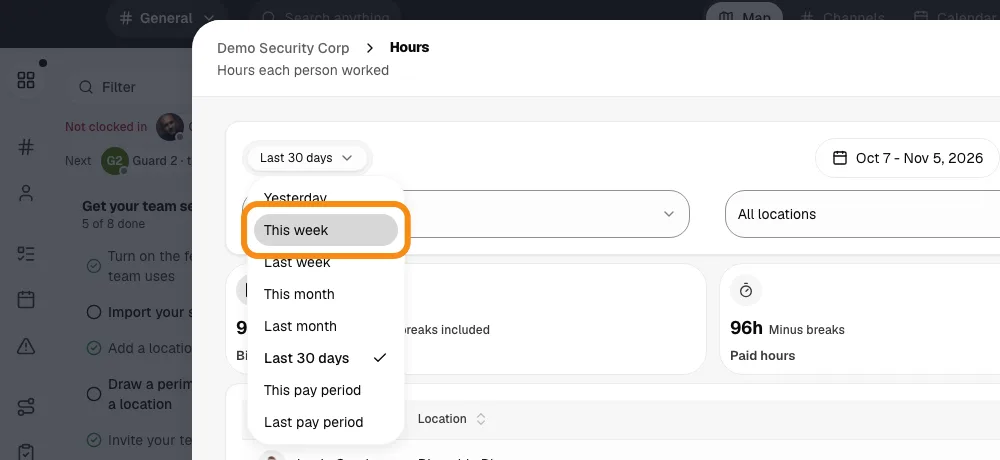
- Pick the dates at the top: this week, last week, this pay period, or your own dates.
Step 2See every guard by day
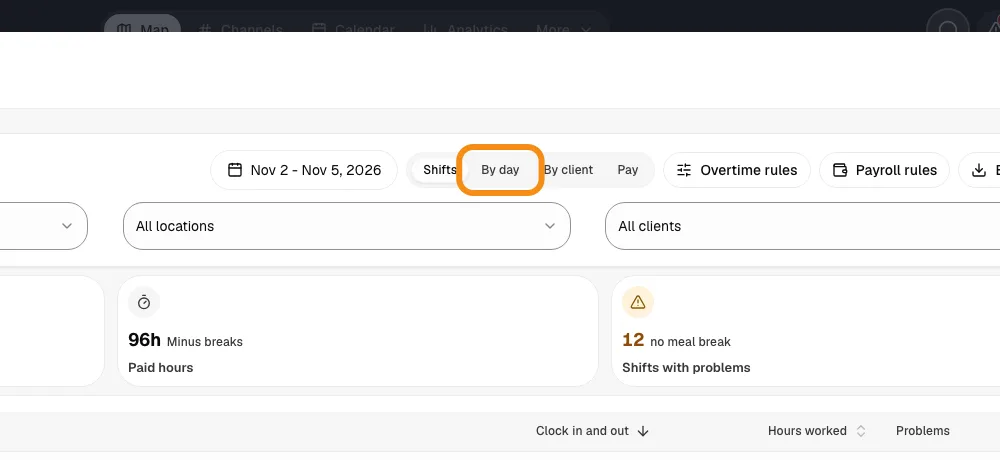
- Click By day at the top.
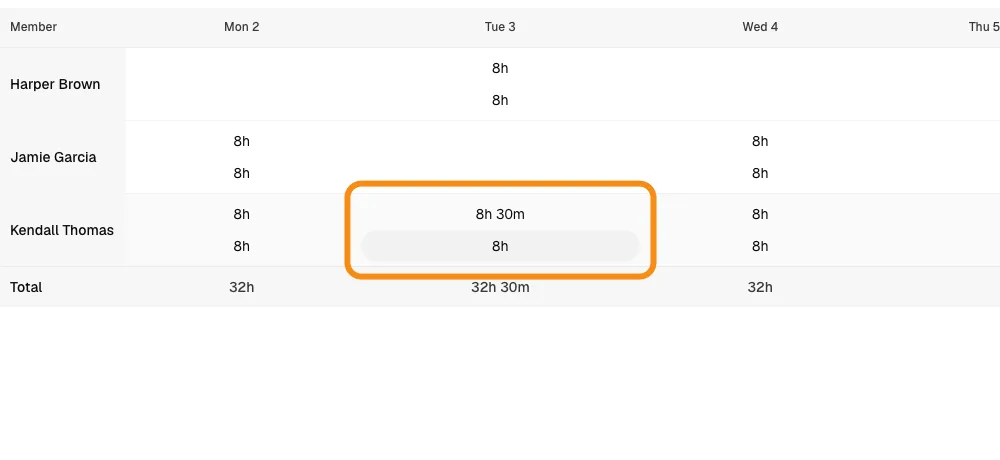
- Each row is a guard. Each box is the hours they worked that day. The last column is their total, and the bottom row is each day's total.
- Two shifts on one day show as two lines in the same box.
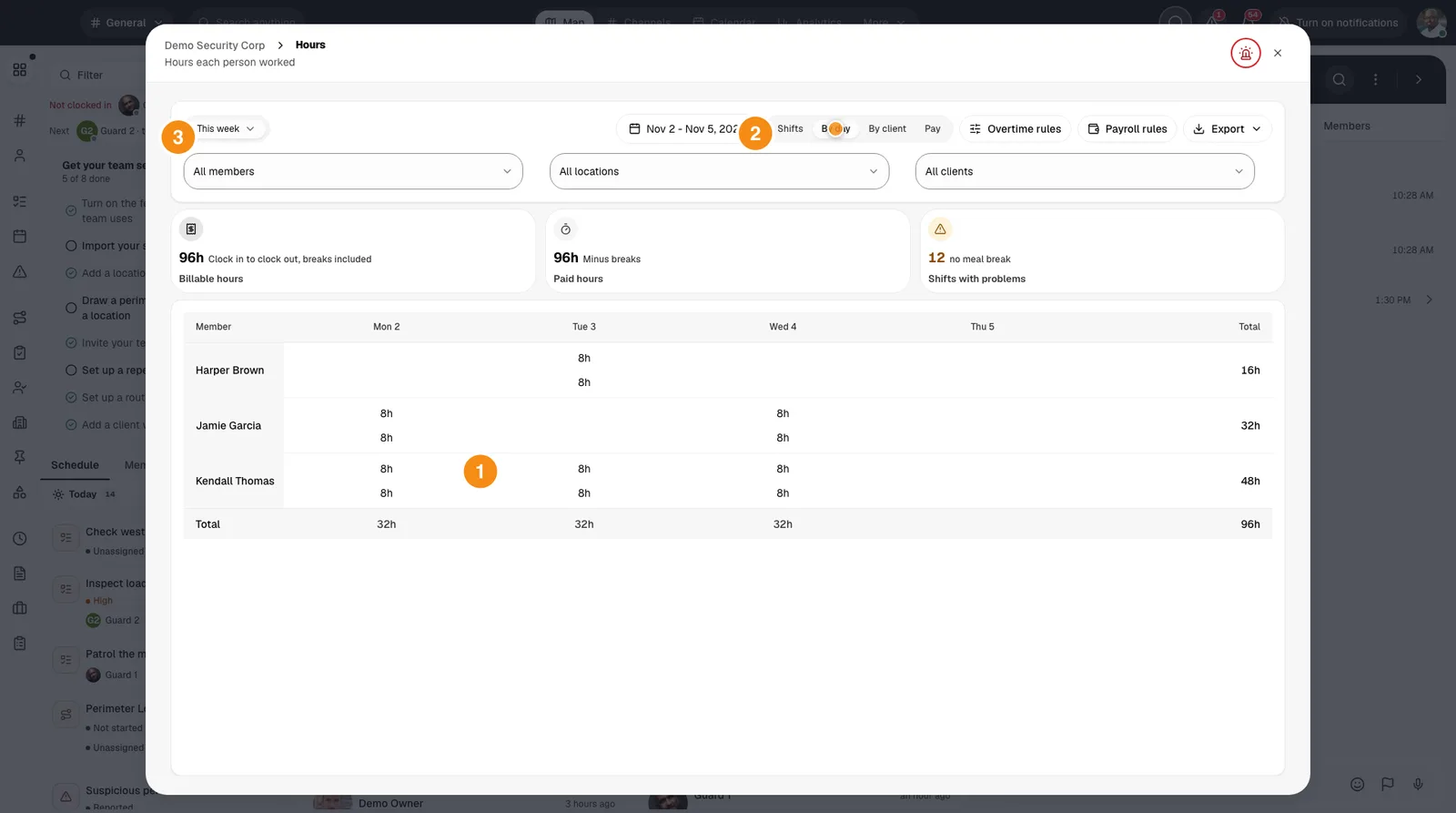
- 1A guard's day: The hours the guard worked that day. Click it to change them.
- 2Shifts, By day: By day is this table. Shifts lists every shift on its own row.
- 3The dates: Which days the table shows.
Step 3Change a clock-in or clock-out
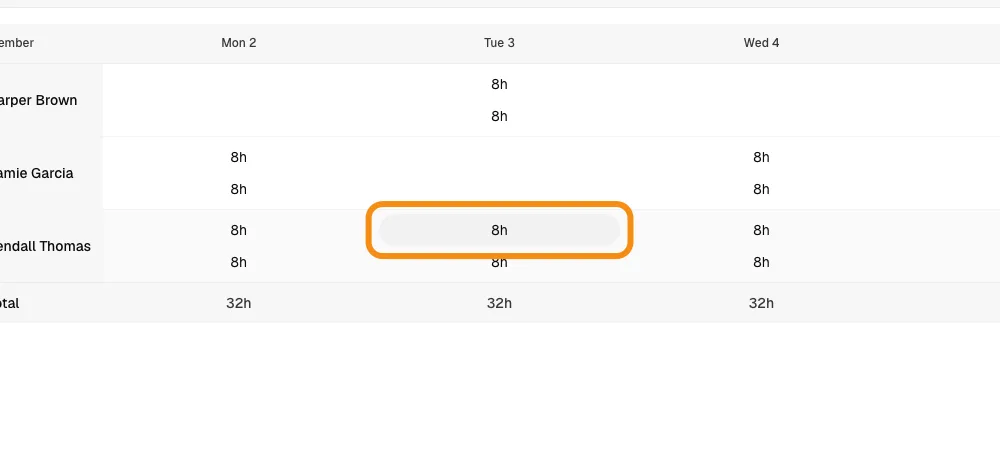
- Click the hours in the guard's box for that day.
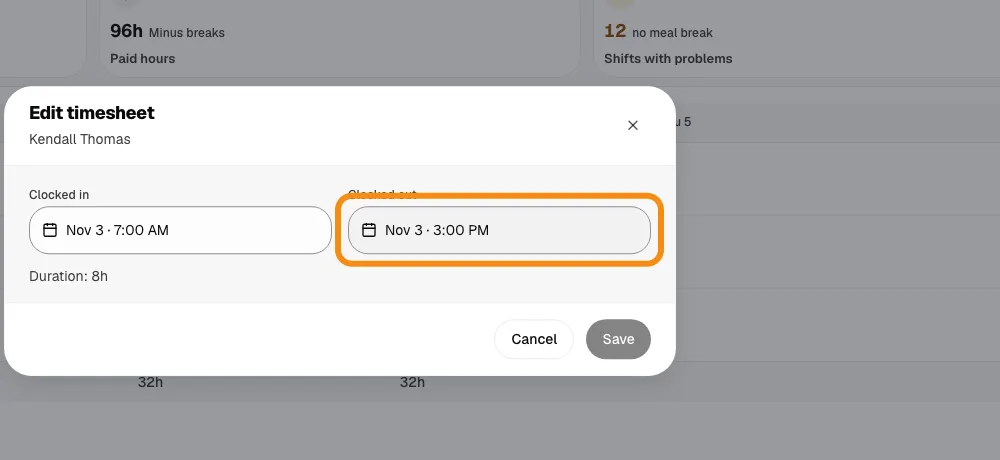
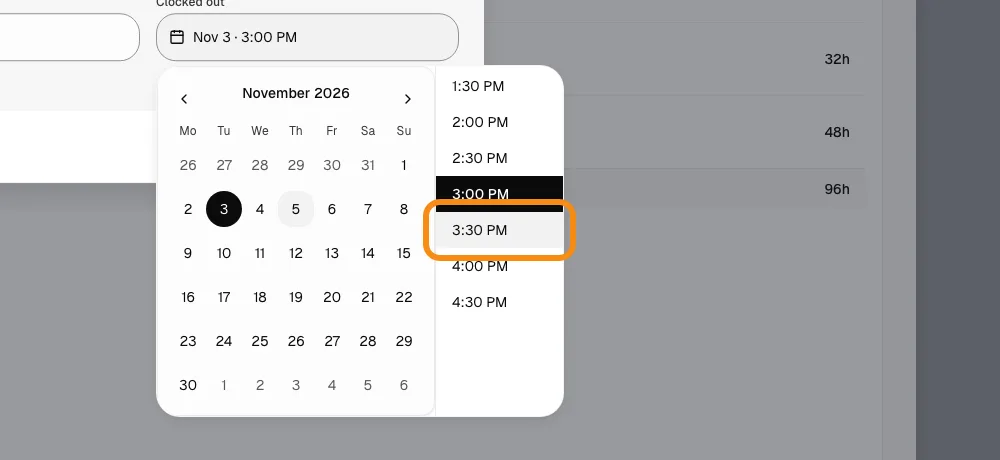
- Change Clocked in or Clocked out. The new total shows under the times.
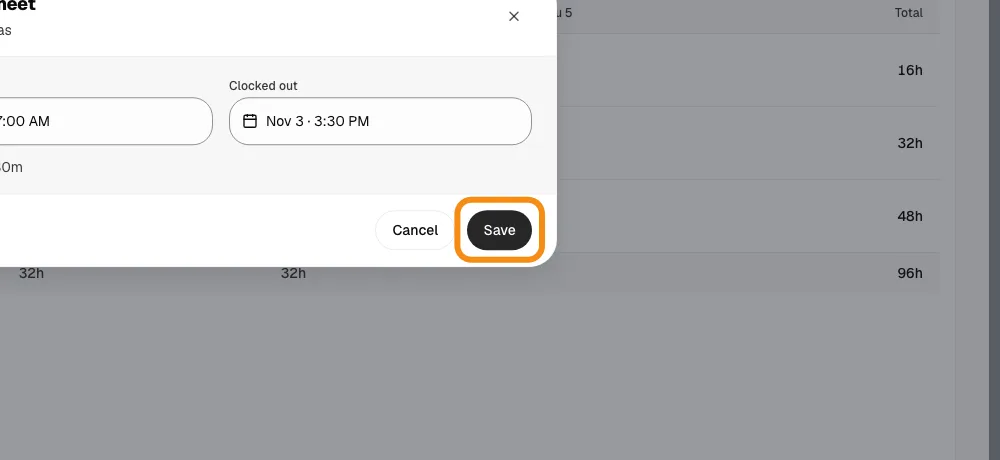
- Click Save. The table, the timesheet and the pay report all change right away.
On your phone
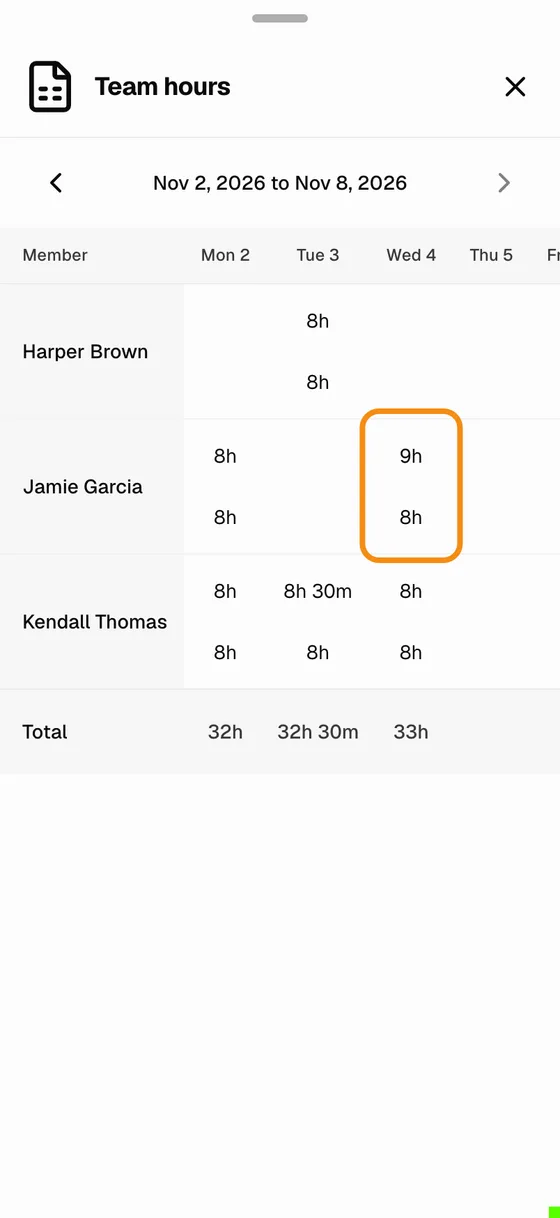
Step 4Open Team hours
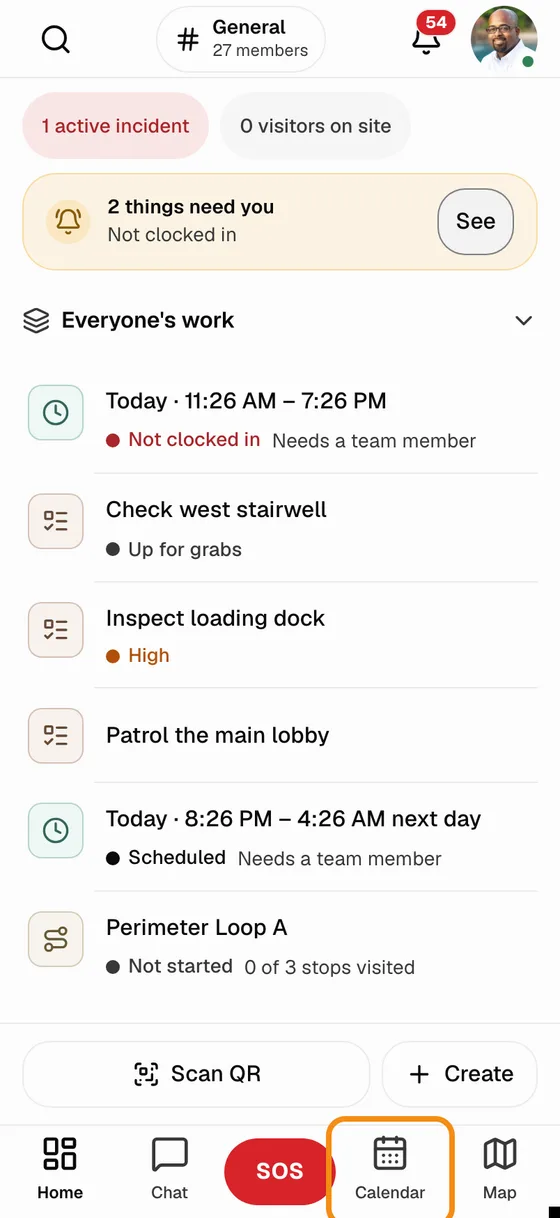
- In the TeamMap app, tap Calendar at the bottom.
- Tap Team hours at the top. It opens on this week. Use the arrows to go back a week.
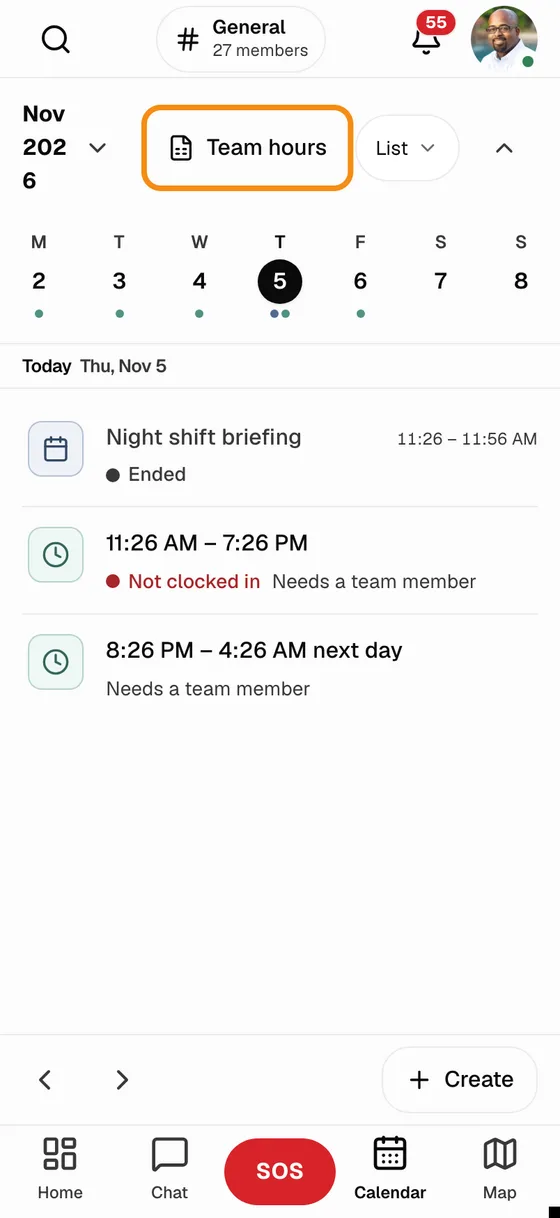
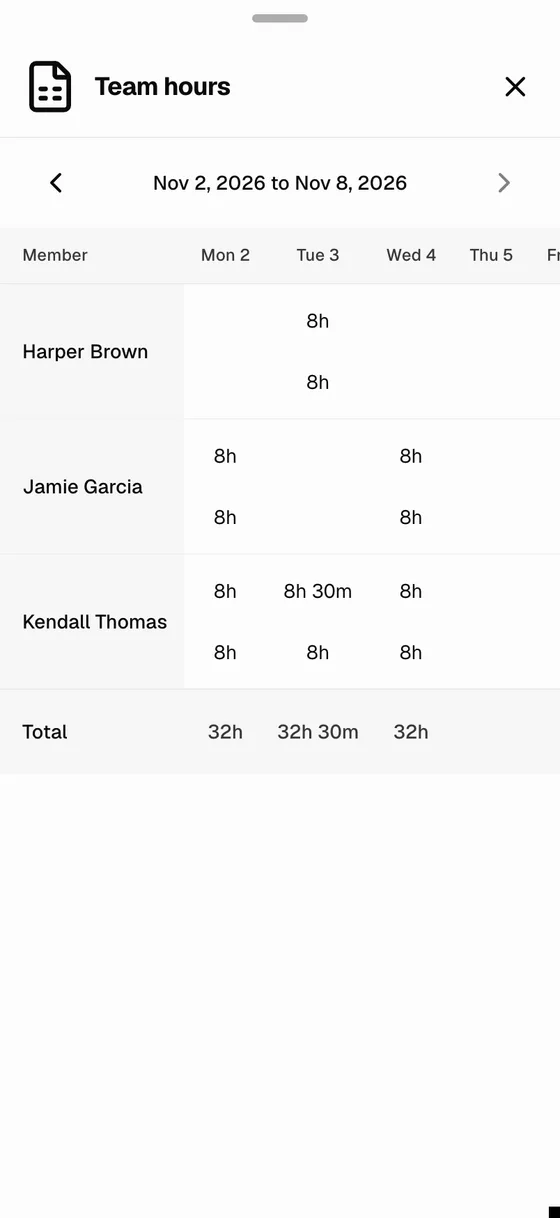
Step 5Change hours on the phone
- Tap the hours in the guard's box for that day.
- Tap Clocked in or Clocked out and pick the right time.
- Tap Save.
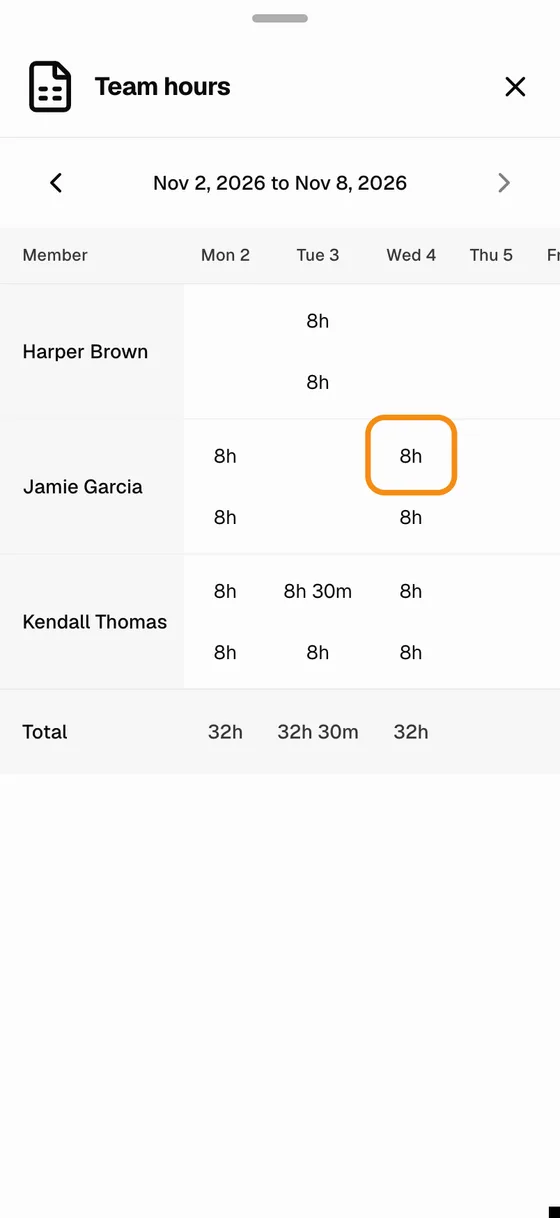
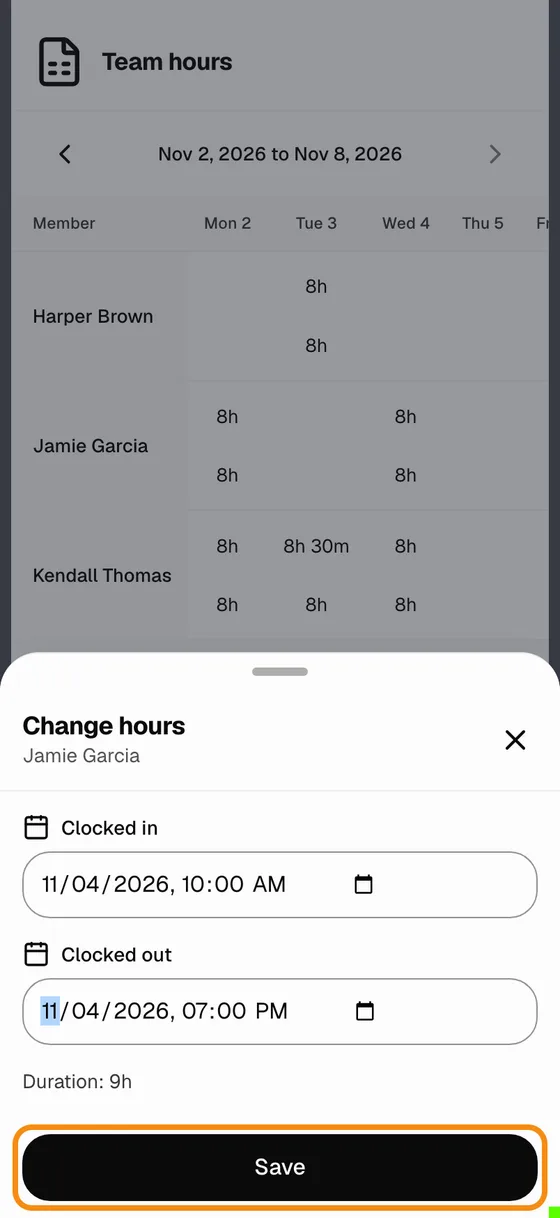
Good to know
- Who can change hours
- Owners, admins, managers and dispatchers. Guards see only their own hours.
- What changes
- The clock-in and clock-out time. Breaks stay as the guard took them.
- Pay
- A change goes on the timesheet, the pay report and every export right away.
- A guard forgot to clock out
- Their shift shows at the top of Hours as still on the clock. Open it and end it at the right time, then fix it here if needed.
- Which day
- A shift sits on the day the guard clocked in, so a night shift shows on the day it started.
If something looks wrong
- A guard is missing
- They have no finished shift in these dates. Pick other dates.
- The hours are grey and will not open
- They are approved and locked. On Hours, click Shifts, then the three dots on that row, then Unapprove. Then change them.
- Save is grey
- Nothing has changed yet, or Clocked out is before Clocked in.
- No Team hours on your phone
- Close the TeamMap app all the way and open it again so it picks up the latest version. Still missing? Update it from the App Store or Google Play. Guards see Timesheets there instead.