All guides
Call-offs: cover a shift fast
When a guard calls off, their shift goes to your on-call lists in order. Your first list hears first. If nobody asks for it in time, the next list hears. You approve who takes it.
Version 2026-11-03 · TeamMap 3.0.41
Download PDFBefore you start
- Make the lists once, on a computer at app.teammap.co. After that you can run everything from the TeamMap app on your phone.
- Your guards on the TeamMap app. That is where they call off, hear about a shift, and ask for it.
- Who goes on each of your on-call lists.
Step 1Make your first on-call list
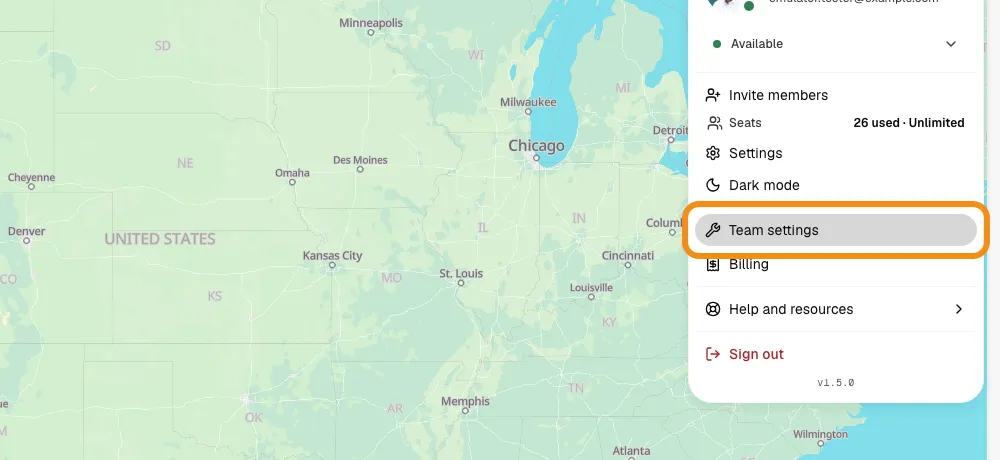
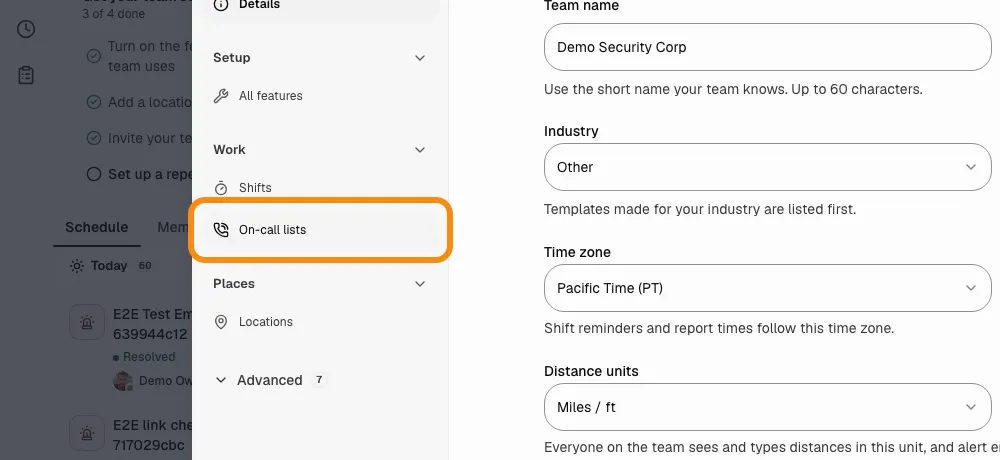
- Click your picture at the top right, then Team settings, then On-call lists (under Work).
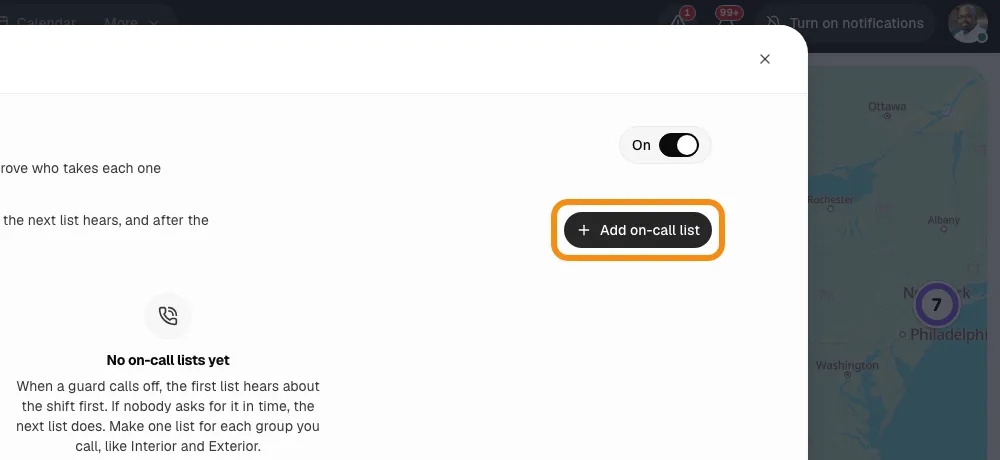
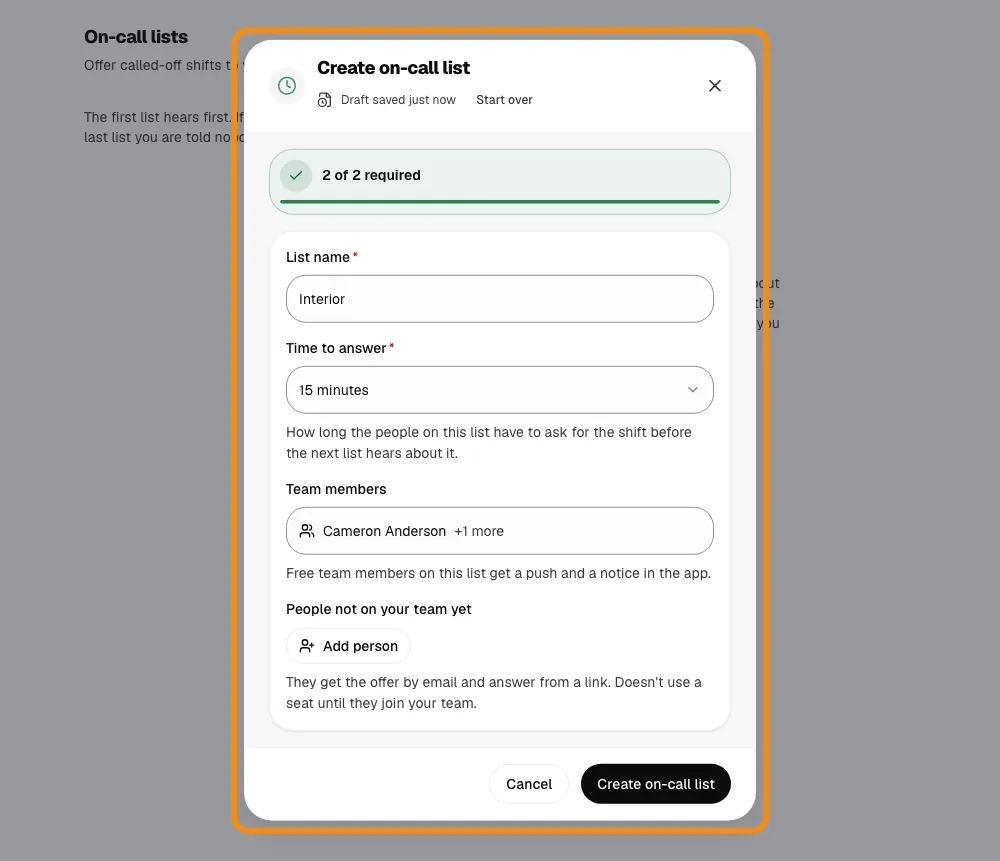
- Click Add on-call list and give it a name, for example Interior.
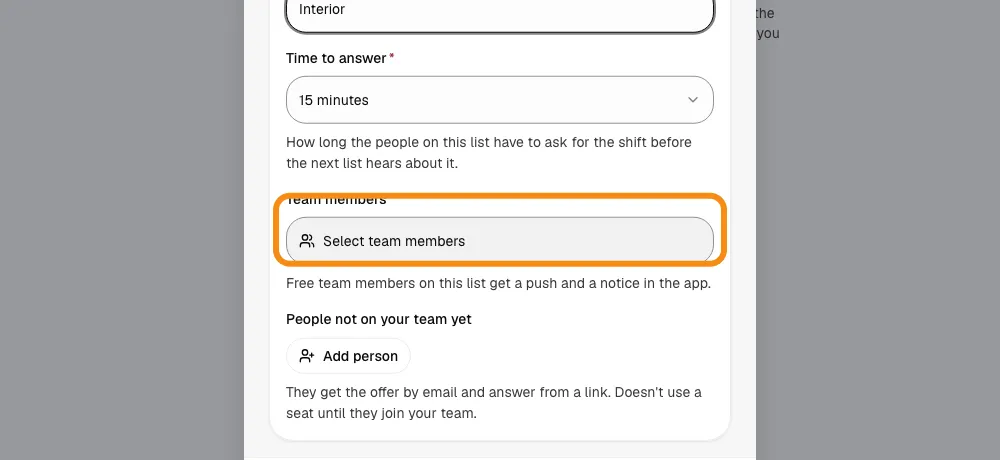
- Time to answer: how long this list has to ask for the shift before the next list hears. 15 minutes to start; pick anything from 5 minutes to 2 hours.
- Click Select team members, pick the guards for this list, then click Done.
- Click Create on-call list.
Step 2Make your next list
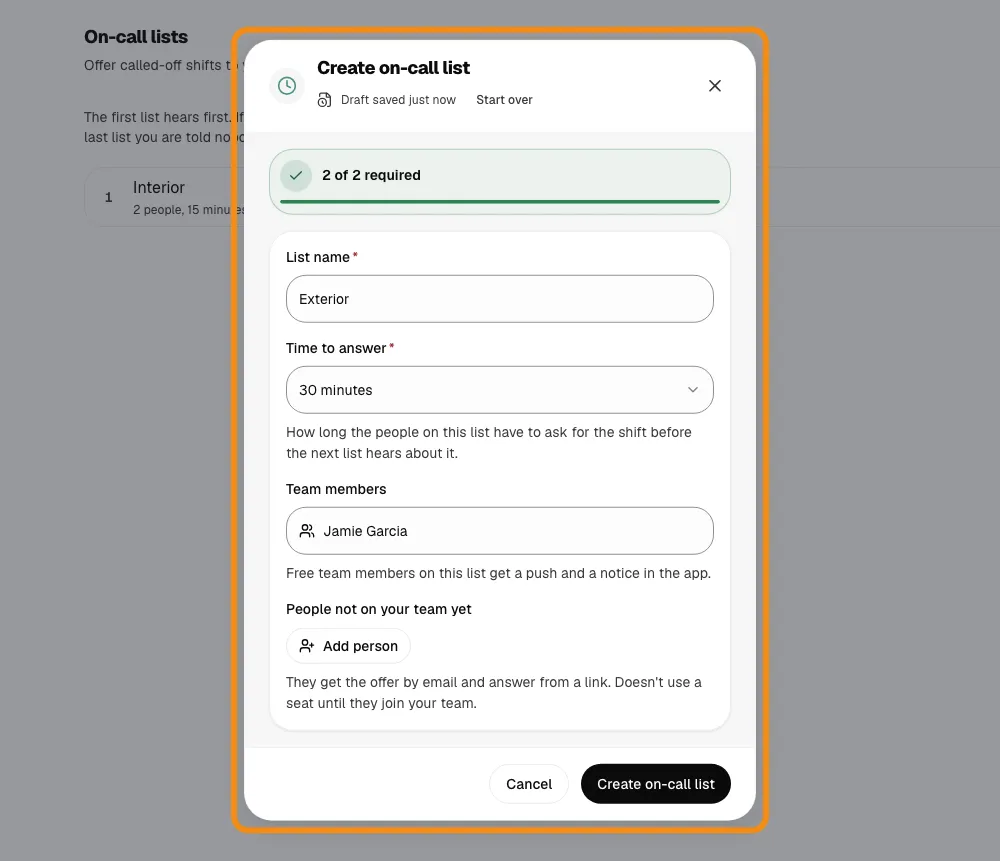
- Click Add on-call list again and give it a name, for example Exterior.
- Pick its time to answer, for example 30 minutes.
- Pick its guards, then click Create on-call list.
Step 3Check the order
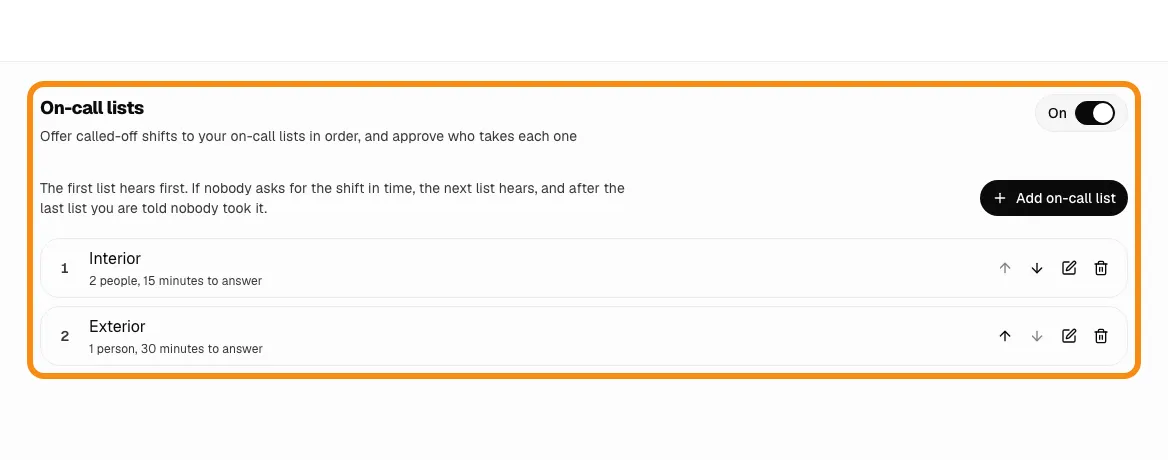
- The list at the top hears first. Keep your first list on top.
- Use the up and down arrows on a list to move it.
Step 4A guard calls off, or does not show
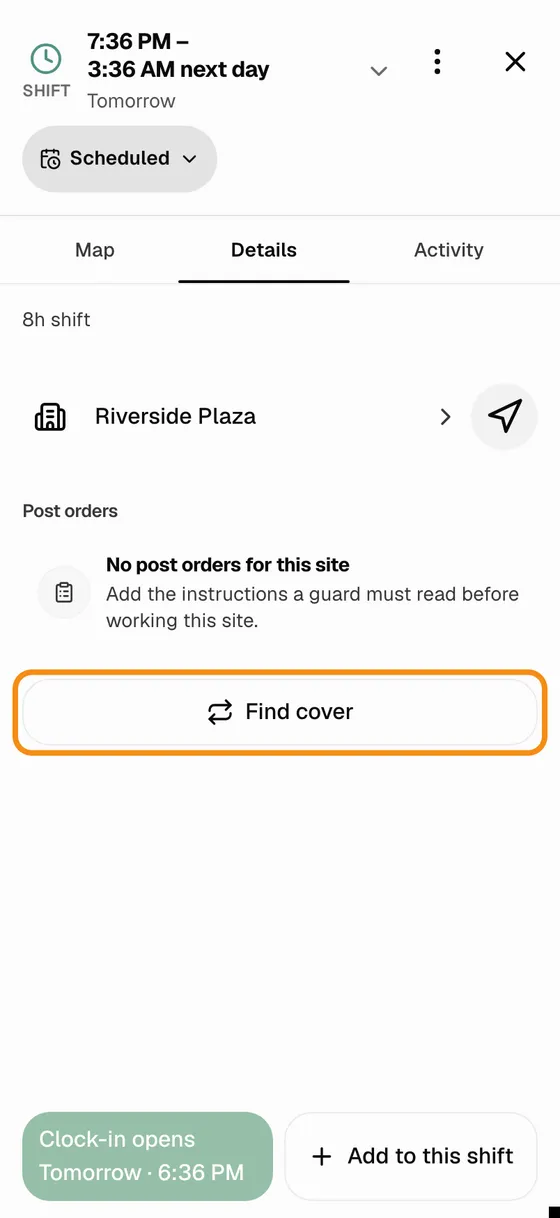
- In the TeamMap app, the guard taps their shift on Home, then Find cover.
- A guard who does not show: TeamMap can do this for them. In Team settings > On-call lists, set "Offer a no-show's shift to your on-call lists after" to a number of minutes. You still get the not clocked in alert.
- The free guards on your first list get a push right away. The guard who called off is never offered their own shift.
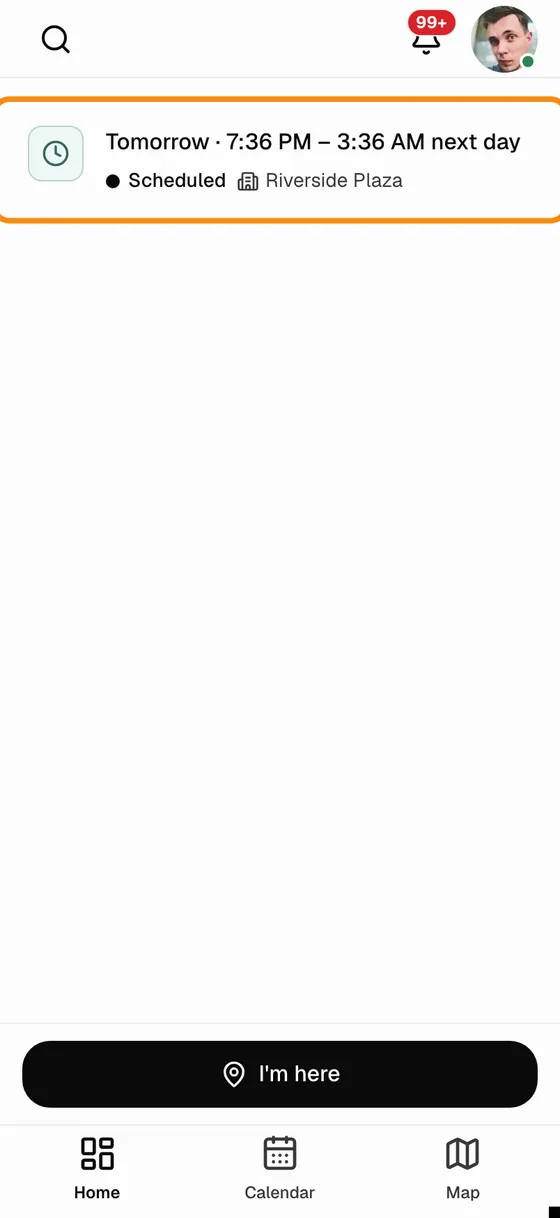
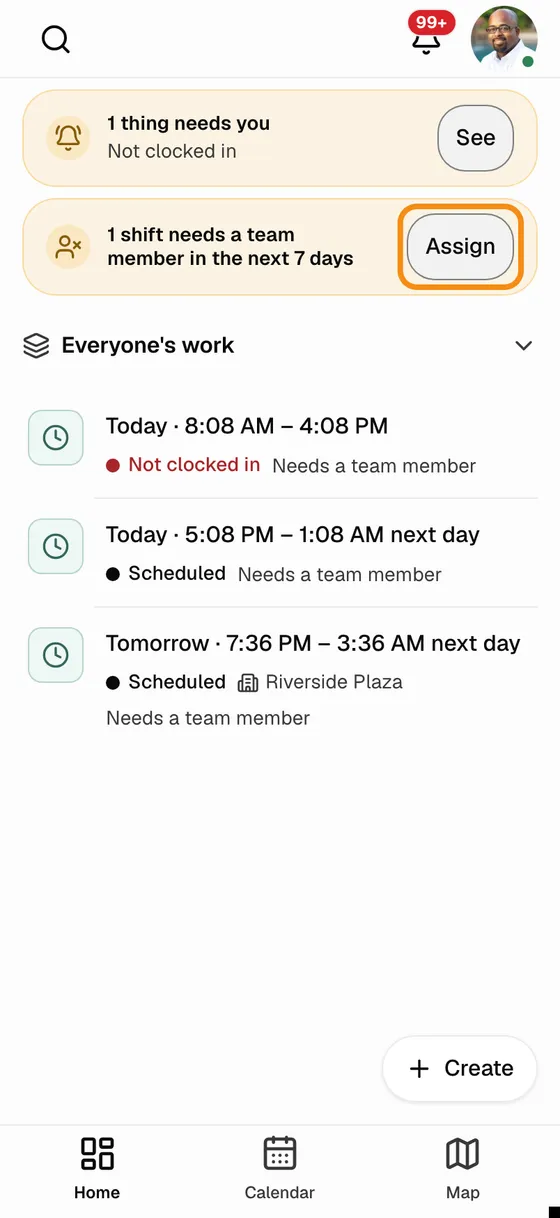
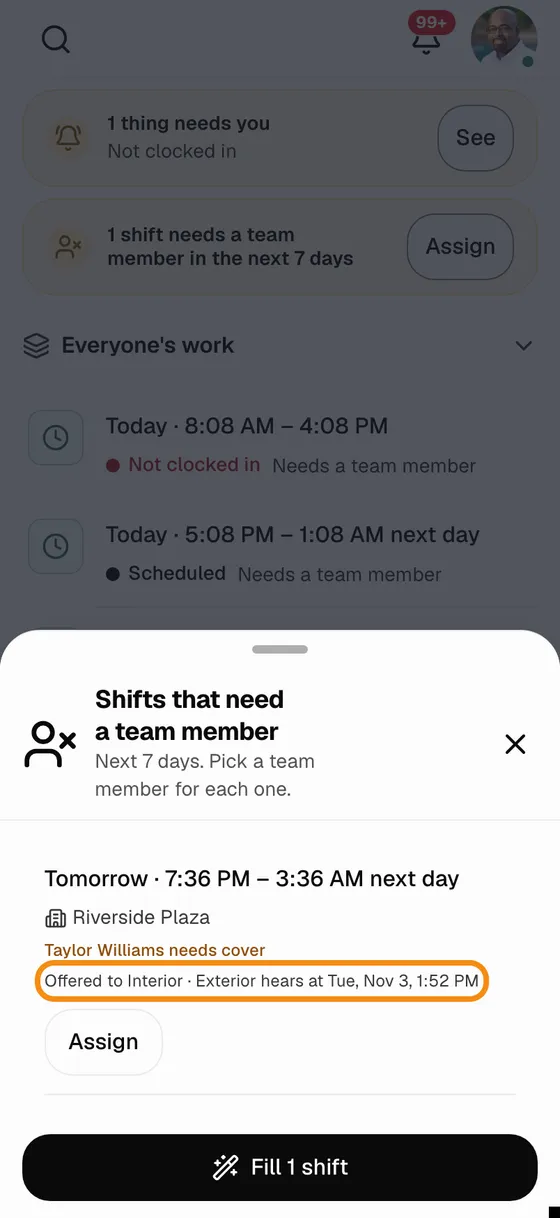
- On your phone, Home shows the shift that needs cover. Tap it to see which list has it. (On a computer: Open shifts, in the top bar.)
Step 5Guards on the list see it in the app
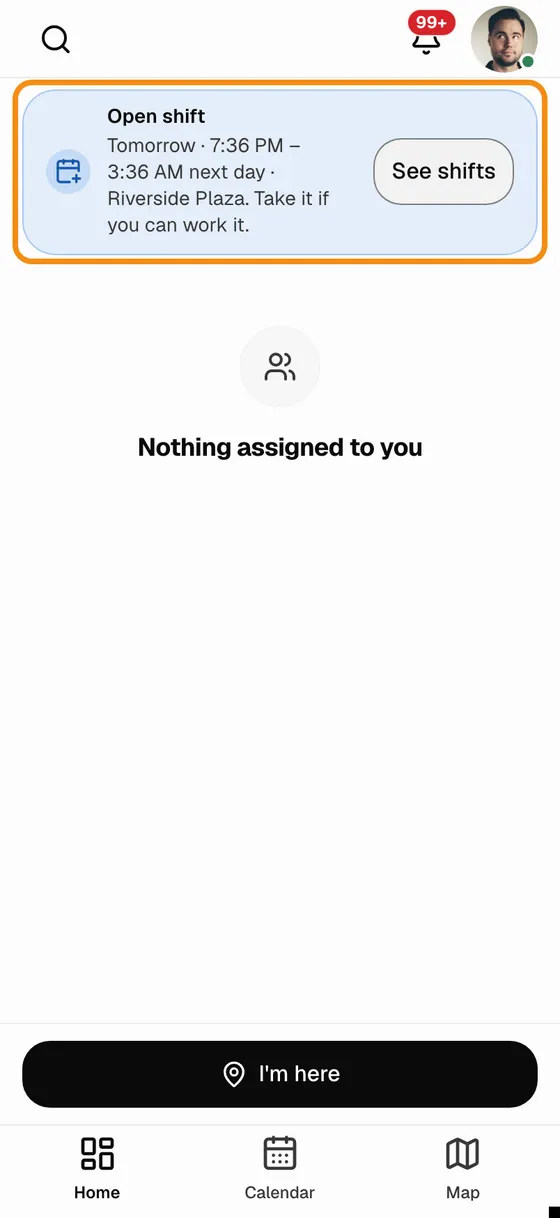
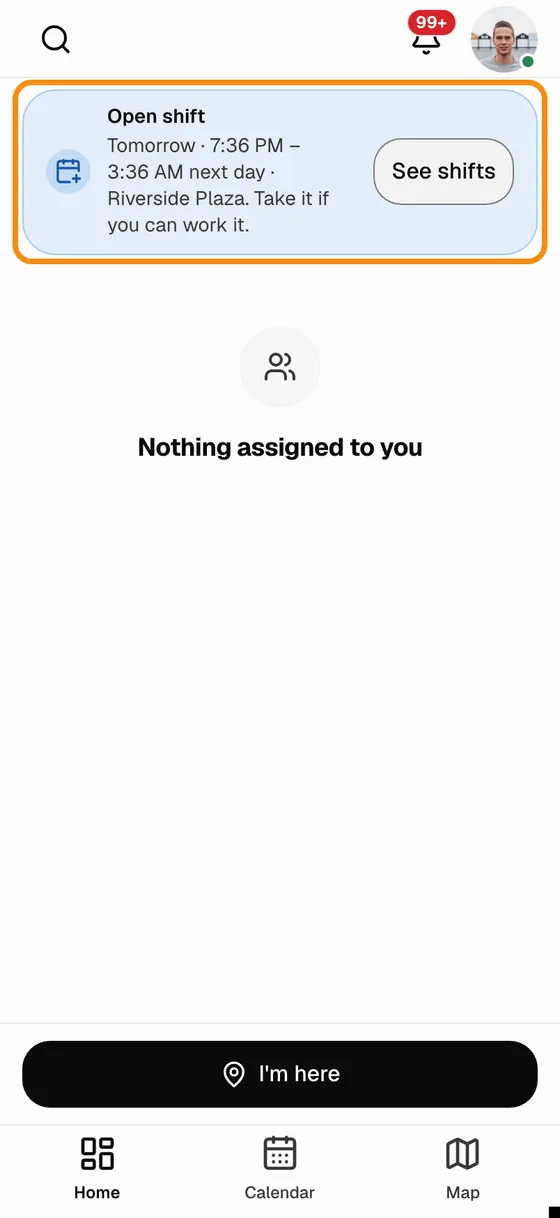
- Each free guard on the list gets a push, and the shift shows on their Home.
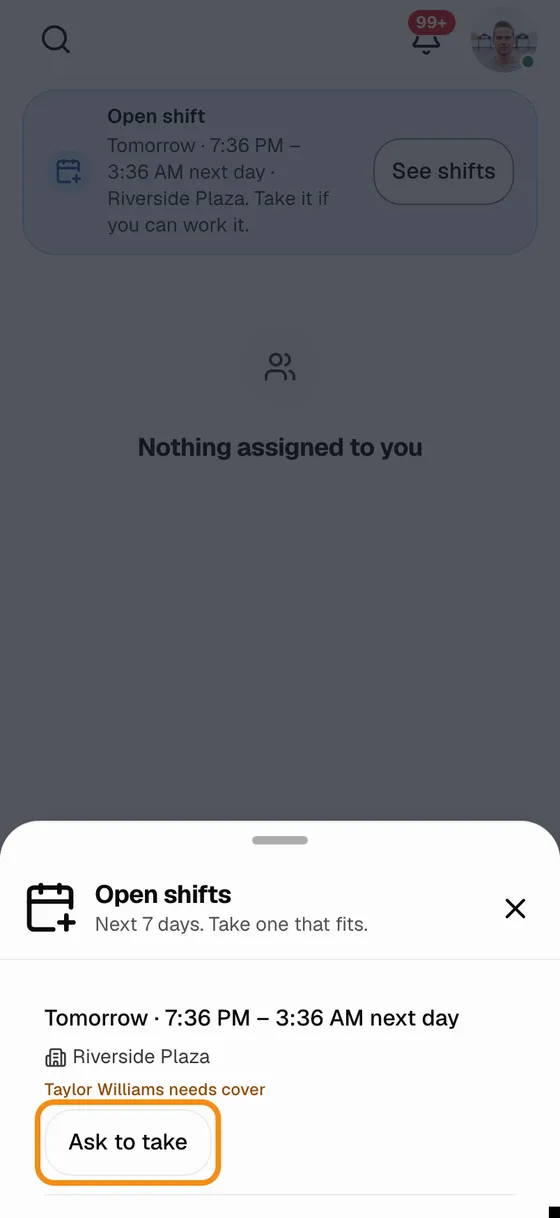
- They open it and tap Ask to take. Guards on a list that has not heard yet cannot ask.
Step 6Nobody asked in time? The next list hears
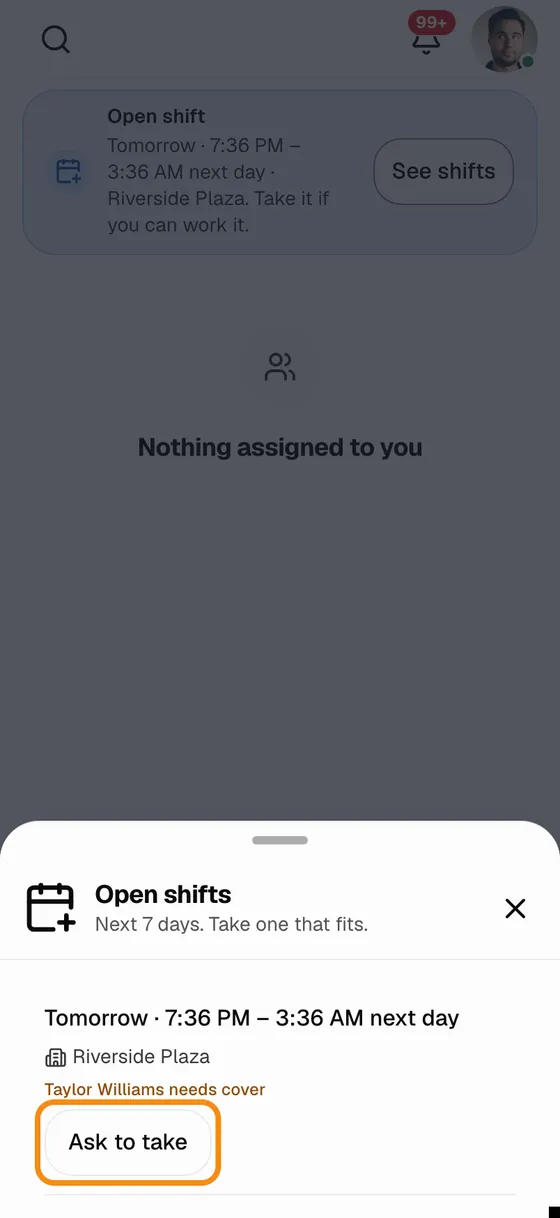
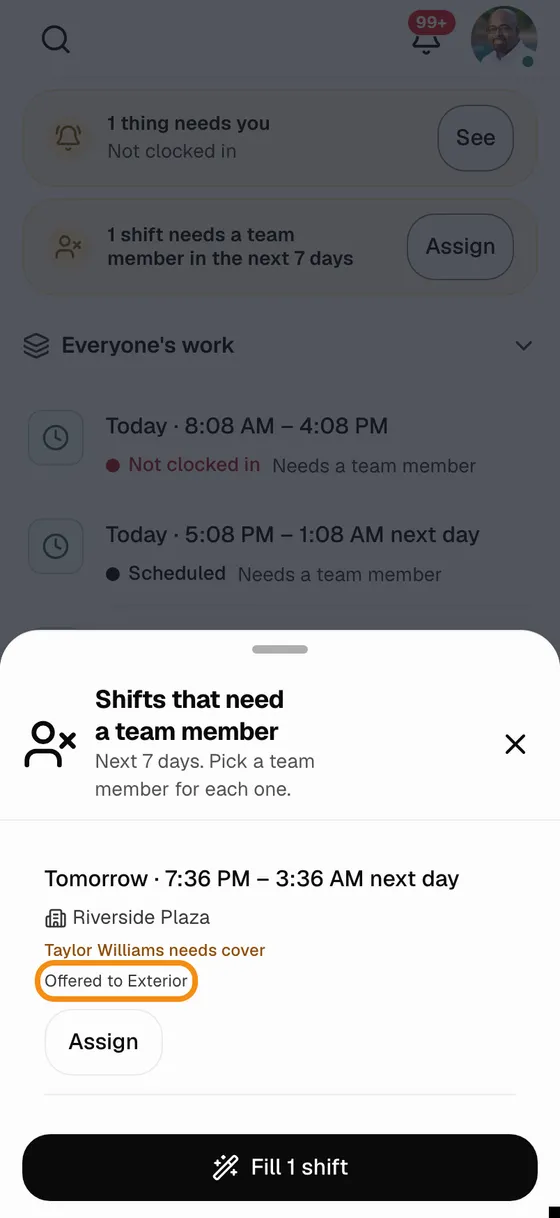
- When the first list's time to answer runs out and nobody asked, the guards on your next list get the push.
- After the last list, you are told nobody took it, and the shift opens to every guard.
Step 7A guard asks to take it
- The guard opens the shift from Home and taps Ask to take.
Step 8Approve who takes it
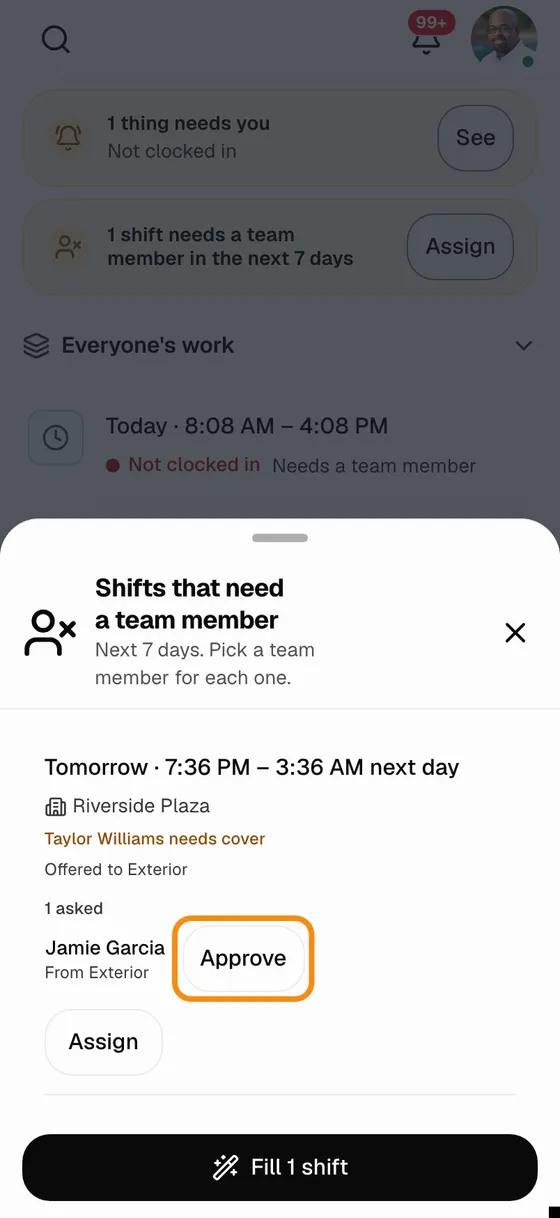
- On your phone, the shift now shows who asked and the list they came from.
- Tap Approve. The shift is theirs.
Good to know
- Who hears
- Only the free guards on a list. Anyone already working then, and the guard who called off, is skipped.
- You approve
- A guard cannot just take an on-call shift. They ask, and you pick who gets it.
- Grades
- Each person on a list gets a grade for how often they ask when offered, under the list in Team settings > On-call lists.
- Changing a list
- Team settings > On-call lists: edit a list to change its guards or its time to answer. The no-show minutes are a setting on the same page.
If something looks wrong
- No On-call lists in Team settings
- Turn it on in Team settings > All features. It needs Shifts turned on, on Pro or higher.
- A guard on the list got nothing
- They were not free during that shift, or their list had not heard yet. If TeamMap notifications are off on their phone, the shift still shows on their Home.
- "Nobody took the shift"
- Every list heard and nobody asked in time. The shift is now open to every guard; assign it from Open shifts.
Questions, or want TeamMap set up your way? Book a demo or contact us, and we will customize your account.