All guides
Your live view: a guide for clients
See the guard on duty at your property, live, and the proof the work was done.
Version 2026-11-03 · TeamMap 3.0.41
Download PDFBefore you start
- Your security company emails you a link to your live view.
- Open it on any phone or computer. Sign in with that email.
Step 1Open your live view
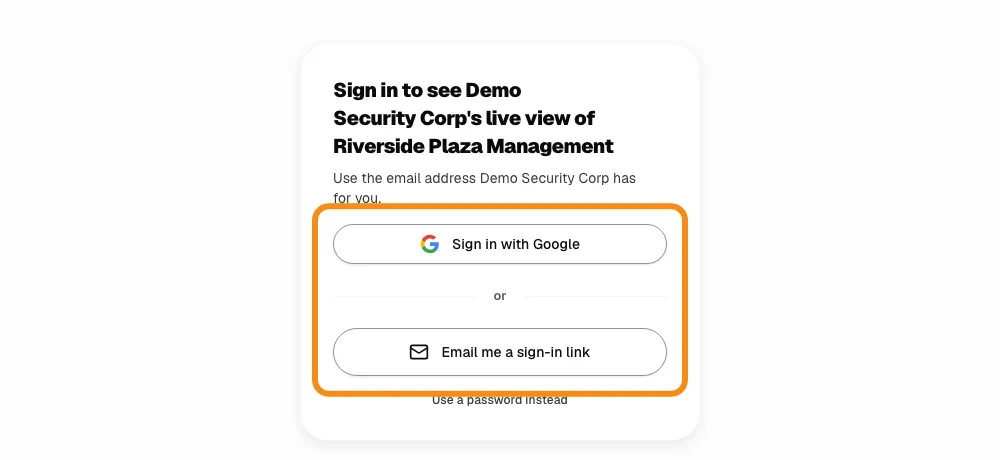
- Click the link in the email.
- Sign in with Google, or click Email me a sign-in link.
Step 2See your property, live
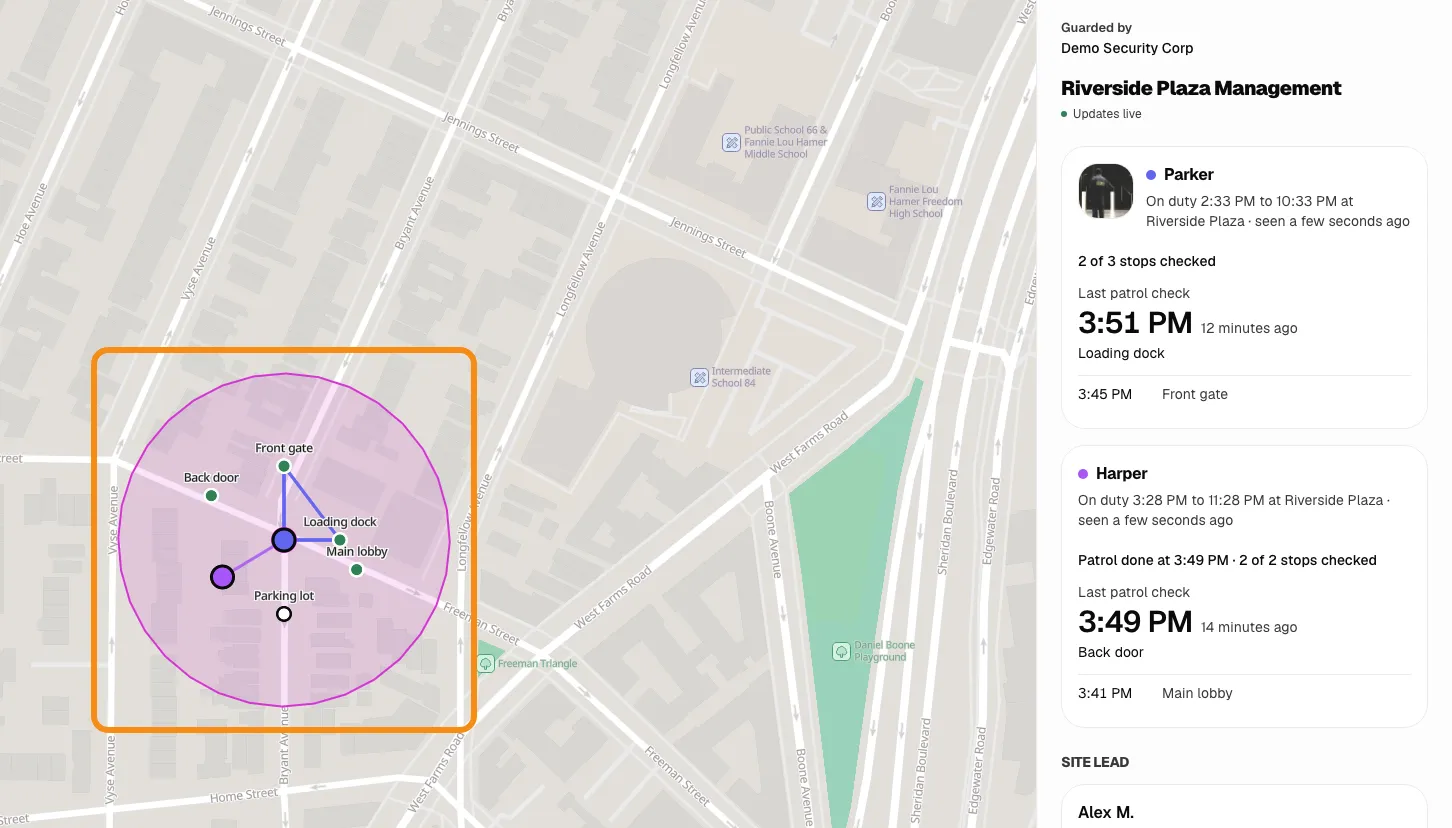
- The shaded circle is your property's boundary.
- Each dot is a guard on duty. Their card is on the right.
Step 3Who is on duty
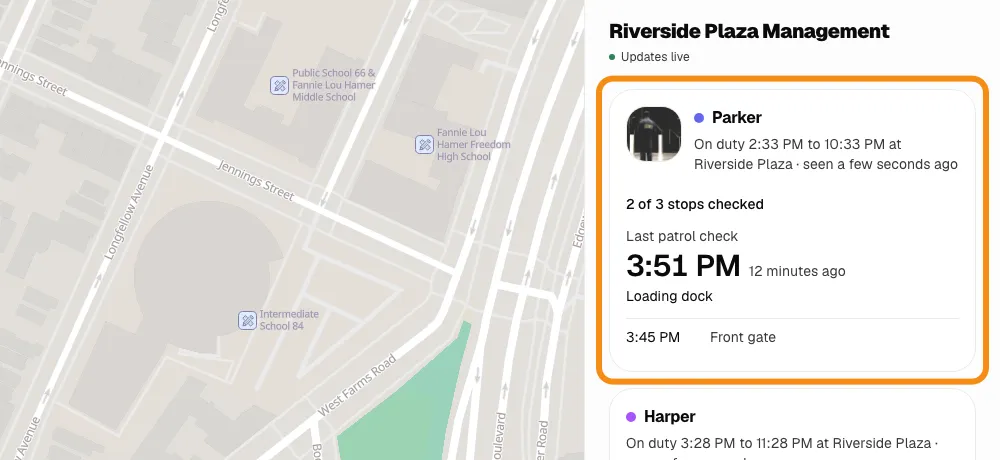
- Their shift times, and "seen": when their phone last sent its location.
Step 4Call the person in charge of your site
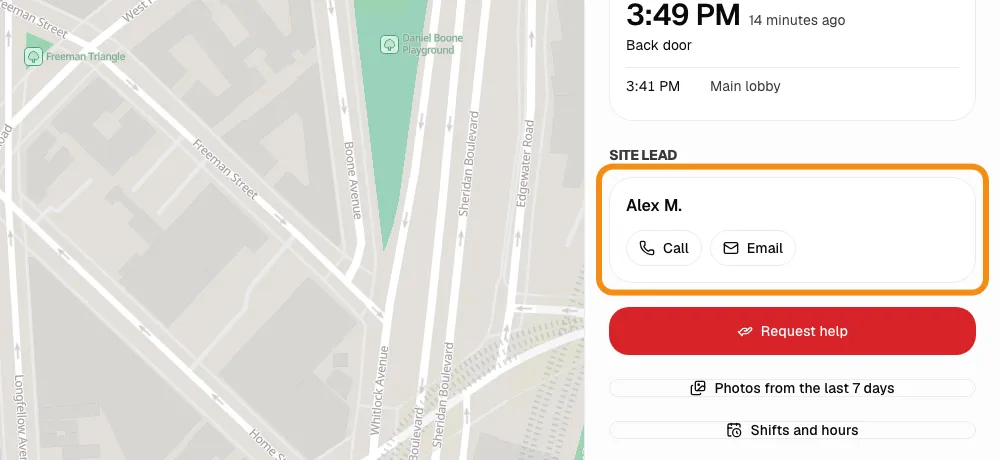
- Call or email the person your security company put in charge of your property.
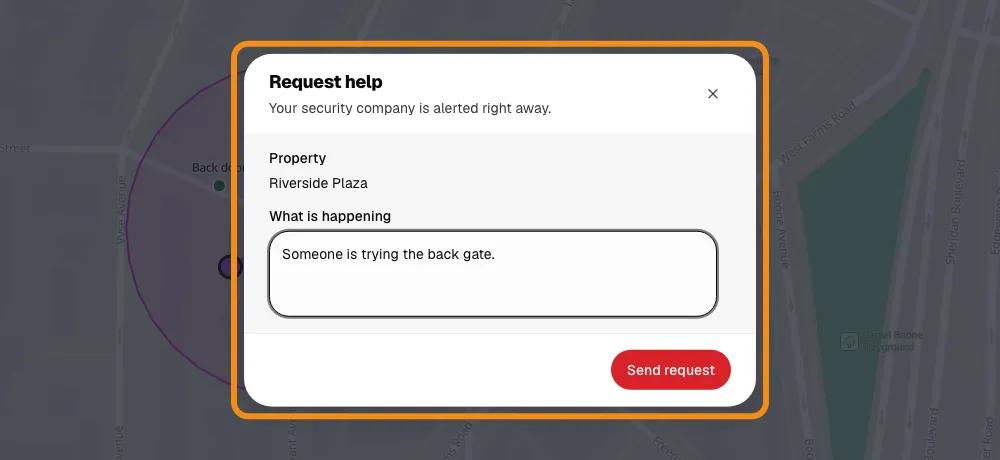
Step 5Ask for help
- Click Request help, say what is happening, then Send request.
- In an emergency, call 911 first.
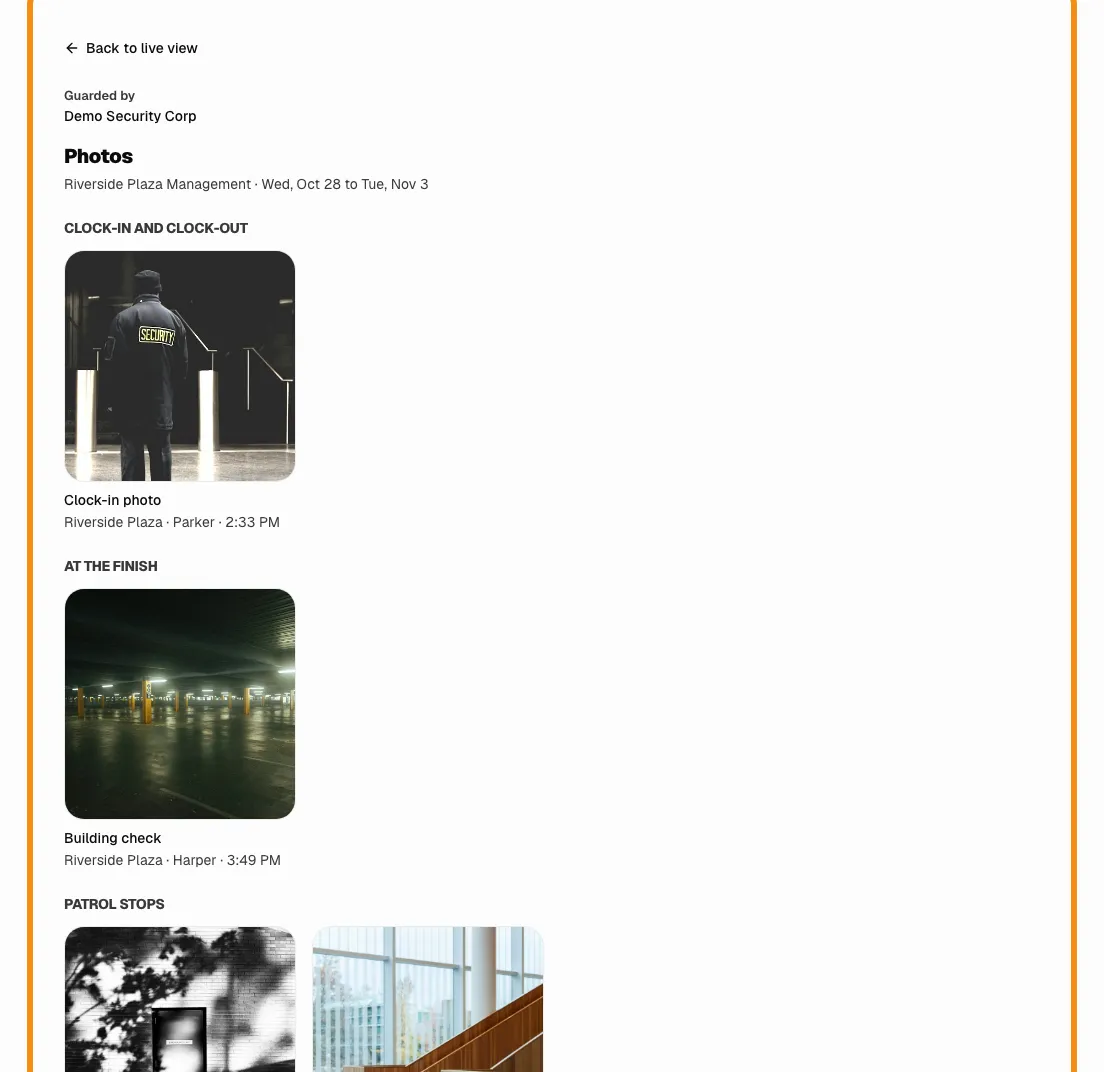
Step 6Photos, last 7 days
- Click Photos from the last 7 days to see what the guards saw.
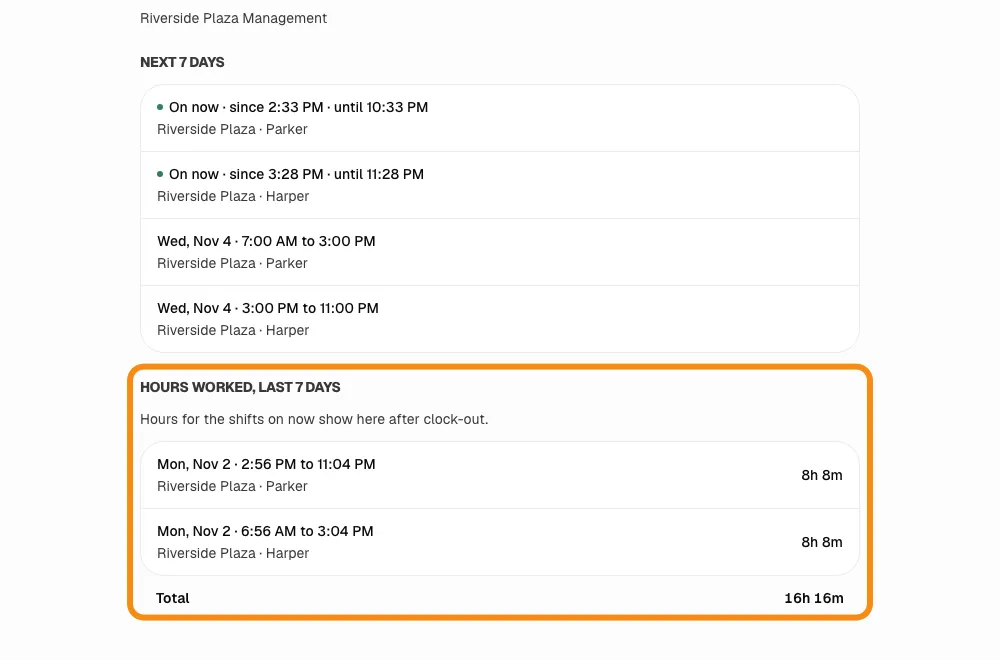
Step 7Shifts and hours
- Click Shifts and hours: who is coming, and when each guard really clocked in and out.
How you know the work was done
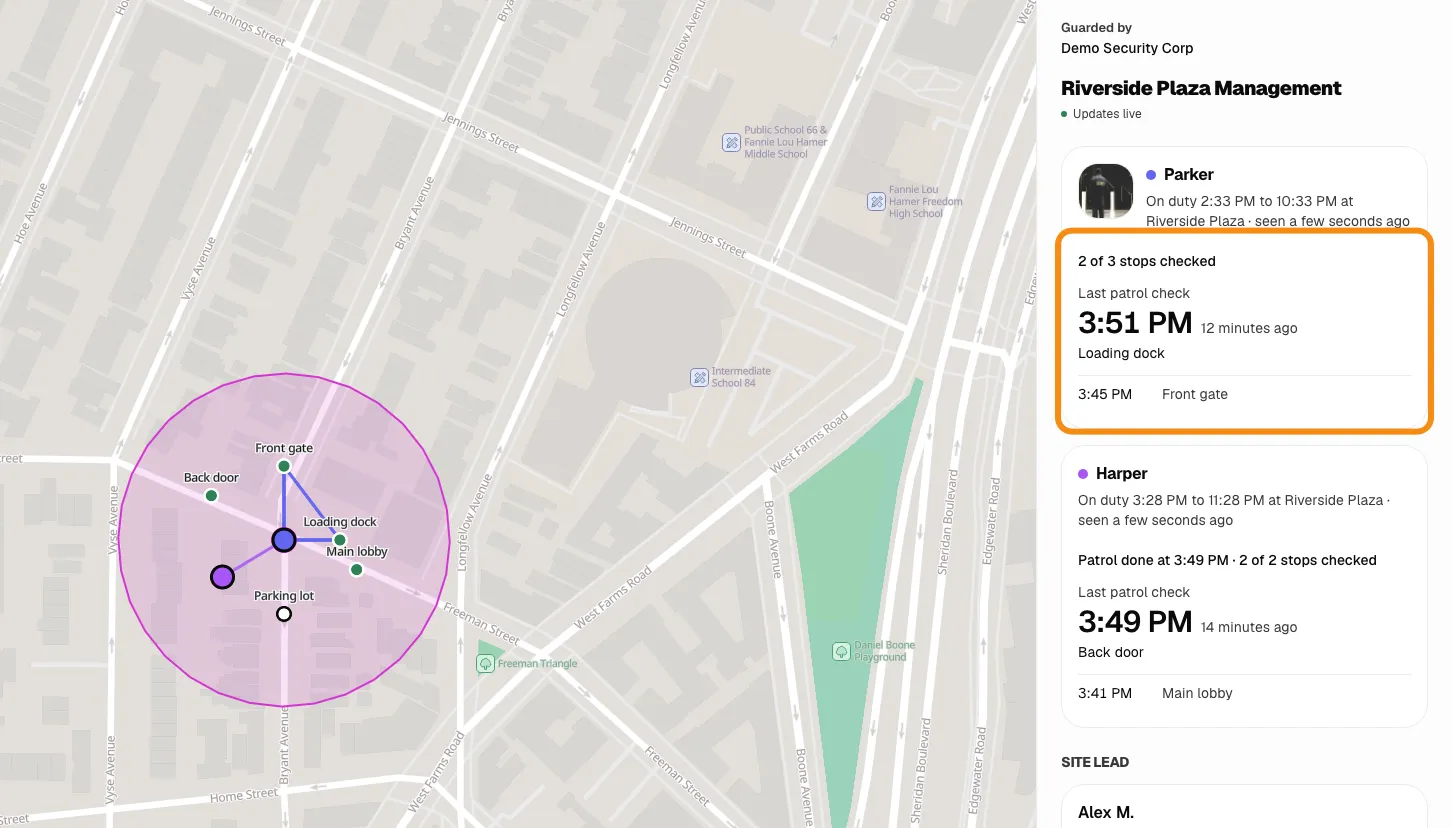
Step 8The path your guard walked
- The line is where the guard walked this shift, from their phone's GPS.
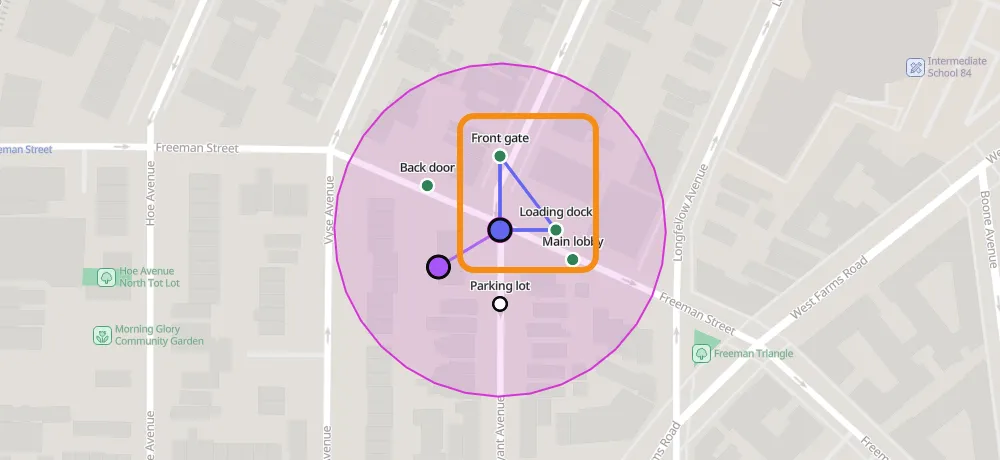
Step 9Every stop checked, with the time
- Each stop the guard checks shows with its time. Green on the map means checked.
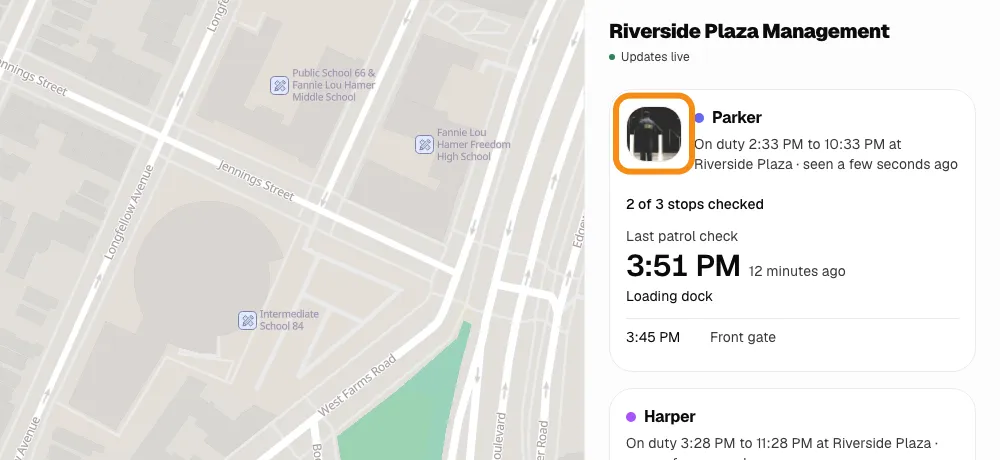
Step 10A photo at clock-in
- If your security company asks, each guard takes a photo of themselves at their post to clock in.
Also checked for you
- A guard leaves your property
- Your security company is alerted (after 5 minutes away, unless they change it).
- Clock stops when away
- If turned on, a guard's worked time stops while they are off your property.
- Site QR code
- If turned on, a guard must scan your property's own code to clock in or out.
- Clock-in place
- Where the phone was at clock-in is saved. A clock-in away from your property is flagged to your security company.
- "I'm OK" checks
- Guards tap I'm OK on a timer (on by default). A missed tap alerts the managers.
- Not moving
- If turned on, a guard who stops moving is asked sooner if they are OK.
- SOS button
- Holding it alerts the whole team. If nobody answers, it alerts them again.
- Team rules
- If your security company writes rules, each guard must agree in the app first.
- Times
- Clock and patrol times are set by our server, so a wrong phone clock can't change them.
Emails you can get
- Live view link
- When your live view is shared with you.
- Guard arrived
- When a guard clocks in at your property.
- After each round
- Stops checked and any missed.
- After each shift
- Hours, patrols and misses.
- Daily or weekly report
- Hours on duty, patrols, photos and anything missed. It can also show if a guard left.
- Incident reported
- What happened, how urgent it is, and who reported it.
- Turning them on
- Your security company picks yours. Each report has an Unsubscribe link.
If something looks wrong
- No guard showing
- Nobody is clocked in at your property, or the guard is more than 1 km away.
- "No live location right now"
- The guard's phone has no signal.
- "Not updating"
- Check your internet, then reload the page.
- "isn't on the list"
- Click Use a different account, and use the email your security company has.
- "This live view has ended"
- Ask your security company to share it again.
- When does it end?
- The date is at the bottom of the live view.
Questions, or want TeamMap set up your way? Book a demo or contact us, and we will customize your account.