All guides
Send reports to your clients
Set it up once for each client. They then get a report by email after each shift, every day or every week, and an email when a guard arrives, a patrol ends or an incident happens. You pick which ones.
Version 2026-11-09 · TeamMap 3.0.55
Before you start
- An owner, admin or manager login. Sign in at app.teammap.co on a computer.
- Your client's email address.
- Clients and Routes turned on for your team. If you do not see Clients in the bar on the left, contact us.
Add the client
Step 1Add your client and their email
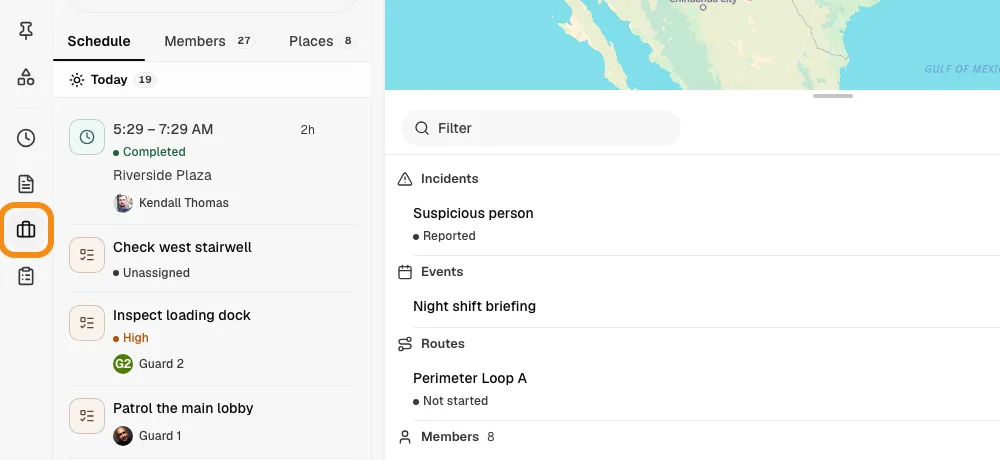
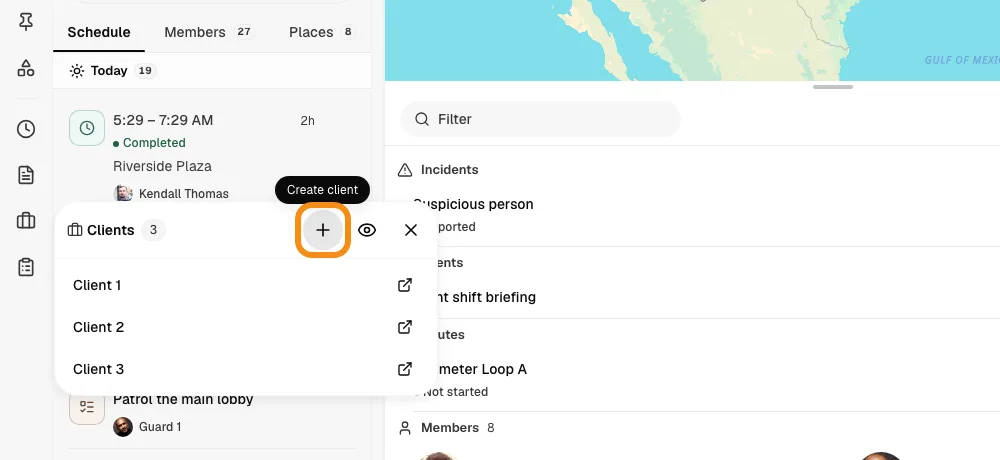
- In the bar on the left, click Clients, then the + button.
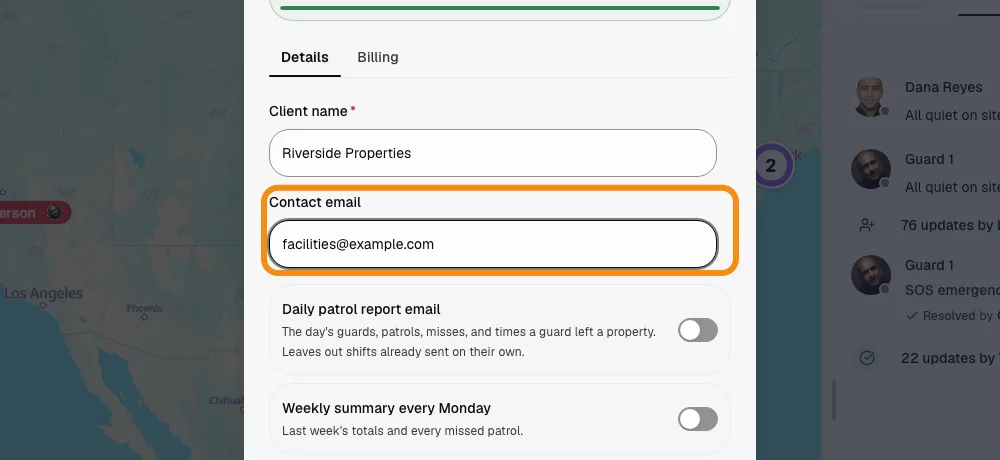
- Type the client's name.
- Type their Contact email. This is where reports go.
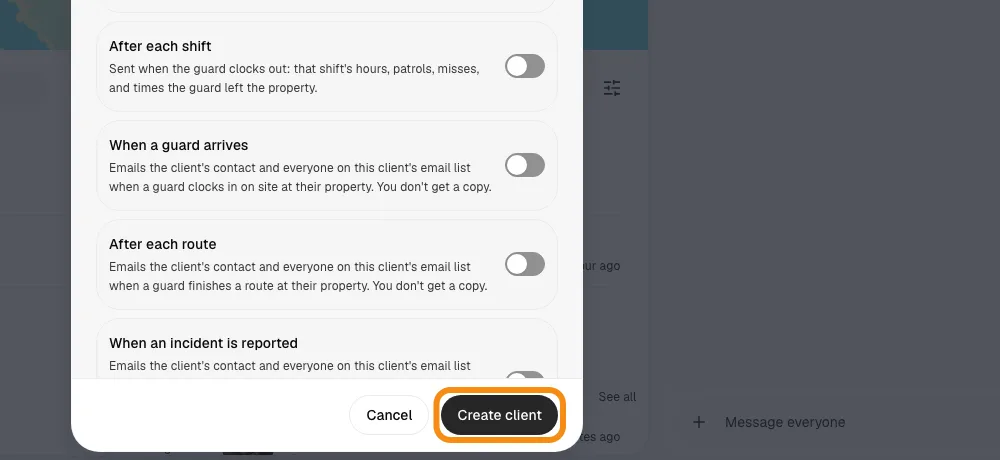
- Click Create client.
Step 2Tie each site to the client
- A report only covers the sites tied to that client.
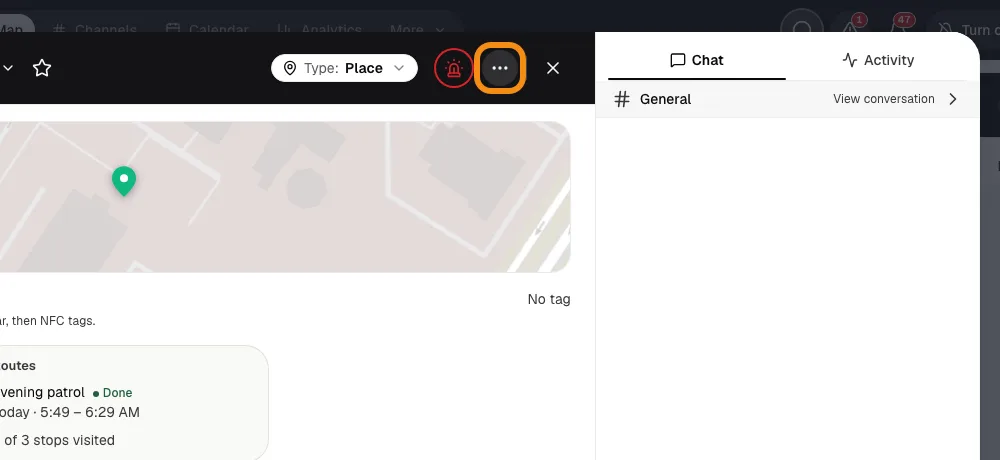
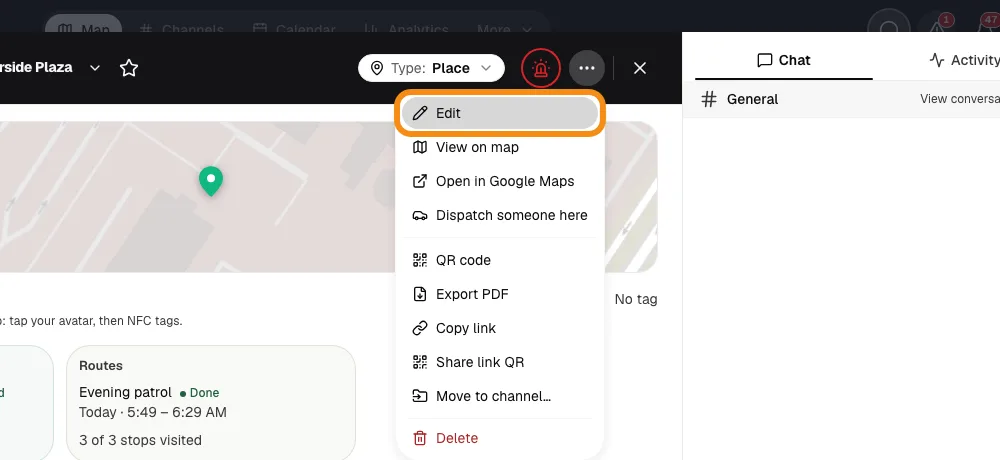
- Open the site and click Edit from its menu.
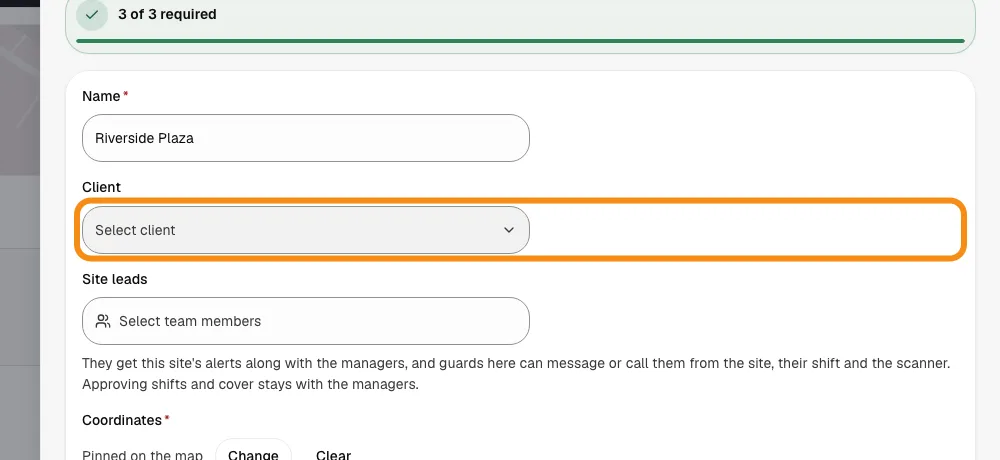
- Under Client, pick the client. Click Save changes. Do this for each of the client's sites.
Choose what they get
Step 3Open the client and click Edit
- In the bar on the left, click Clients, then the client.
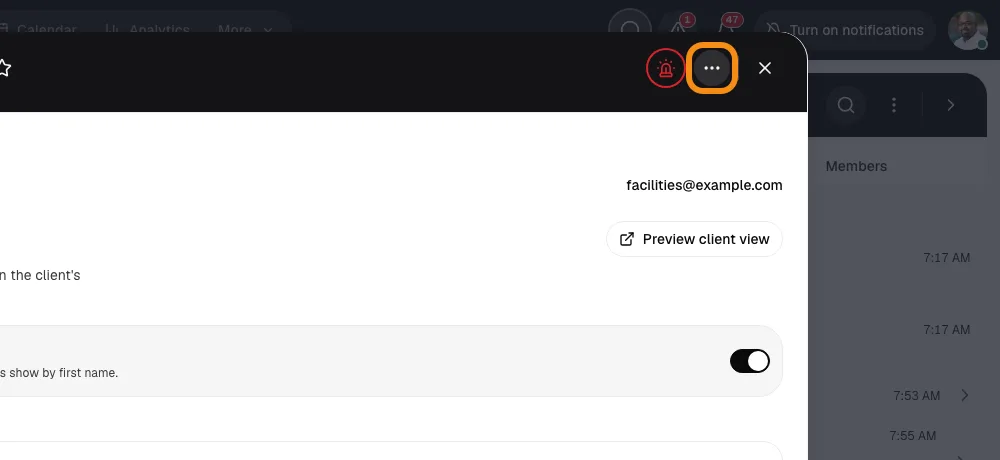
- Click the menu at the top, then Edit. The report switches are on the Details tab.
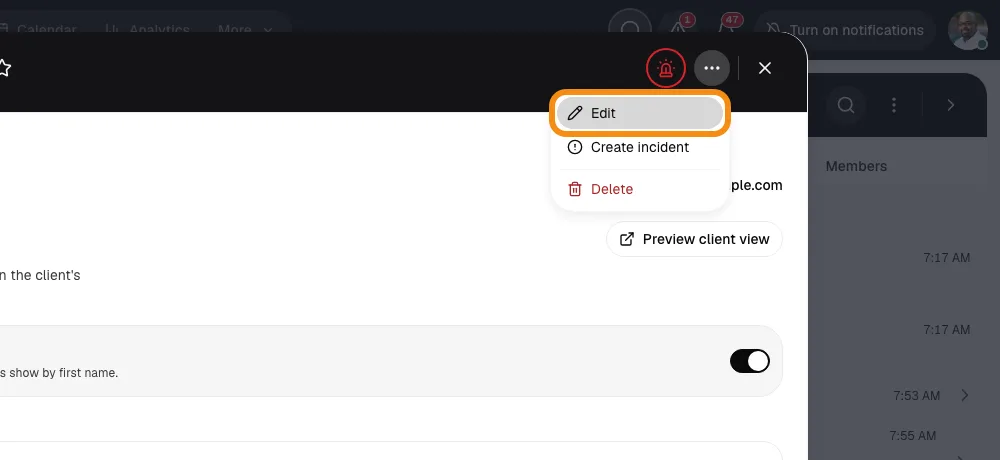
Step 4Turn on the emails you want
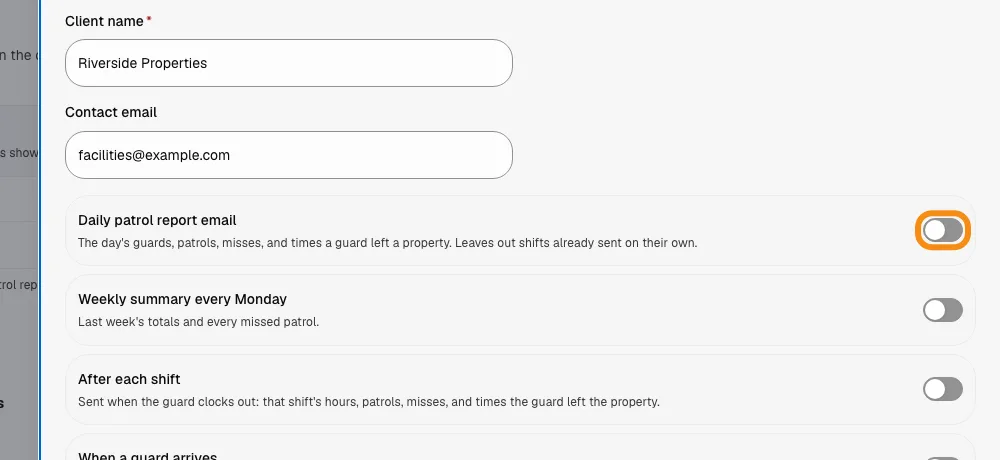
- Each switch is one kind of email. All of them start off.
- Turn on as many as you like. Most clients want the daily report or the one after each shift.
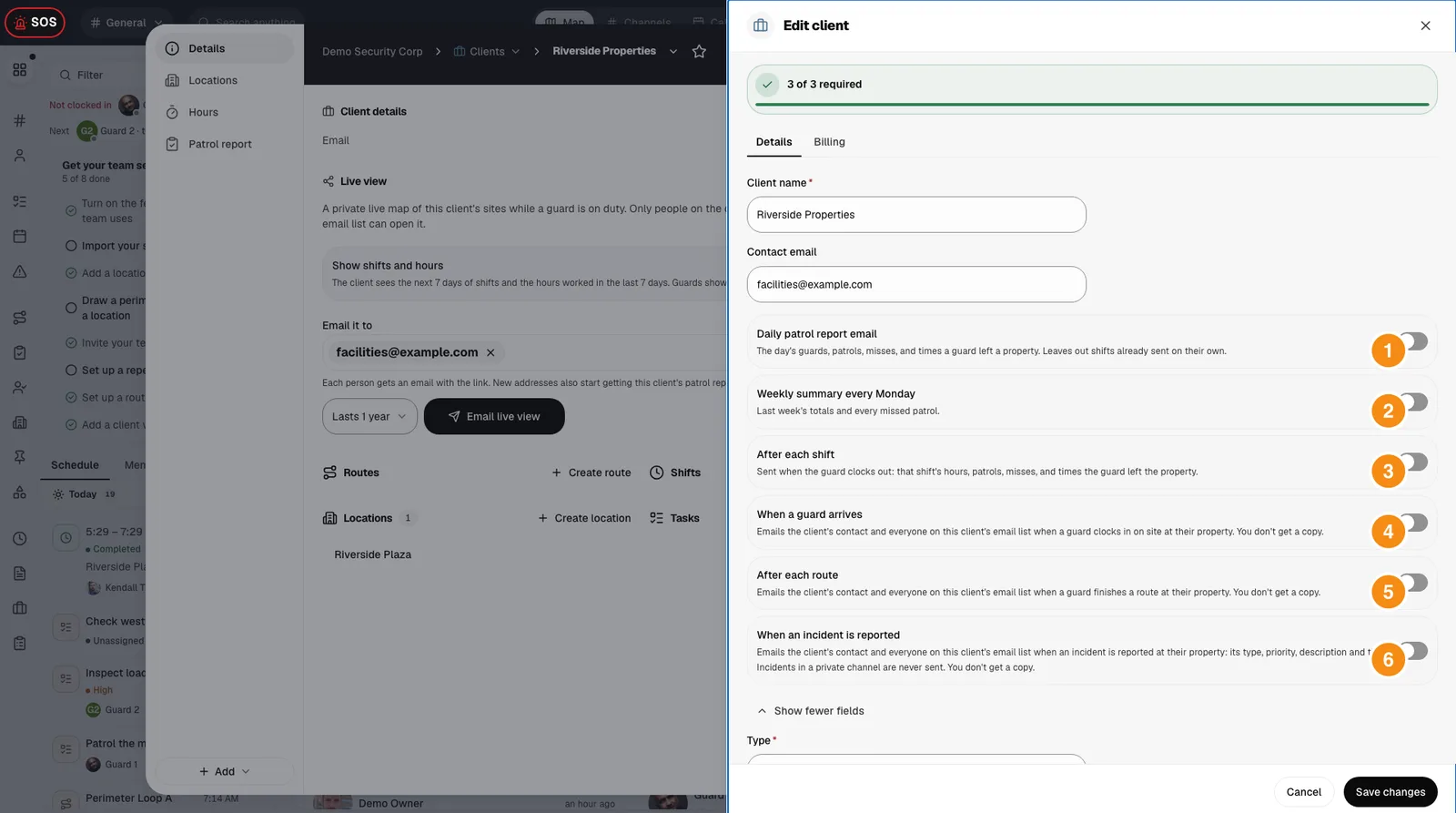
- 1Daily patrol report email: One email a day, with a PDF of the day's photos and records.
- 2Weekly summary every Monday: Every Monday, covering last Monday to Sunday.
- 3After each shift: When the guard clocks out. A later change to the hours sends a corrected report.
- 4When a guard arrives: When a guard clocks in on site.
- 5After each route: When a patrol is finished, with a photo link if the guard took an end photo.
- 6When an incident is reported: When an incident is reported at one of their sites. Private-channel incidents are never sent.
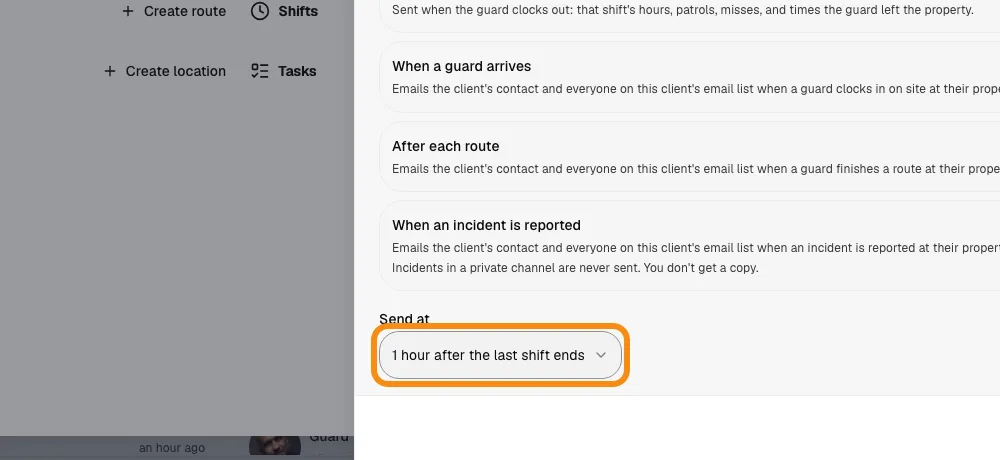
Step 5Pick when it goes out and who gets it
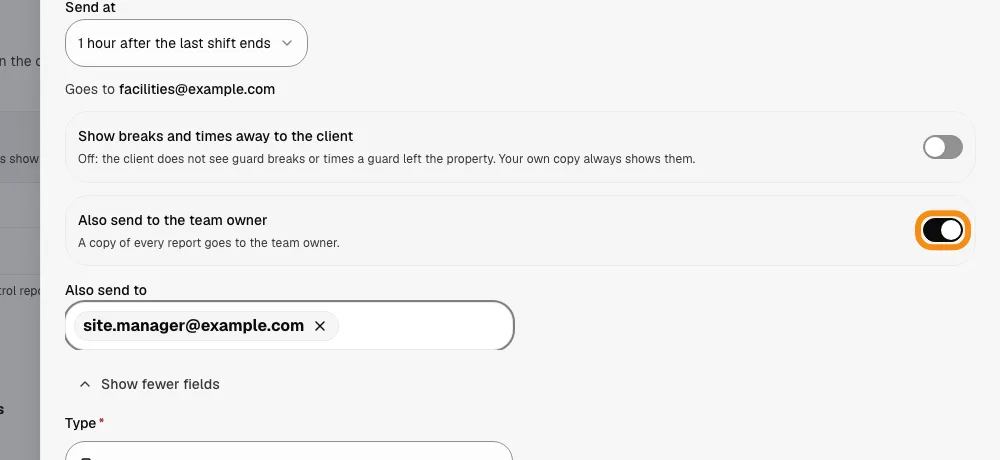
- Send at: 1 hour after the last shift ends, or a set hour. It uses your team's time zone.
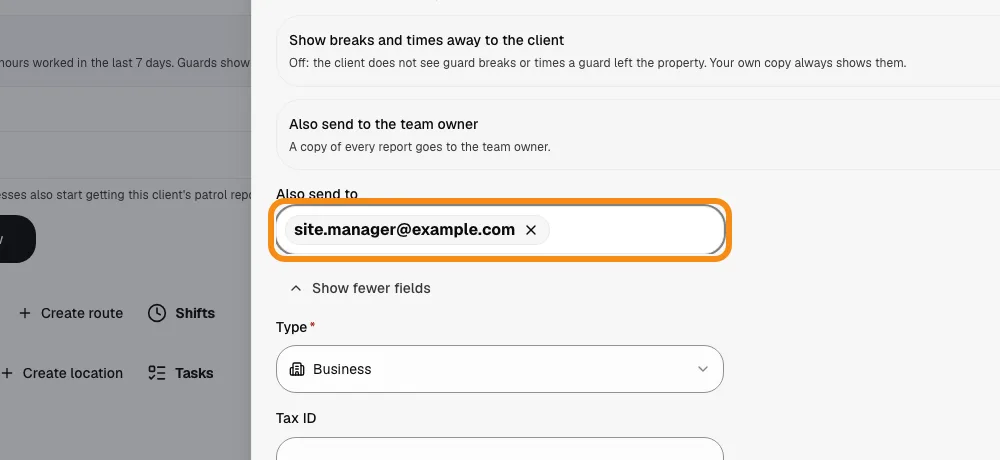
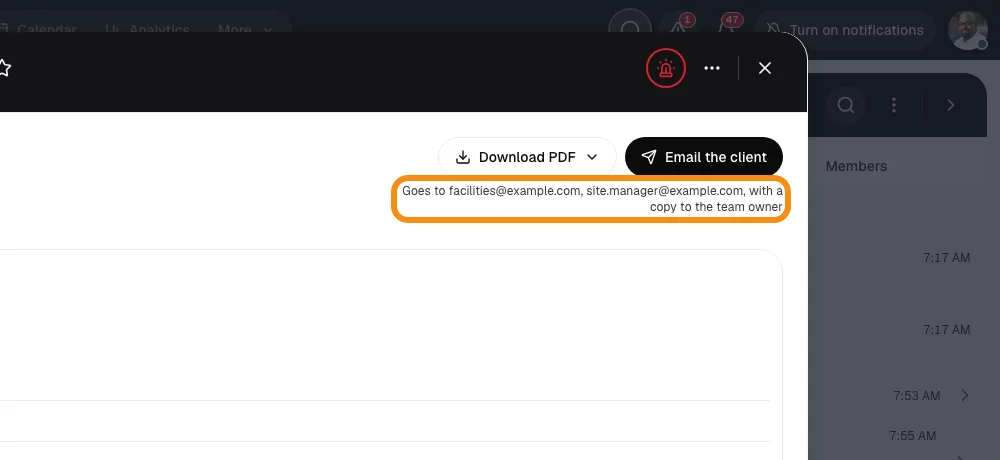
- Goes to shows the Contact email. To add others, type an address under Also send to and press Enter. You can add up to 10.
- A copy goes to the team owner. Turn off Also send to the team owner if you do not want it.
- Show breaks and times away to the client stays off unless you turn it on.
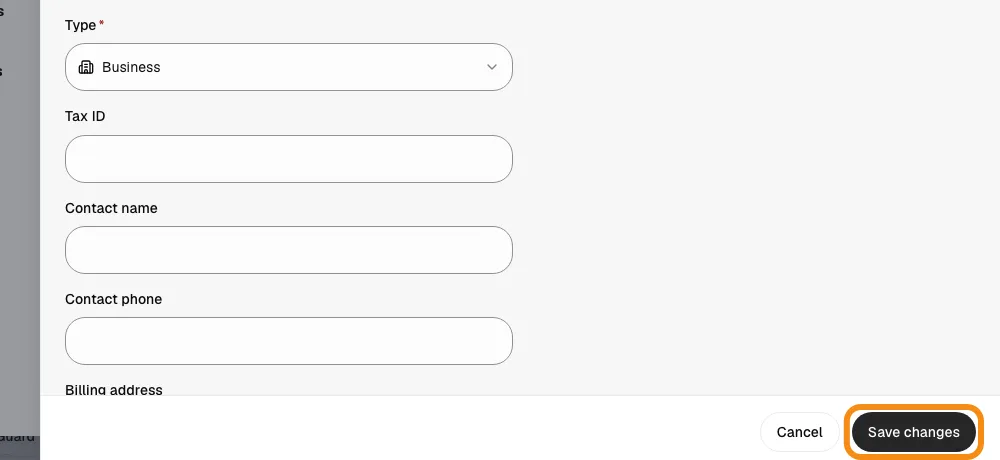
- Click Save changes.
Check it and send one now
Step 6See the report
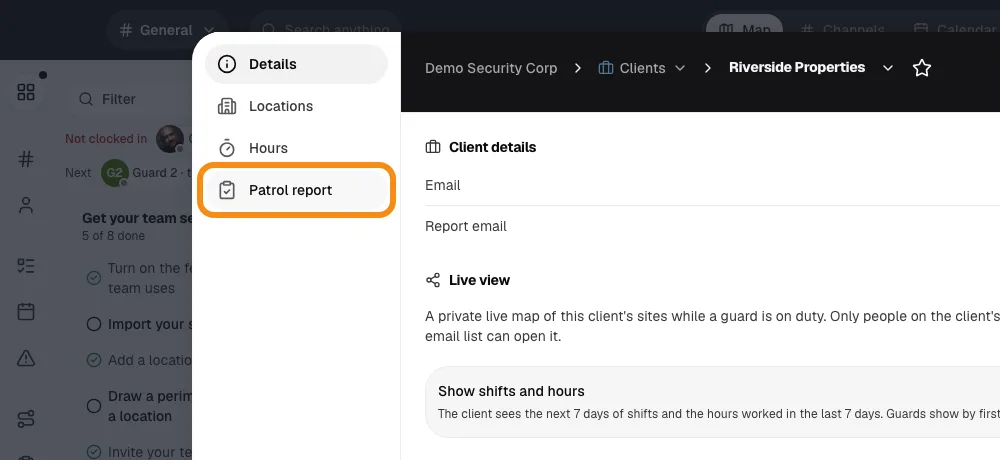
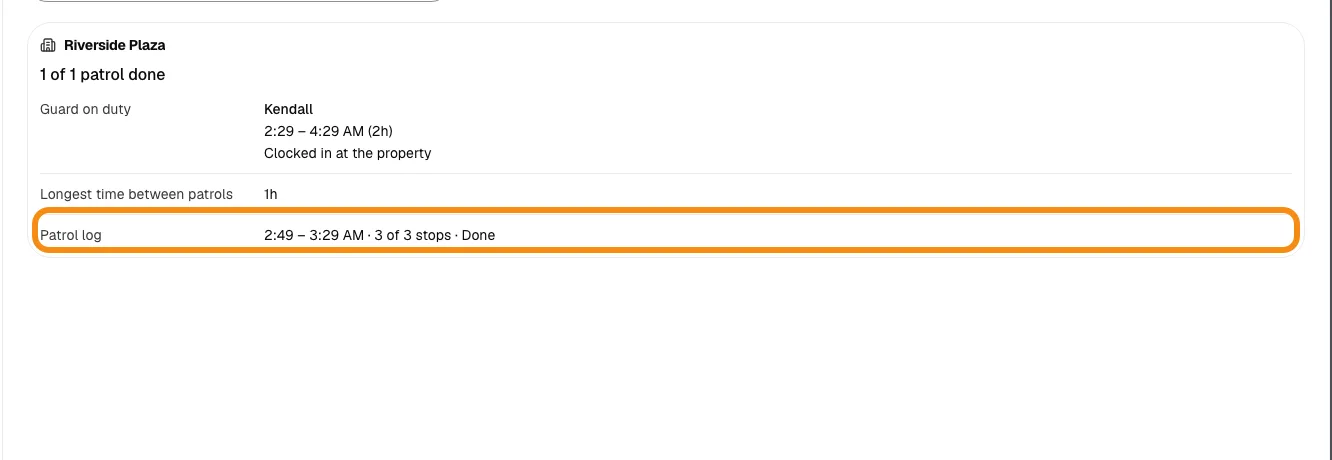
- On the client, click Patrol report.
- Pick Day, Week, Month or your own dates.
- This is what your client gets. The line under the buttons says who it goes to.
Step 7Email one now or download it
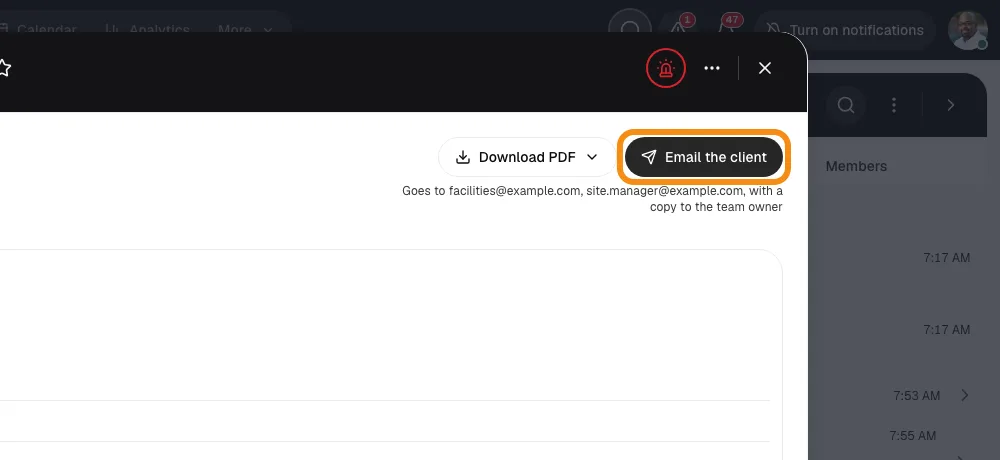
- Click Email the client to send this report right now.
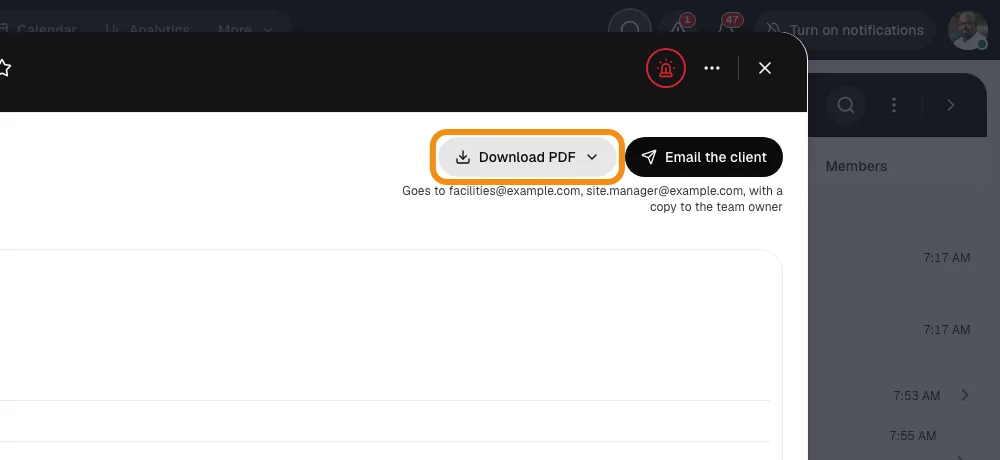
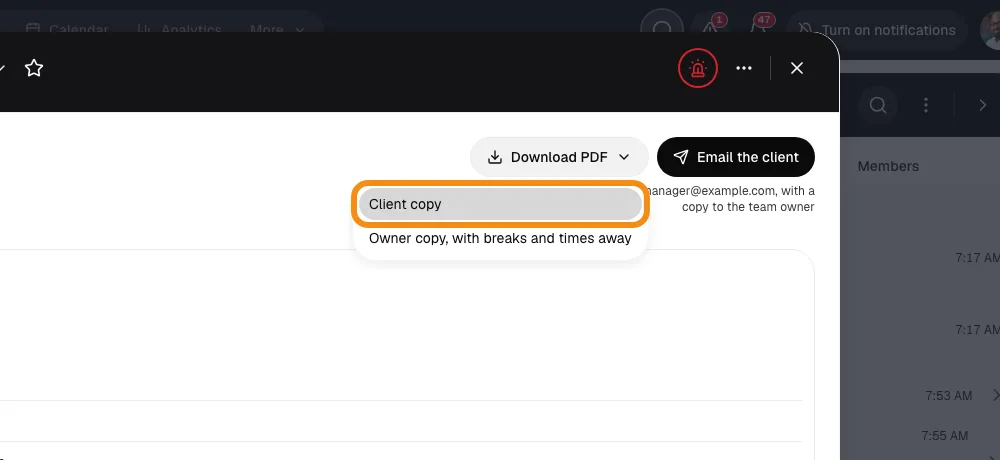
- Click Download PDF and pick Client copy to send it yourself.
- The Owner copy also shows breaks and times away. It is marked as not for the client.
When each email goes out
- Daily
- At the hour you pick (it covers the day before), or 1 hour after the last shift ends. It comes with a PDF.
- Weekly
- Mondays, covering last Monday to Sunday. At the hour you pick, or early Monday if you chose 1 hour after the last shift ends.
- After each shift
- When the guard clocks out. If a clock-out photo is still uploading, it waits up to 15 minutes.
- Arrival, patrol, incident
- Right away. These go to your client only; you do not get a copy.
Good to know
- Reading the email
- Reports come by email, no login needed. To see photos from the email link, your client signs in with that same email address.
- Live view
- Clients can also see a live map of their sites. Share it from the Live view card on the client. See the Your clients' live view guide.
- Your team's words
- Your team can rename things, so your screens may say Patrols for Routes, or Site or Property for Location.
If something looks wrong
- The report came to me, not the client
- The client has no email yet, or everyone on the list unsubscribed. Add their email under Edit.
- No report came
- Check the site is tied to the client and a guard worked there that day.
- Your client wants to stop
- Every report email has an unsubscribe link. It stops reports from your team only.