All guides
Get each guard's hours for a pay period
Each guard's paid hours for a pay period, in one report. Download it, print it, or send it to your accountant, from the computer or from your phone.
Version 2026-11-18 · TeamMap 3.0.72
Before you start
- An owner or admin login. On a computer, sign in at app.teammap.co. On your phone, use the TeamMap app.
- Your pay rules set once: pay period, rounding and unpaid break (see the guide Set up payroll and invite your accountant).
- Guards clock in and out in the TeamMap app. Those times are the hours on the report.
On the computer
Step 1Open Hours
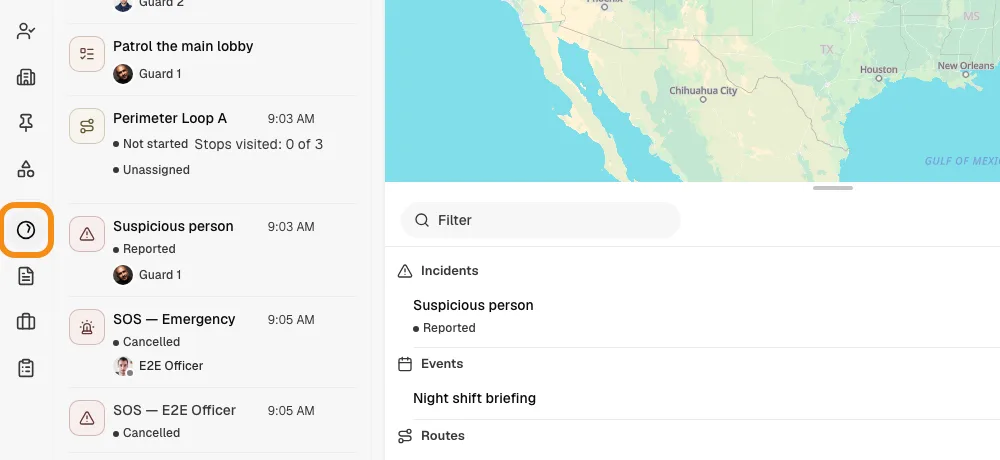
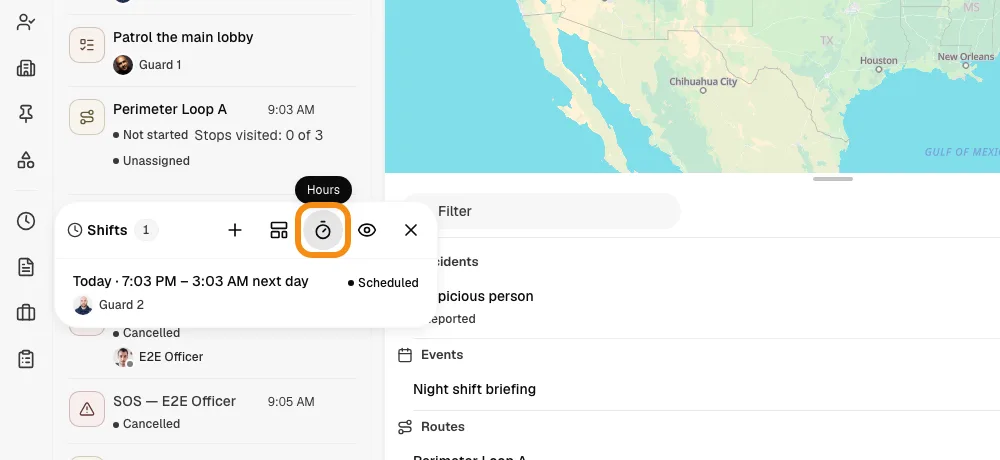
- In the bar on the left, click Shifts, then Hours.
Step 2Pick the pay period
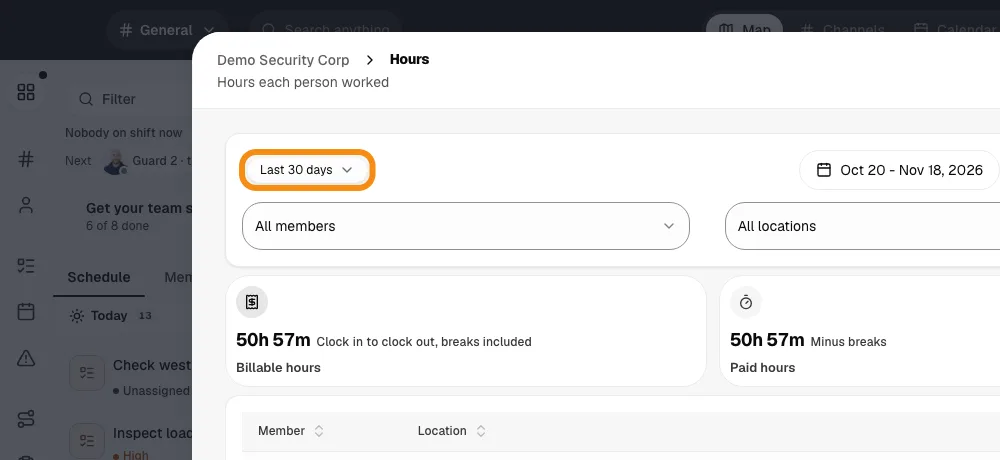
- Click the dates at the top.
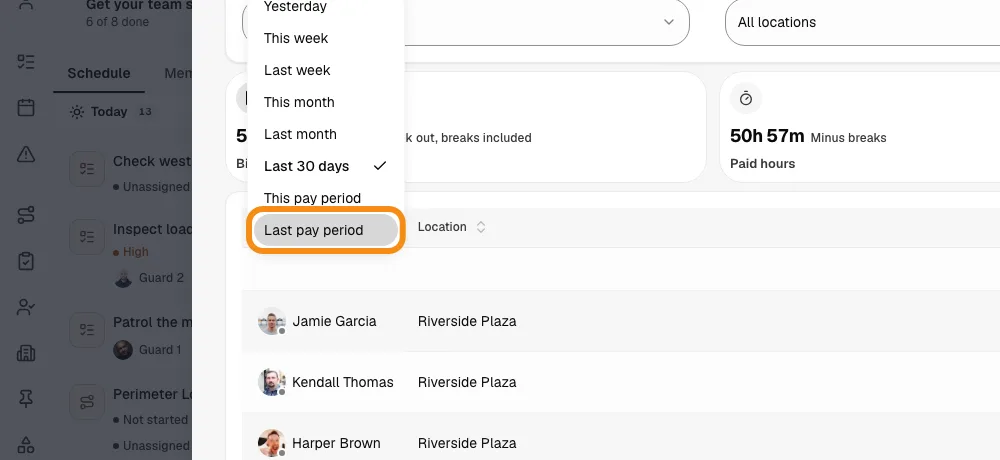
- Pick Last pay period for the one that just ended, or This pay period for the one going on now. You can also pick your own dates.
Step 3See each guard's hours
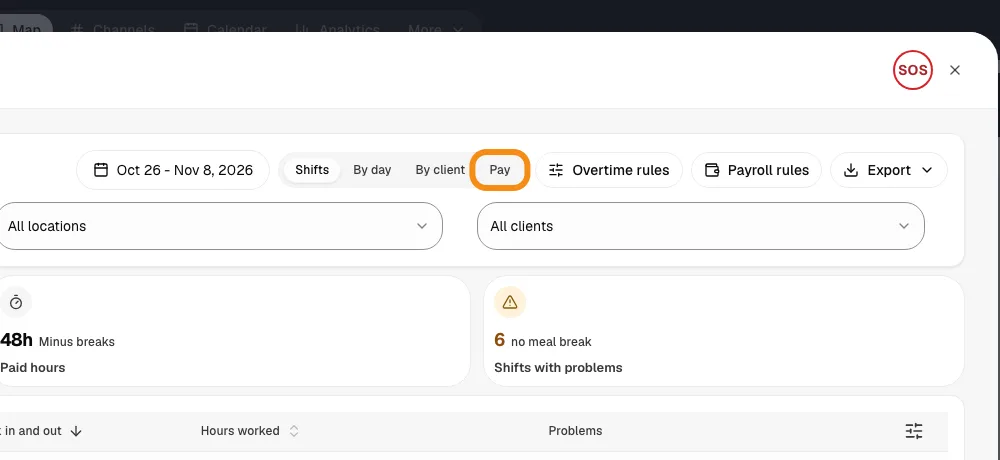
- Click Pay at the top.
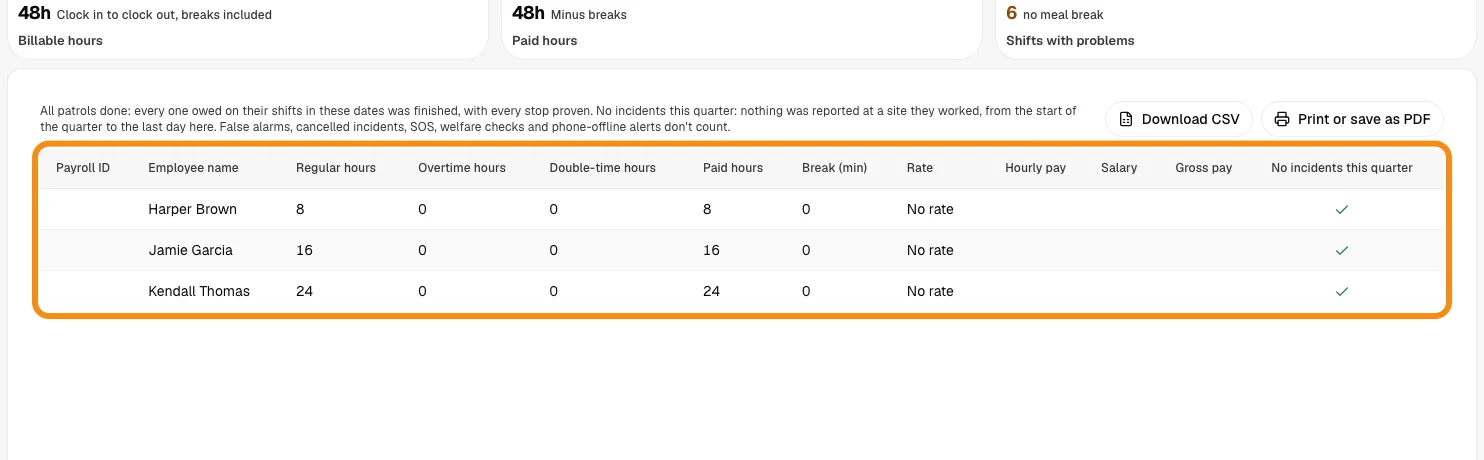
- Each row is a guard: paid hours, overtime, rate and gross pay for the period, after your pay rules.
Step 4Download it or send it
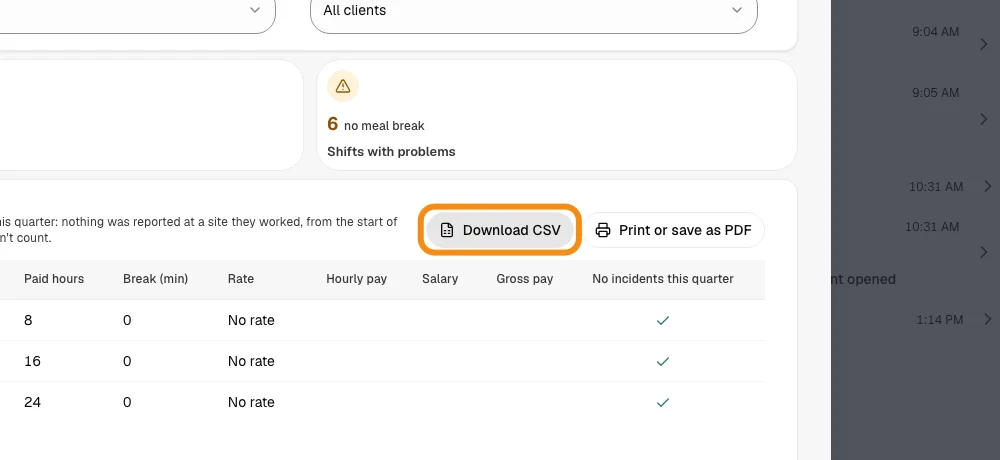
- Click Download CSV to get a file that opens in Excel or Google Sheets.
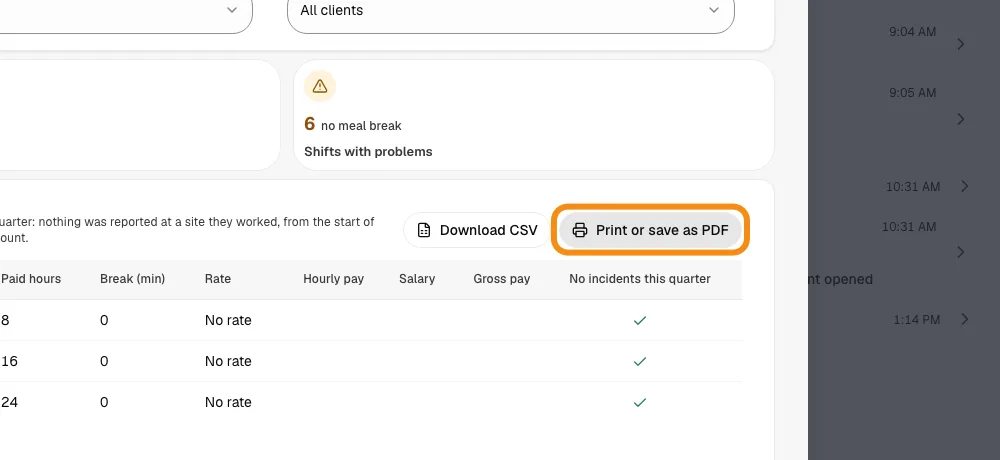
- Or click Print or save as PDF. In the print window, pick Save as PDF to keep a copy, or your printer to print it.
- To send it, attach the file to an email to your accountant. Or give your accountant their own login so they get it themselves (see the payroll guide).
On your phone
Step 5Open Team hours
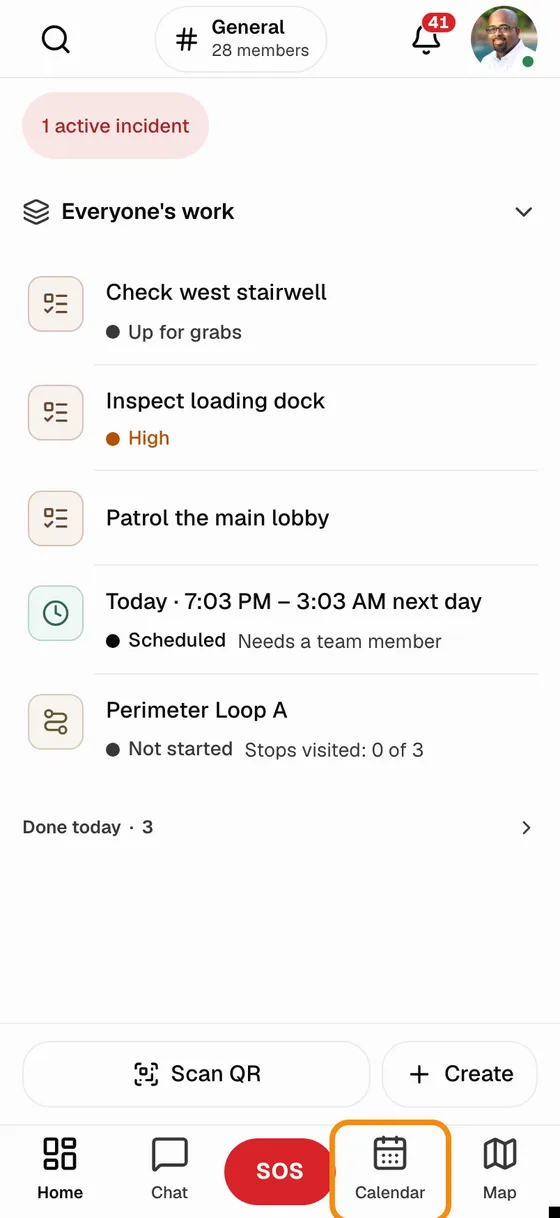
- In the TeamMap app, tap Calendar at the bottom.
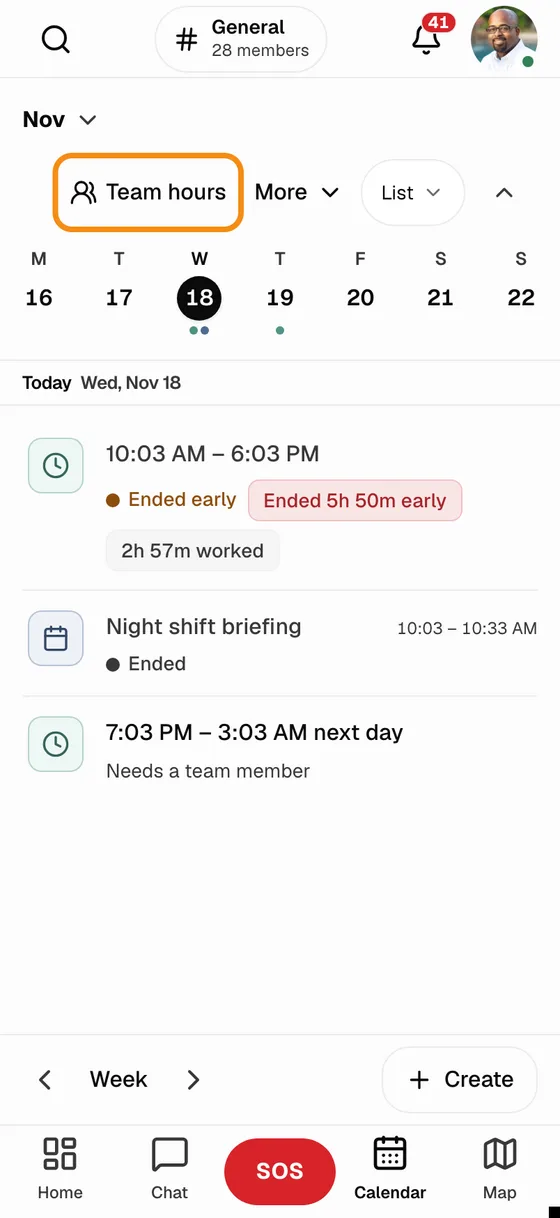
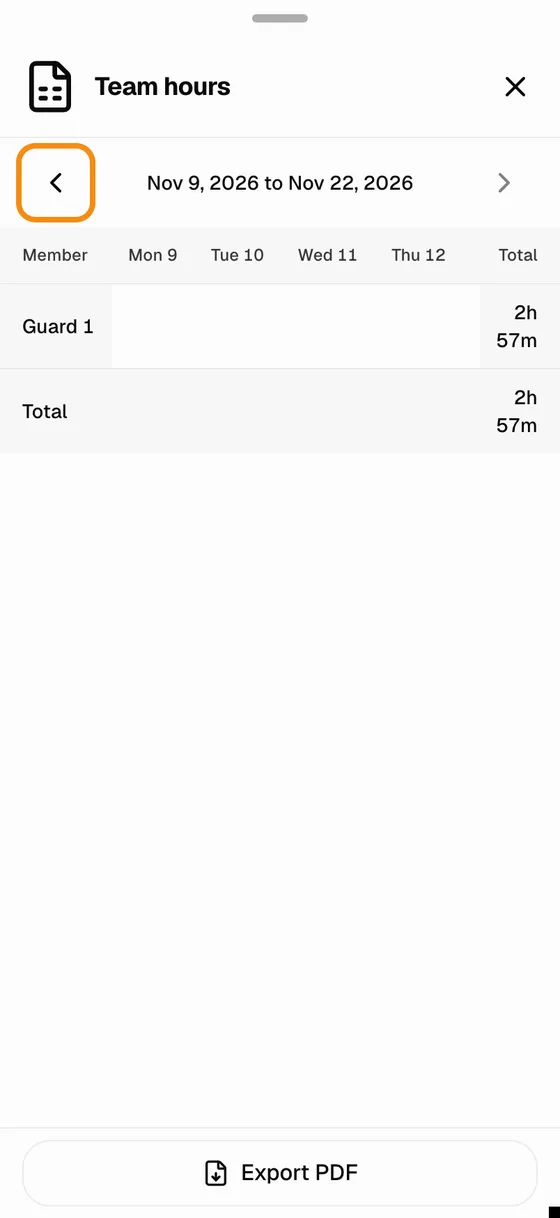
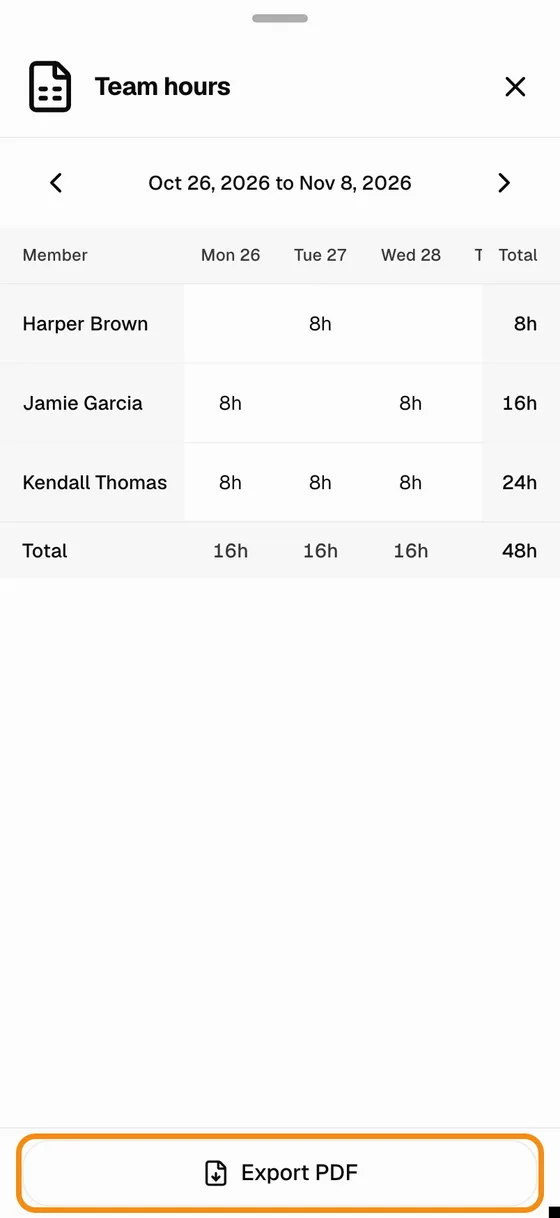
- Tap Team hours at the top. It opens on this pay period, with a row for each guard and their total at the end.
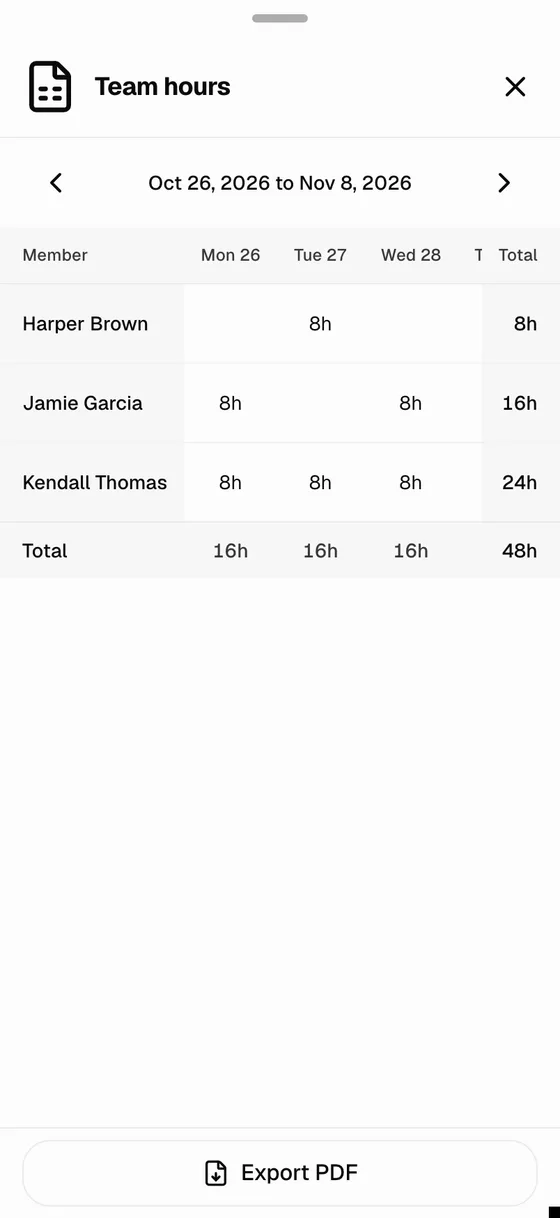
- Tap the left arrow to go back to the last pay period.
Step 6Save or send the report from your phone
- Tap Export PDF at the bottom.
- Your phone asks where it goes. To keep it, tap Save to Files (iPhone) or save it to Drive or Downloads (Android). To send it, tap Mail, Gmail or Messages and pick who gets it.
- The PDF starts with each guard's total for the pay period, then lists every shift.
Good to know
- Paid hours
- The report follows your pay rules: rounding, the unpaid break and overtime. So a guard's paid hours can be a little lower than the clock times on screen.
- Which day
- A shift counts on the day the guard clocked in, so a night shift counts in the pay period it started in.
- Who can get it
- Owners and admins. Your accountant can too, with their own Payroll report login, at no charge.
- By email, every pay period
- Pick who gets the pay report by email in Hours > Payroll rules > Send the pay report to. It arrives the morning after each pay period ends.
If something looks wrong
- A guard is missing
- They have no finished shift in this pay period. A guard who is still clocked in shows once they clock out.
- Hours look short
- If your team approves hours, only approved shifts count. Approve them in Hours first.
- Team hours on your phone shows weeks, not pay periods
- Close the TeamMap app all the way and open it again so it picks up the latest version. Still weeks? Contact us and we will turn on Team hours by pay period for your team.
- No Export PDF on your phone
- It shows once someone in the pay period has clocked out. Pick another pay period with the arrows.