All guides
Set up payroll and invite your accountant
TeamMap turns your guards' clock-ins into a pay report: hours, overtime and pay for each guard. Set your pay rules once, then invite your accountant. They get their own login and the report by email, at no charge.
Version 2026-11-09 · TeamMap 3.0.55
Before you start
- An owner or admin login. Sign in at app.teammap.co on a computer.
- Your guards clock in and out in the TeamMap app. Those times are the hours on the report.
- Your accountant's email address.
- Shifts turned on for your team (Team settings > Features).
Set up payroll
Step 1Turn on pay rates
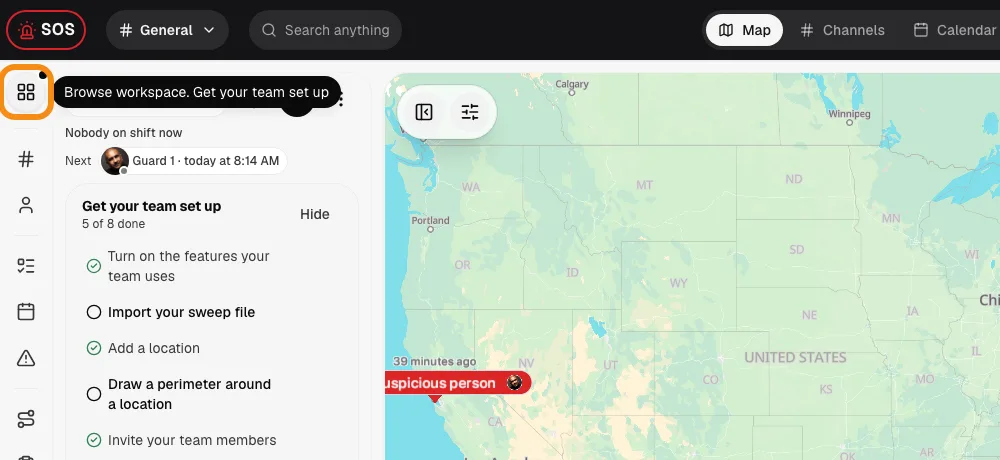
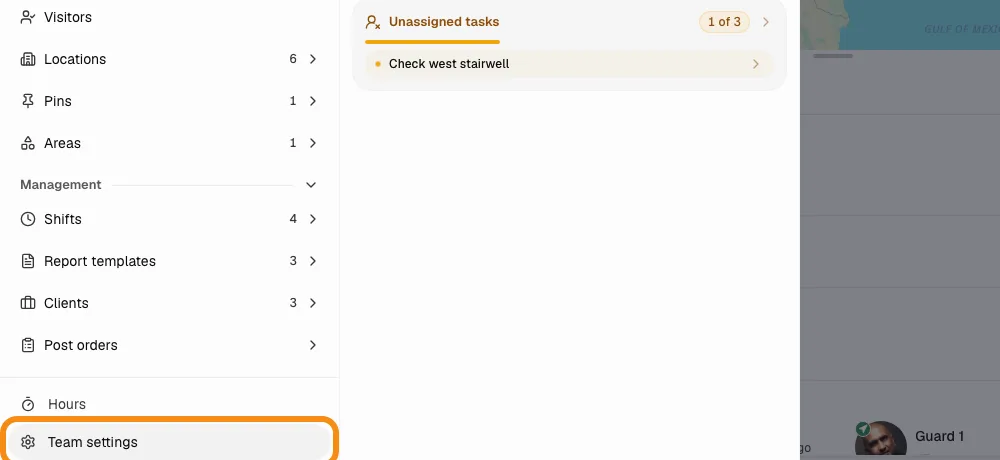
- Click the grid button at the top left, then Team settings.
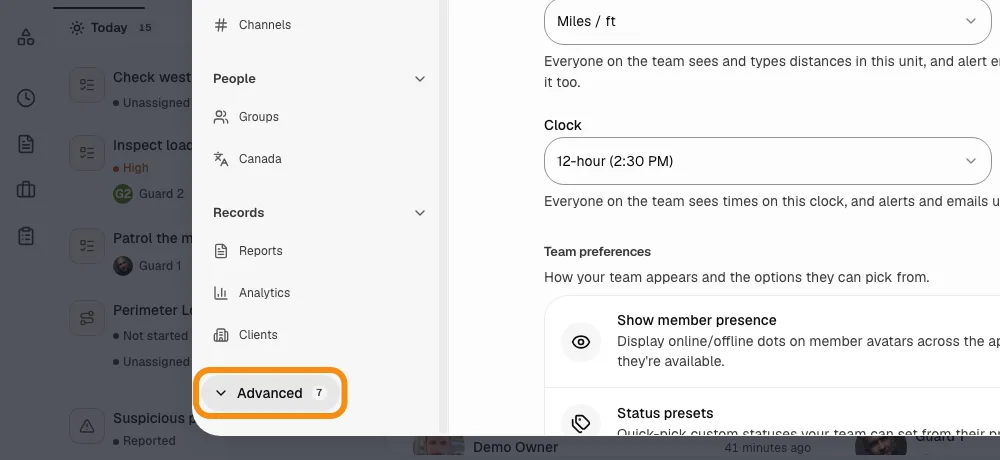
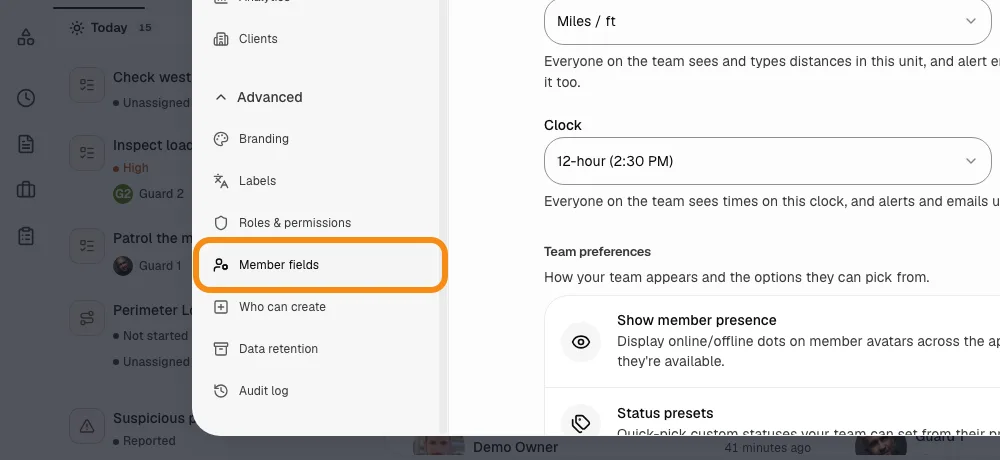
- Open Advanced and click Member fields.
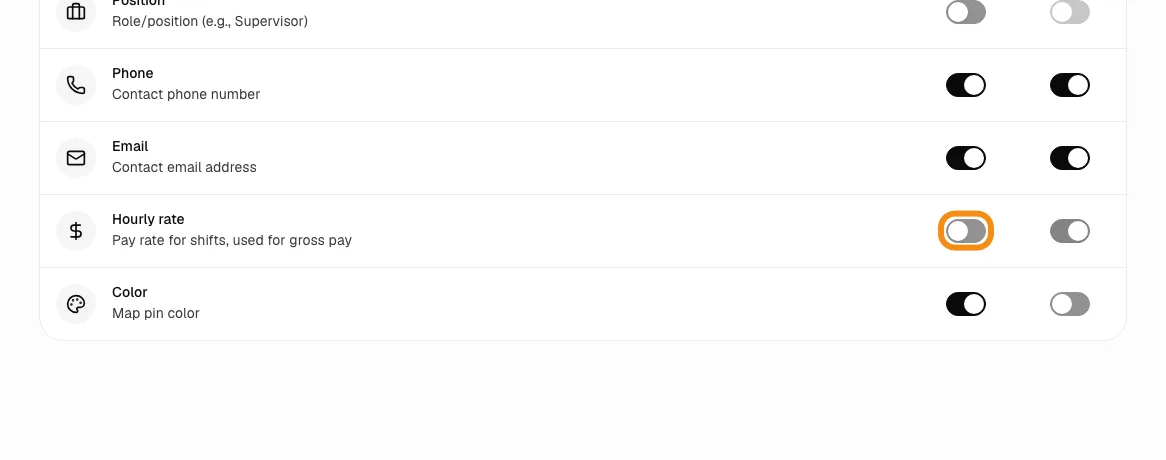
- Turn on Hourly rate. It stays admin only, so guards cannot see each other's pay.
Step 2Put in each guard's pay
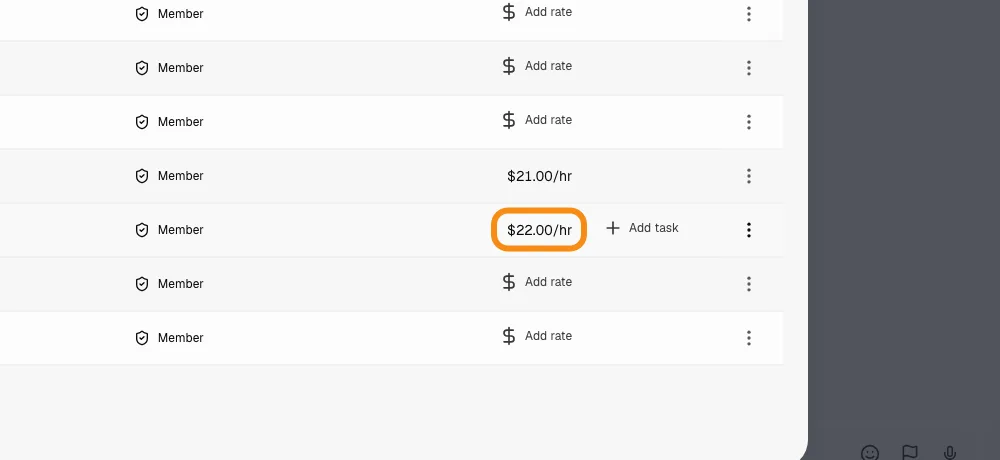
- Open Team. The Hourly rate column is now there.
- Click a guard's rate and type it in.
- To add a Payroll ID (your payroll may need it), a different rate at one site, or a set salary, open the guard and click Edit.
Step 3Set your pay rules once
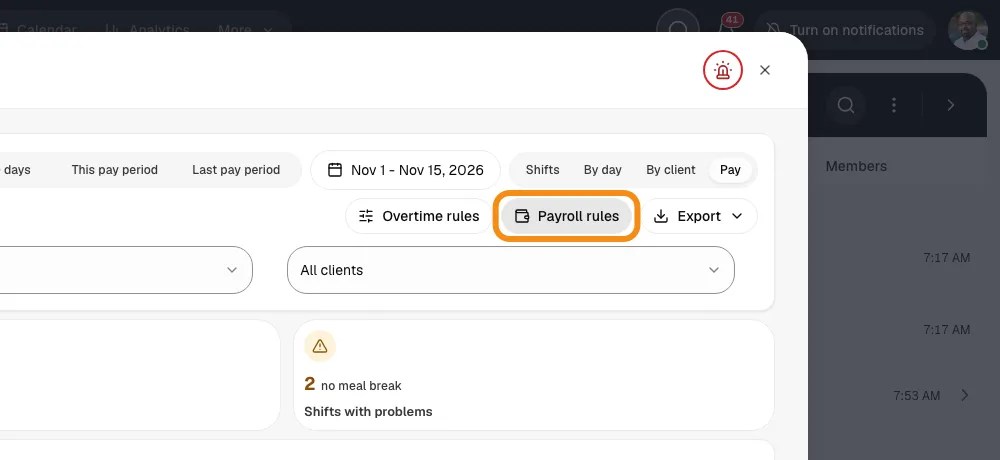
- Click the grid button at the top left, then Hours. Click Payroll rules.
- Pick your pay period, how to round clock times, and any unpaid break.
- Pay from: clocked times, planned times, or clocked times that never go outside the plan.
- Payroll provider: Spreadsheet (CSV), Gusto or ADP RUN. Click Save.
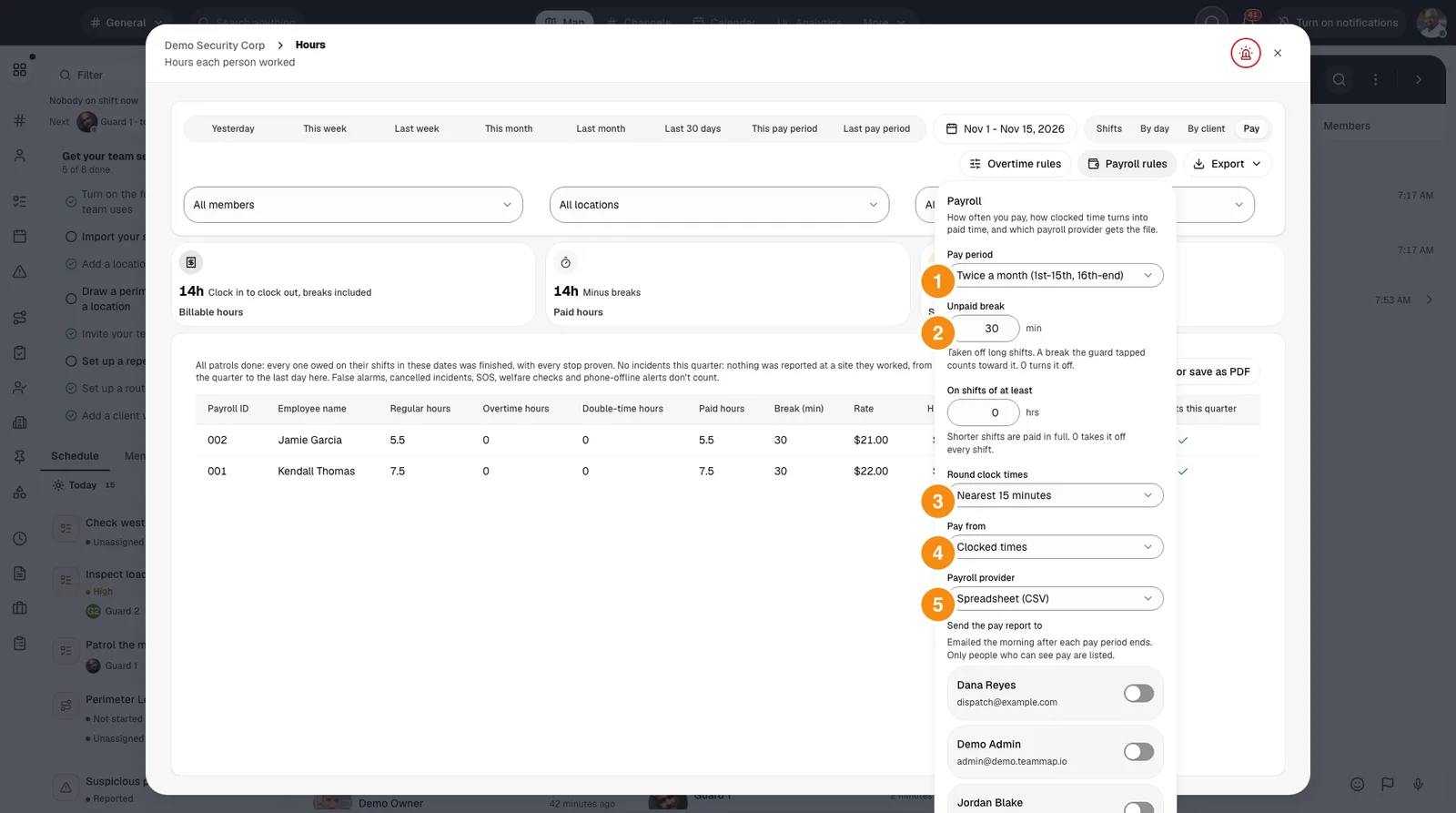
- 1Pay period: Weekly, every 2 weeks, twice a month (1st-15th and 16th-end) or monthly.
- 2Unpaid break: Minutes taken off each shift, and on shifts of how many hours or more.
- 3Round clock times: Off, or to the nearest 5, 6 or 15 minutes.
- 4Pay from: Which times get paid: clocked, planned, or clocked but never outside the plan.
- 5Payroll provider: The file your payroll takes: Spreadsheet (CSV), Gusto or ADP RUN.
Step 4Check your overtime rules
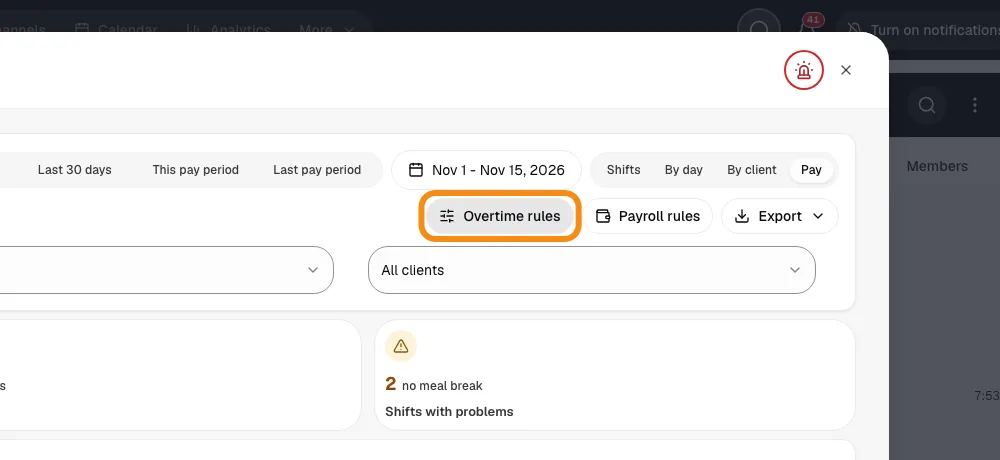
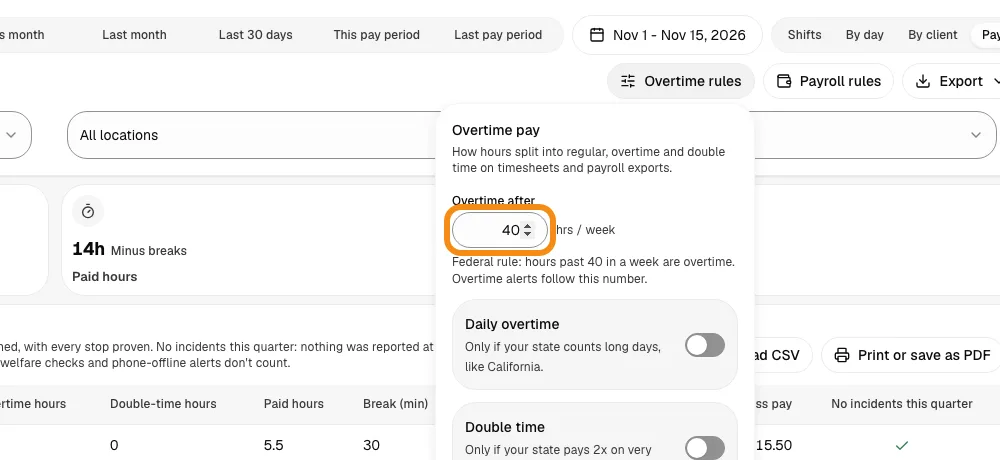
- On Hours, click Overtime rules.
- Set the weekly hours before overtime starts. You can also turn on daily overtime and double time.
- Click Save.
Invite your accountant
Step 5Invite them on the Payroll report role
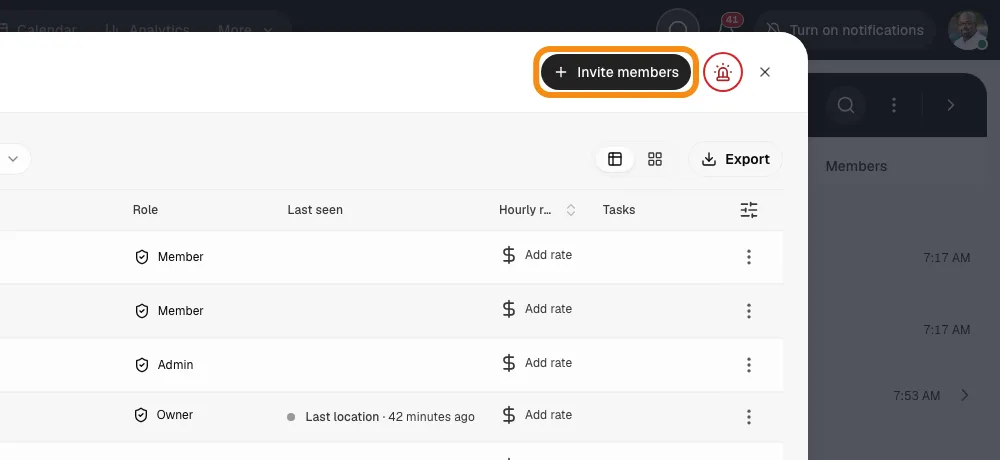
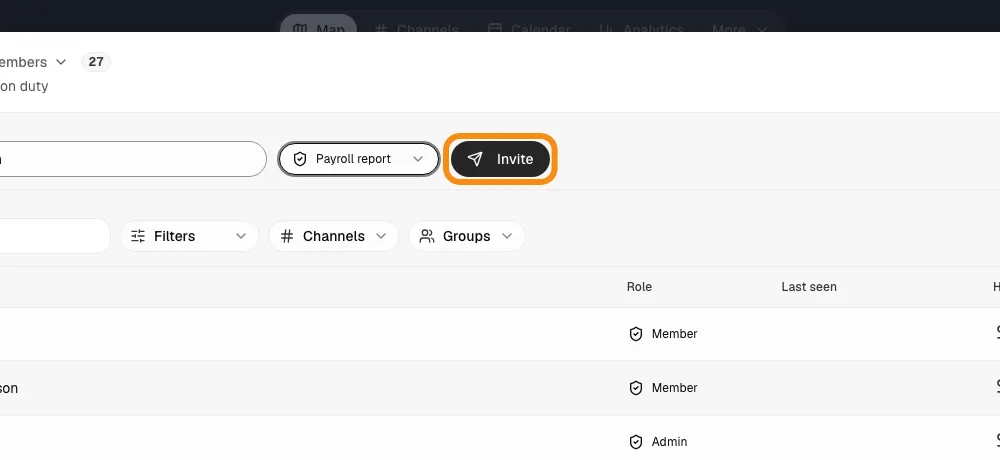
- Open Team and click Invite members.
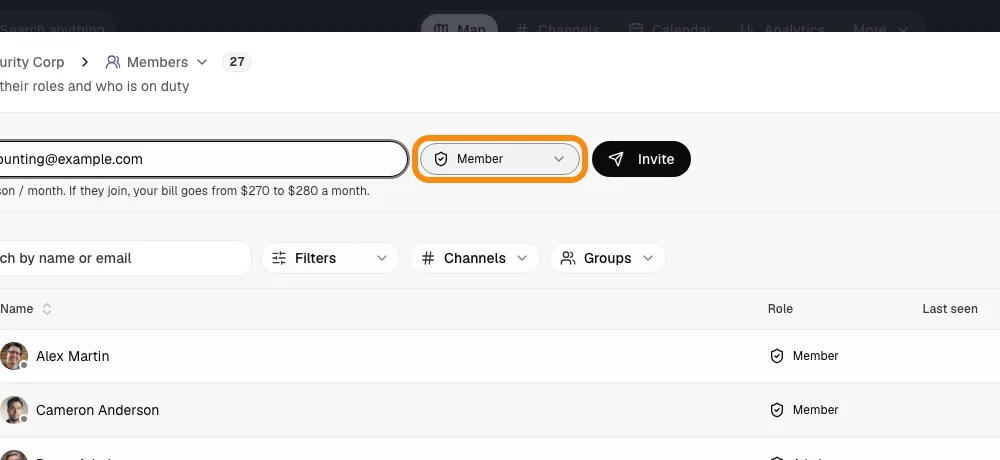
- Type your accountant's email address.
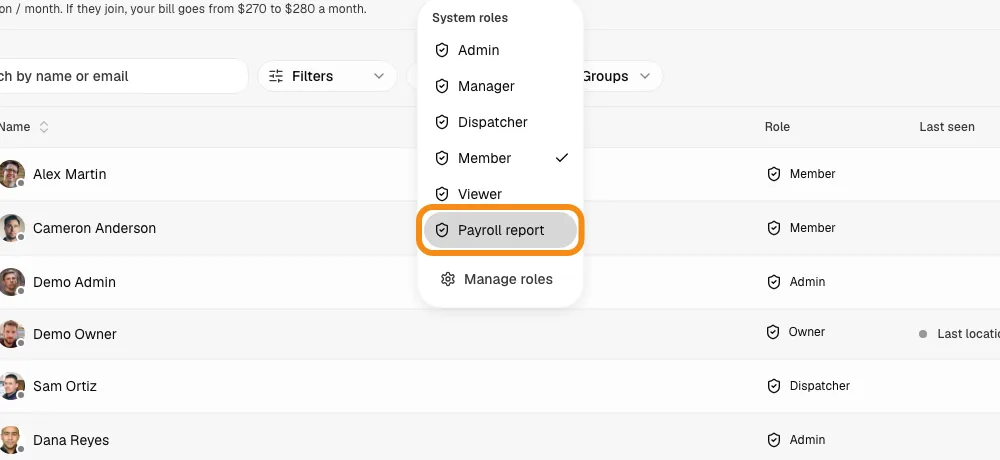
- Change the role to Payroll report. This role uses no paid seat, so we don't charge for your accountant. If a note says your bill will go up, it goes away when you pick this role.
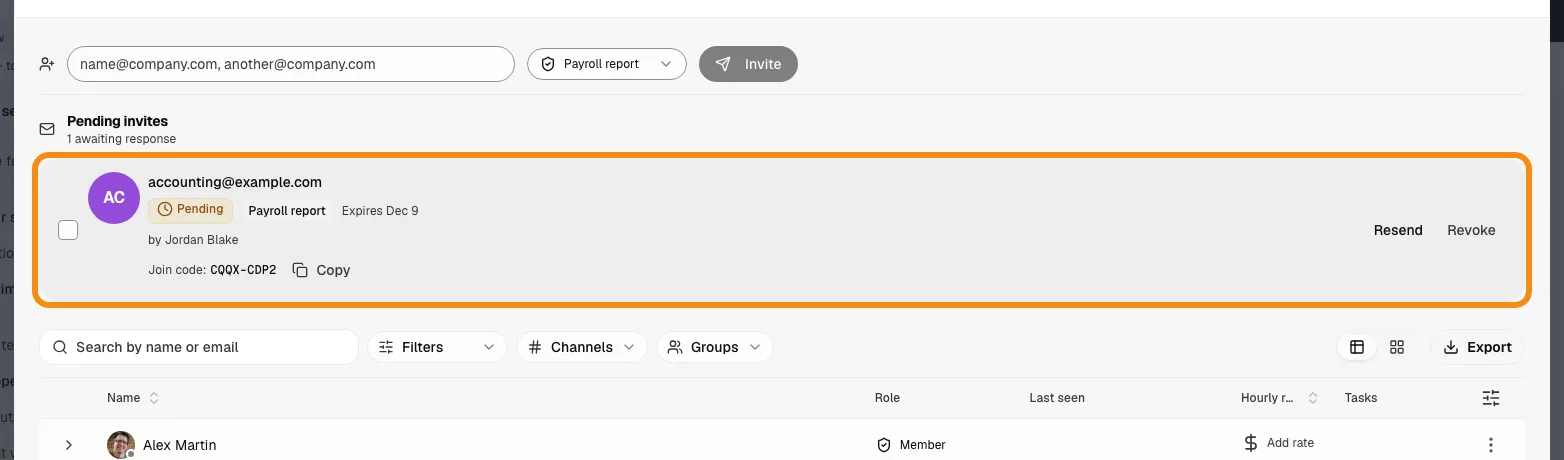
- Click Invite. They show as Pending until they accept. Invites last 30 days.
Step 6Your accountant accepts
- Your accountant gets an email from TeamMap with a Join your team button.
- The email talks about the phone app. Tell them to use a computer instead: go to app.teammap.co and sign in with the invited email.
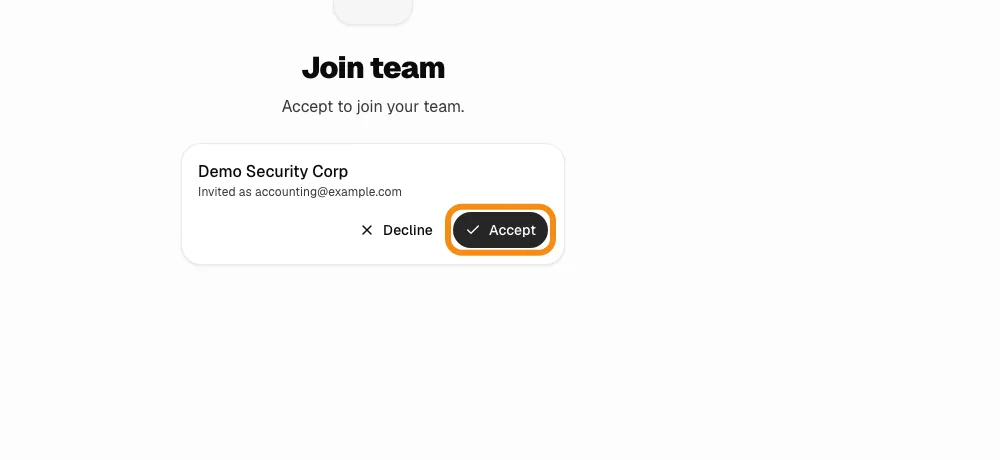
- They click Accept and enter their name.
Step 7They see the pay report and nothing else
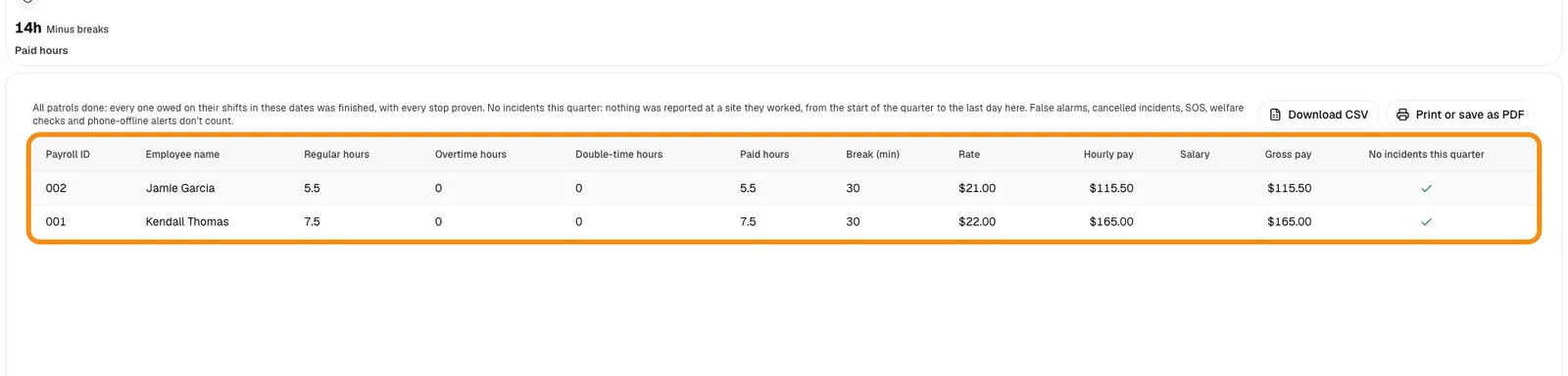
- After signing in on a computer, your accountant lands on the pay report.
- They can change the dates and download the files. They cannot change hours or rules.
- On a phone, they see a note telling them to use a computer.
Step 8Email them the report every pay period
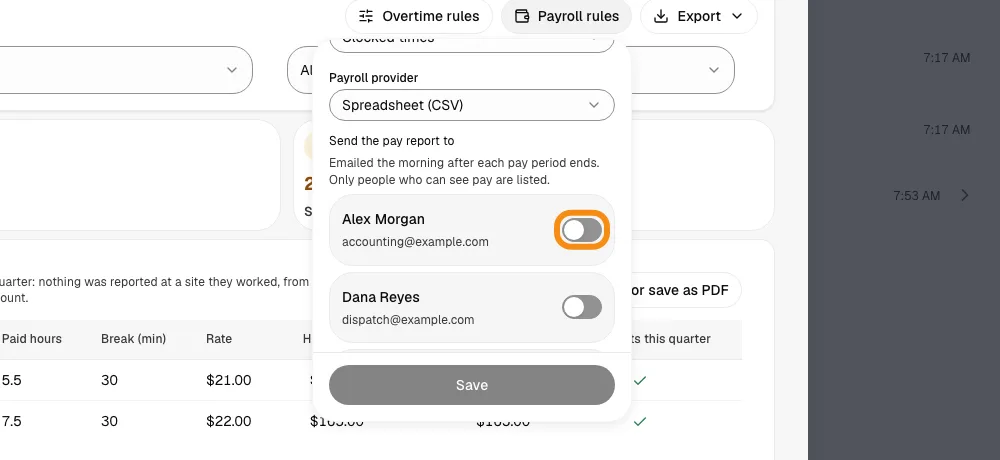
- Once they have accepted, go to Hours and click Payroll rules.
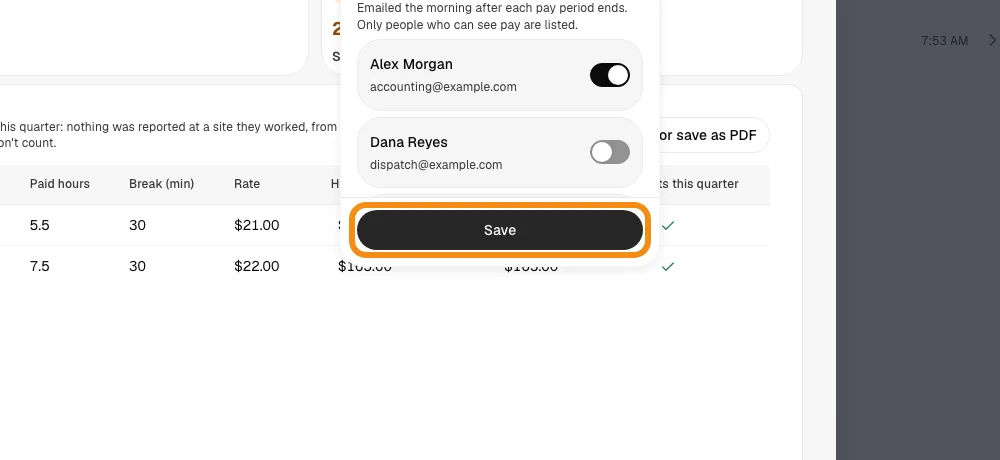
- Under Send the pay report to, turn on your accountant. Only people who can see pay are listed.
- Click Save. The report is emailed around 7 in the morning, your team's time, the day after each pay period ends.
- The email lists each person's paid hours and gross pay, with a button to open the report. The payroll file itself is downloaded from the report.
Each pay period
Step 9Approve the hours, if your team requires it
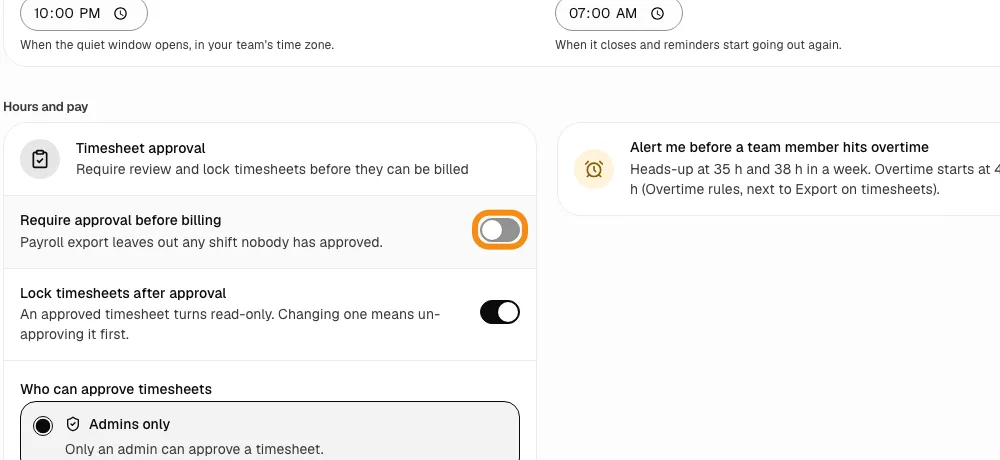
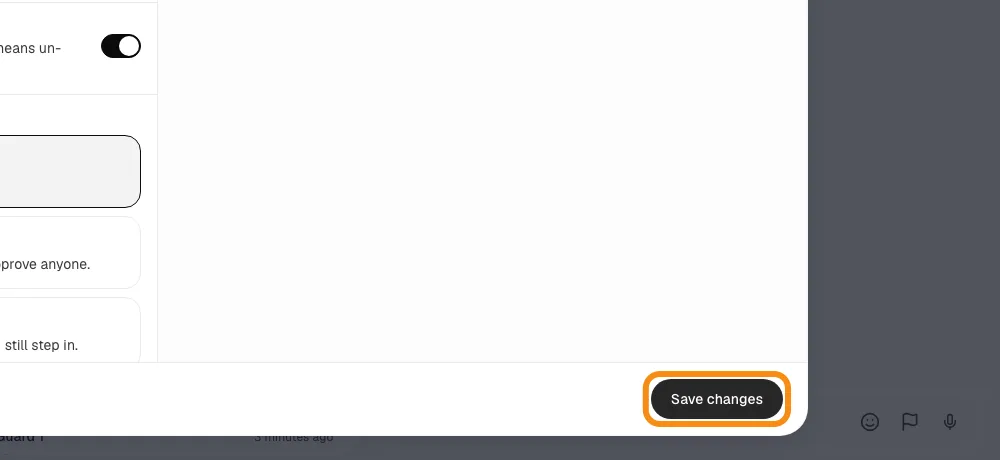
- Approval is off unless you turn it on: Team settings > Shifts > Timesheet approval > Require approval before billing, then Save changes.
- When it is on, only approved shifts count on the pay report and in the files.
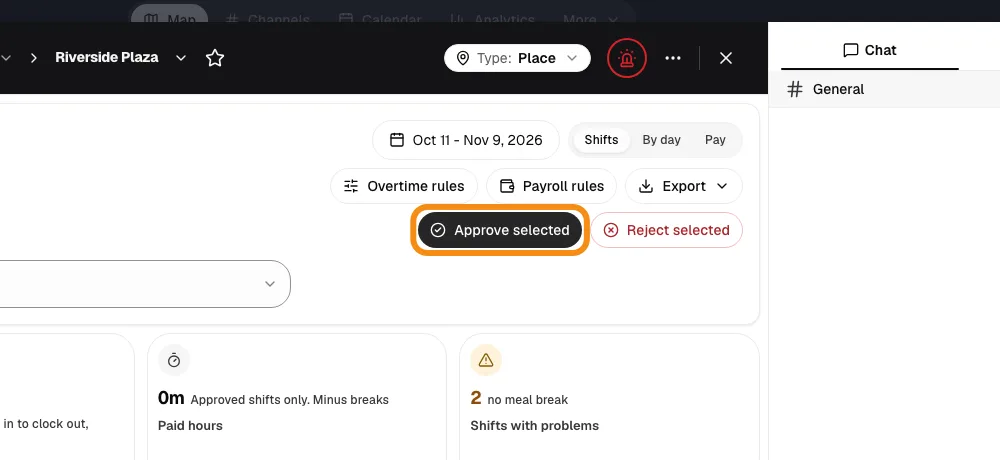
- To approve: open the site's Hours tab (or Hours), tick the shifts you checked and click Approve selected.
Step 10Open the pay report and download it
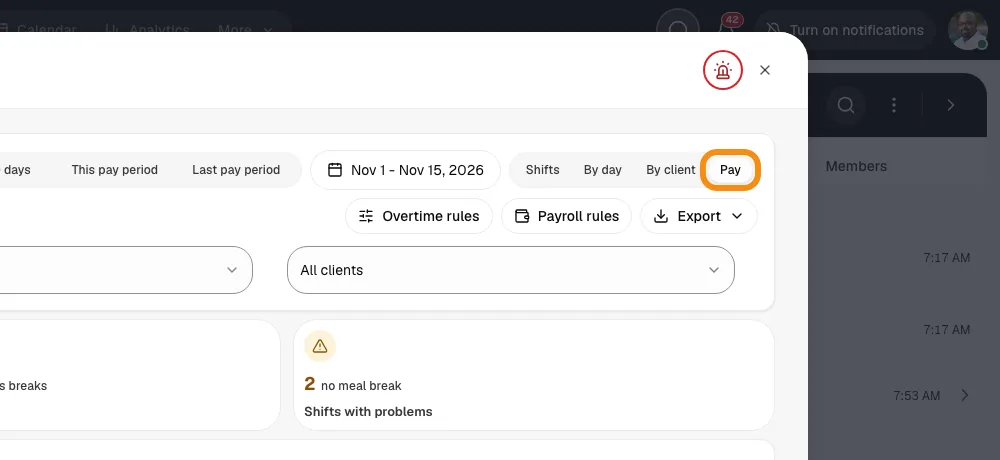
- In Hours, click Pay. Pick This pay period or Last pay period at the top.
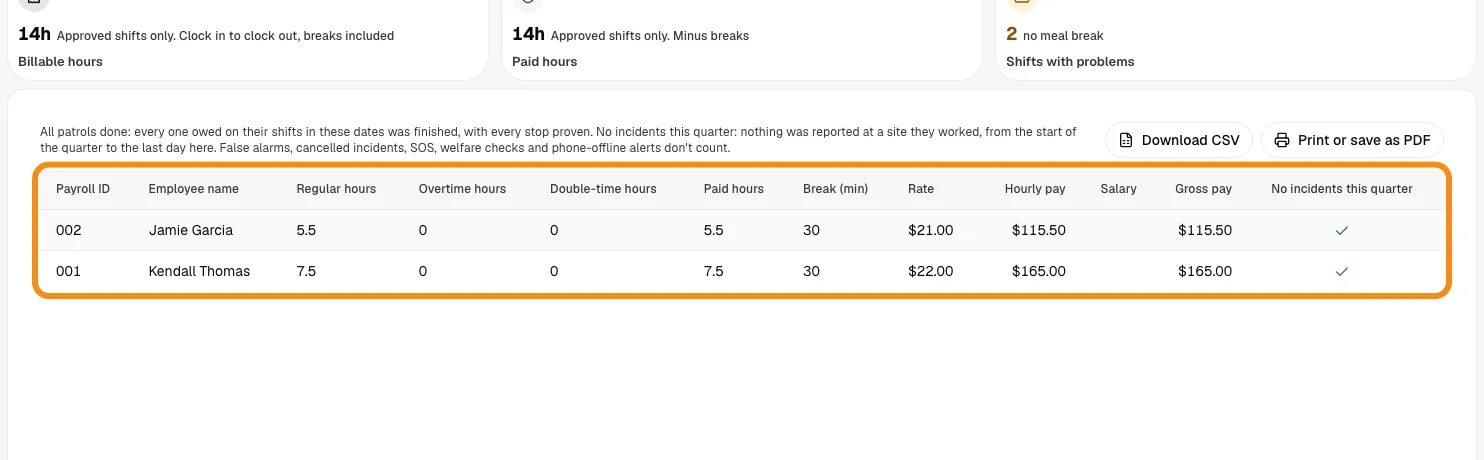
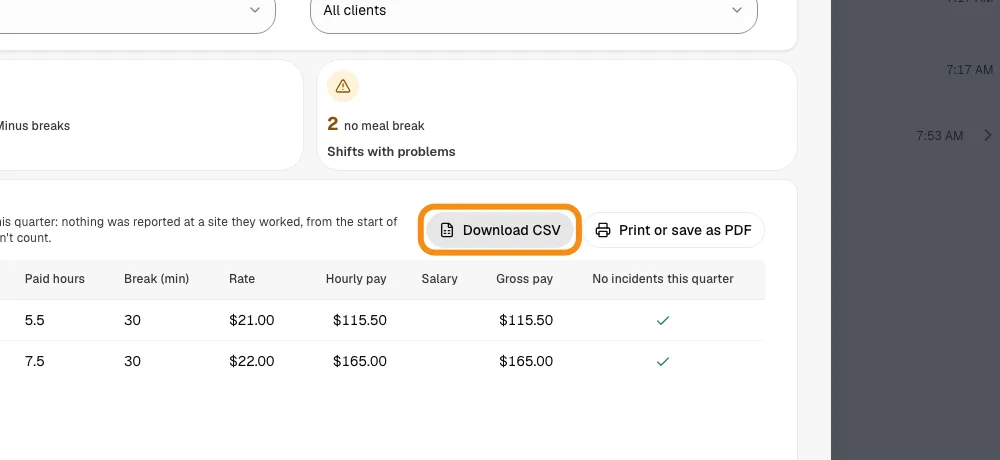
- Each guard: payroll ID, regular hours, overtime, paid hours, break, rate and gross pay, after your rules.
- Click Download CSV or Print or save as PDF. Under Export you also get the file for your payroll provider.
- Your accountant can do all of this from their own login.
Good to know
- No charge for accounting
- The Payroll report role takes no seat on your plan.
- Who sees pay
- The owner, admins and people on the Payroll report role. Managers and dispatchers see hours, not pay.
- Guards
- Each guard sees only their own hours in the TeamMap app.
- More than one team
- If your accountant already uses TeamMap for another company, they switch teams from the menu at the top of the report.
If something looks wrong
- Your accountant is not under Send the pay report to
- They have not accepted yet. Only people who have joined are listed.
- The report is empty or hours are missing
- If approval is on, only approved shifts count. A shift must also be clocked out. The email says how many shifts are not approved yet.
- A guard is missing from the ADP RUN file
- ADP RUN matches by Payroll ID, so a guard with none is left out. Open the guard, click Edit, and add it.
- Your accountant cannot find the invite
- It lasts 30 days and goes to the exact address you typed. They must sign in with that same email. You can send a new one from Team.