All guides
QR codes for short jobs
For a job that lasts a few days or a week, give the site a clock-in code that stops working after the last day. Guards clock in and out with it as usual. After the job, the sticker on the wall does nothing.
Version 2026-11-08 · TeamMap 3.0.54
Before you start
- An owner, admin, manager or dispatcher login. Sign in at app.teammap.co on a computer.
- The site for the job, with its shifts on the schedule.
- Codes for short jobs turned on for your team (step 1).
Set it up once
Step 1Turn on codes for short jobs
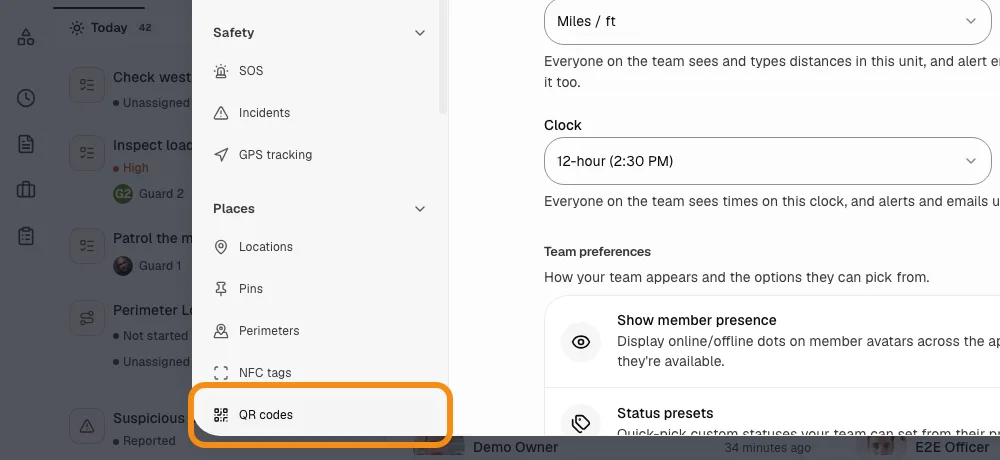
- Click the grid button at the top left, then Team settings, then QR codes.
- Turn on Codes for short jobs.
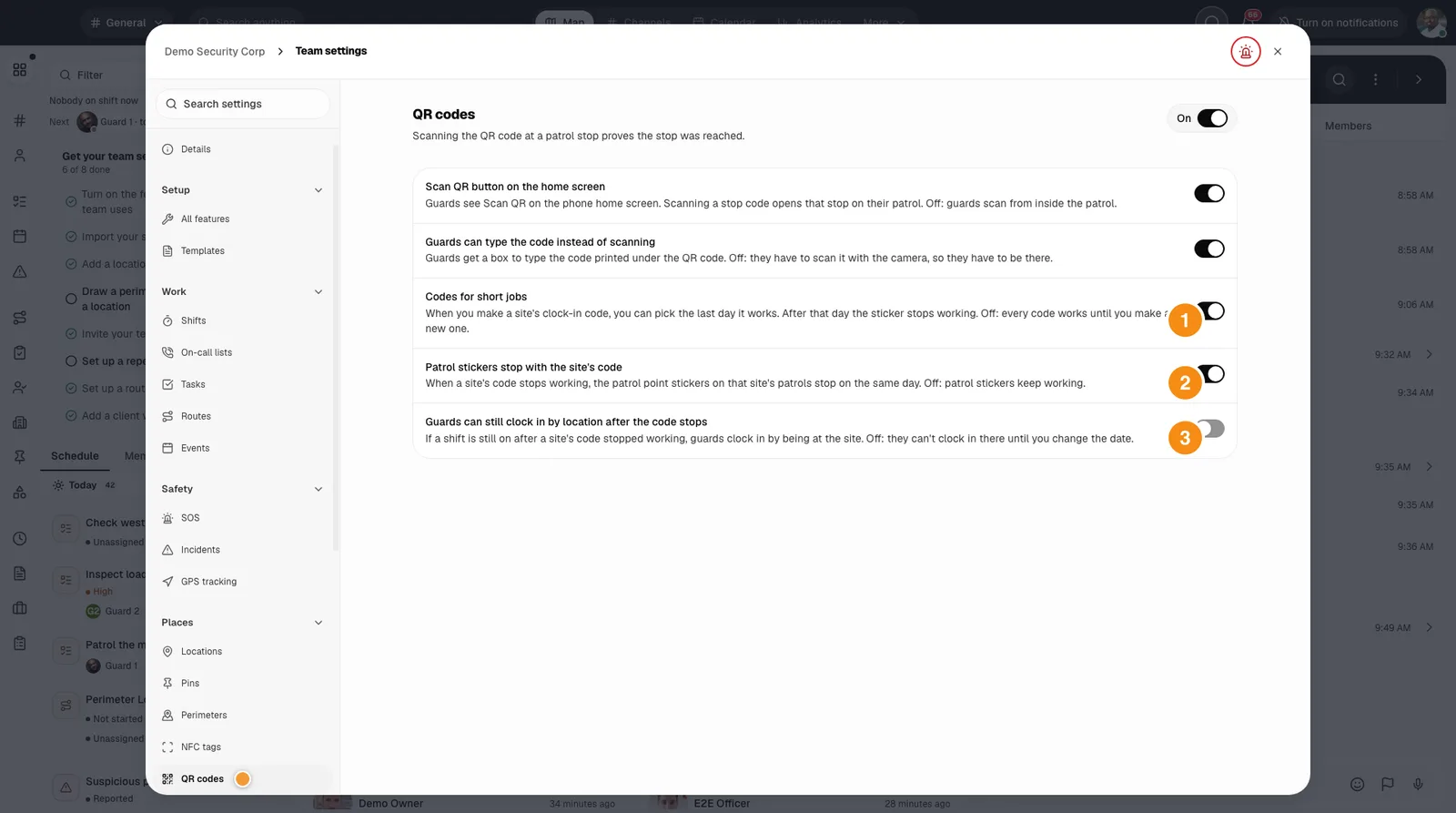
- 1Codes for short jobs: Turn this on. Each site's QR code window then lets you pick a last day.
- 2Patrol stickers stop with the site's code: On to start with: the patrol stickers at that site stop on the same day. Turn it off to keep them working.
- 3Guards can still clock in by location after the code stops: Off to start with: if a shift is still on after the last day, the guard calls you and you move the date. Turn it on to let them clock in by being at the site.
For each short job
Step 2Open the site's QR code
- Open the site: in the bar on the left, click Locations, then click its name.
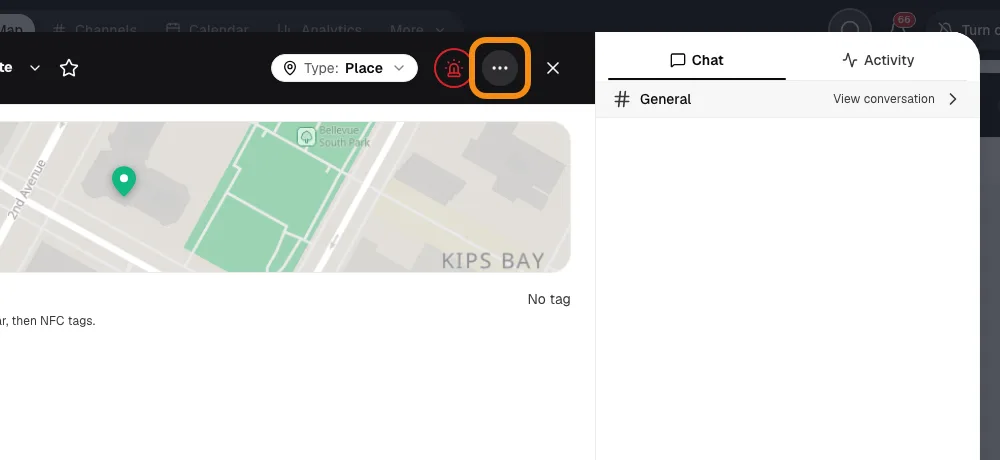
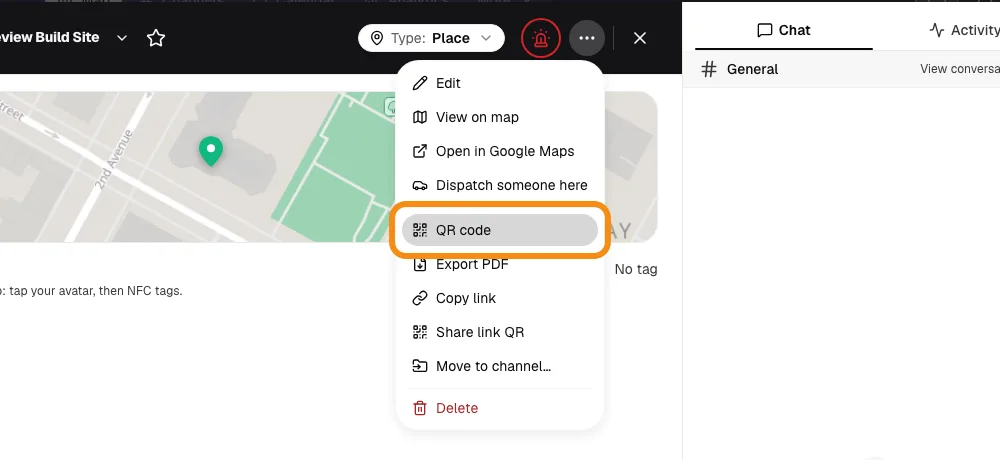
- Click the three dots at the top, then QR code.
Step 3Pick the last day
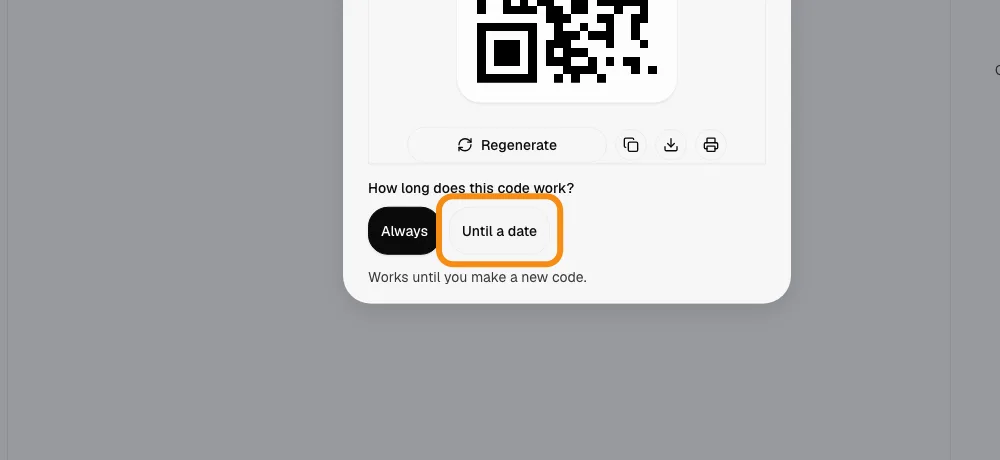
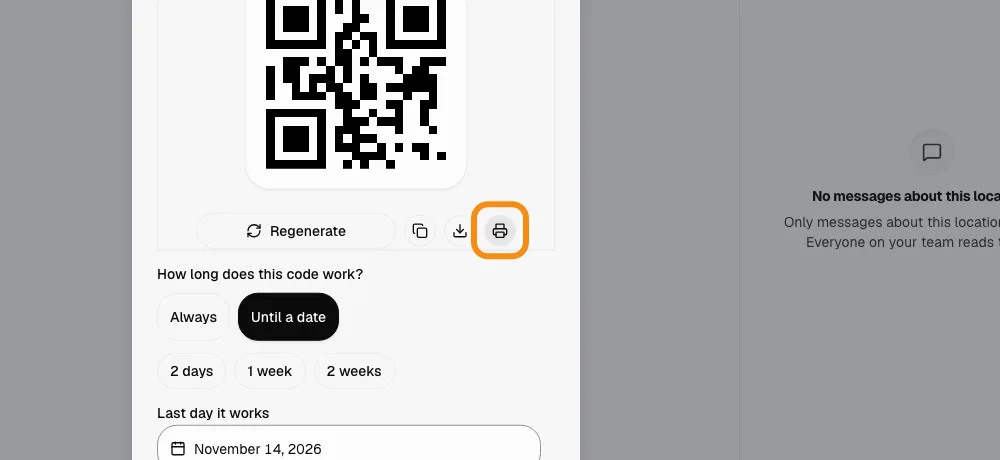
- Under "How long does this code work?" click Until a date.
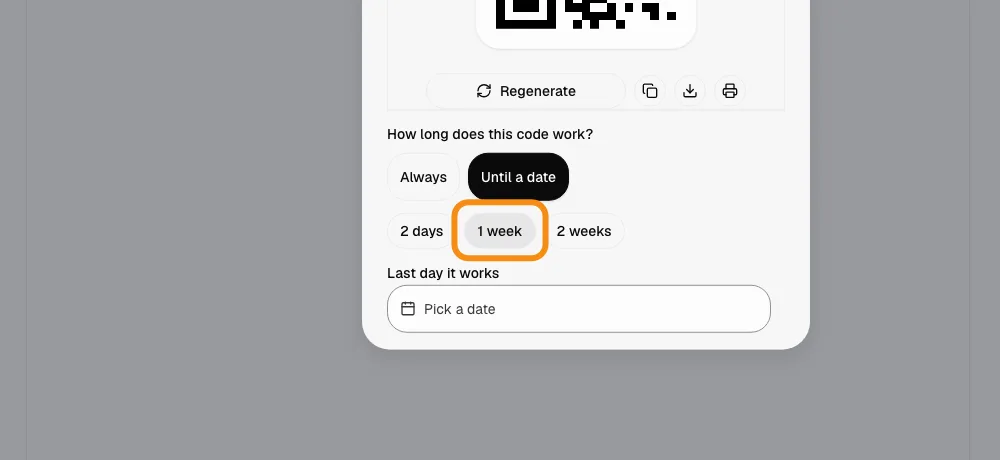
- Click Last shift to use the day of the last shift on the schedule, or 2 days, 1 week or 2 weeks, counting today. Or pick any day under Last day it works.
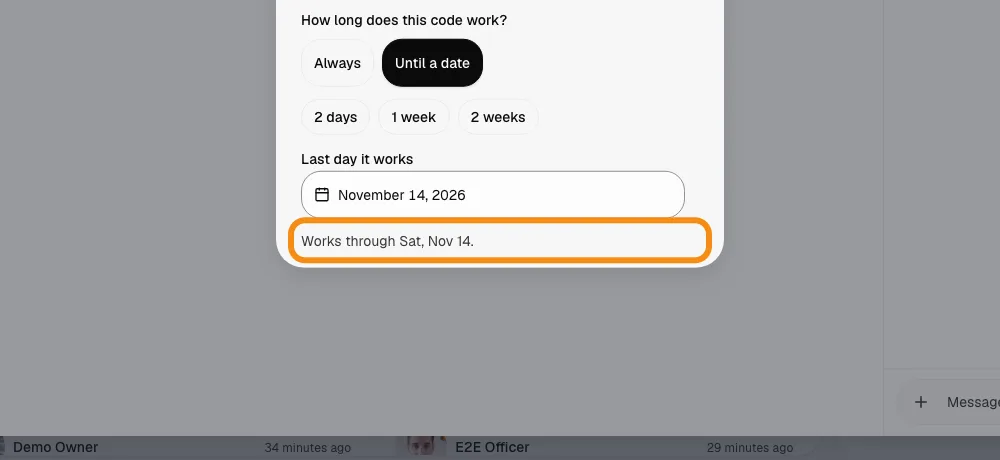
- The line under it says the last day, for example "Works through Sat, Nov 14". The code works for every shift that starts on or before that day, so a night shift that ends the next morning still clocks out.
- If shifts start after that day, a warning says how many. Move the date or the shifts.
Step 4Save it
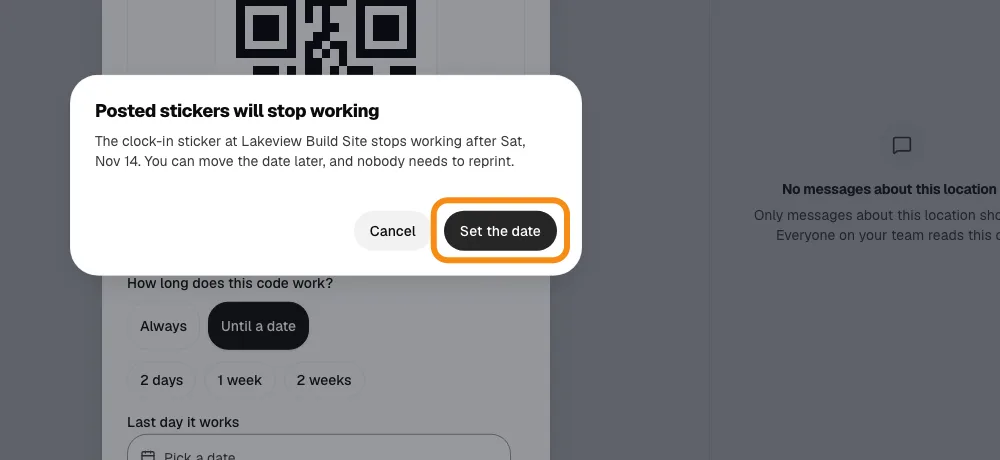
- The code was already made, so it may already be posted. TeamMap asks first: click Set the date.
- Nothing to reprint. The same sticker works until the end of the last day.
Step 5Print it
- Click the printer button and post it where guards start their shift, the same as any site code.
- Guards scan it to clock in, clock out and clock back in, as usual.
Good to know
- The job runs longer
- Open the QR code again and pick a later day. The same sticker keeps working.
- The job ends early
- Pick today as the last day. The sticker stops working tonight.
- A new job at the same site
- Click Regenerate to make a new code, pick its last day, and print the new sticker. The old one never works again.
- A code for good
- Pick Always. It works until you make a new code, like every code made before.
- What a guard sees after the last day
- Scanning the old sticker says the code stopped working and to call their supervisor. They cannot clock in with it.
- Patrol stickers
- With Patrol stickers stop with the site's code on, the stop stickers on that site's patrols stop on the same day.
- Who can do this
- Owners, admins, managers and dispatchers. Guards only scan.
If something looks wrong
- No "How long does this code work?"
- Codes for short jobs is off. Turn it on in Team settings, QR codes.
- A guard is stuck at the door
- The last day has passed. Open the site's QR code and pick a later day. The guard scans again.
- No Last shift choice
- No shift at this site is on the schedule. Add the shifts, or pick a day.