All guides
TV mode
Put your team on a TV in the office: who is on shift, their clock-in photo and their routes, live.
Version 2026-11-03 · TeamMap 3.0.41
Download PDFBefore you start
- A TV with a web browser. The TV's own browser works, or plug a laptop into the TV.
- A manager or supervisor login for your team. Guards cannot open TV mode.
- Shifts turned on for your team (Team settings > Shifts). Guards show on the TV once they clock in to a shift.
Step 1Open TV mode on the TV
- On the TV, open the web browser and go to app.teammap.co.
- Sign in with your manager login.
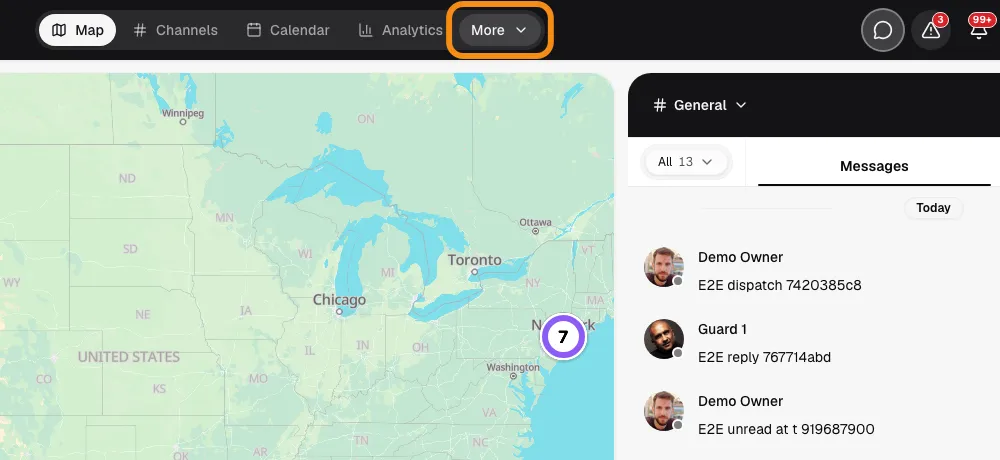
- In the bar at the top, click More.
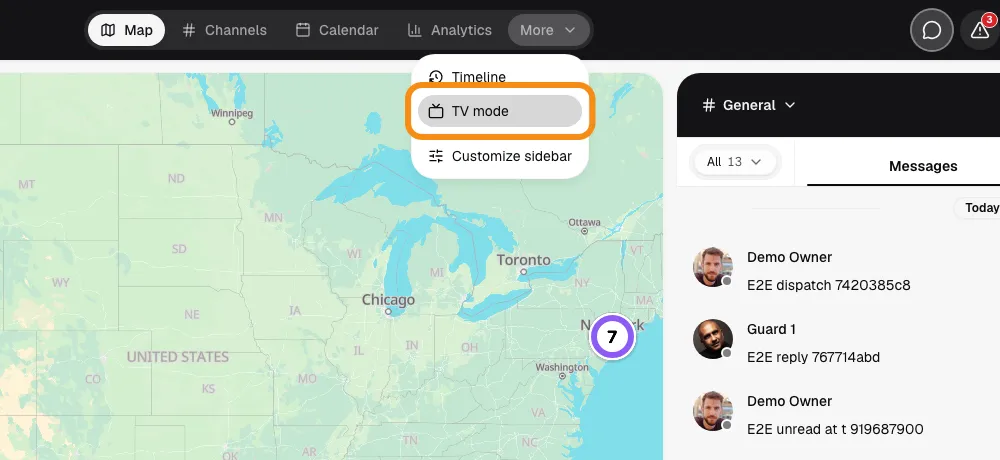
- Click TV mode.
Step 2Read the board
- The board fills in by itself. A guard shows up the moment they clock in, with the photo they took.
- Nobody has to touch the TV. Numbers in red need a look.
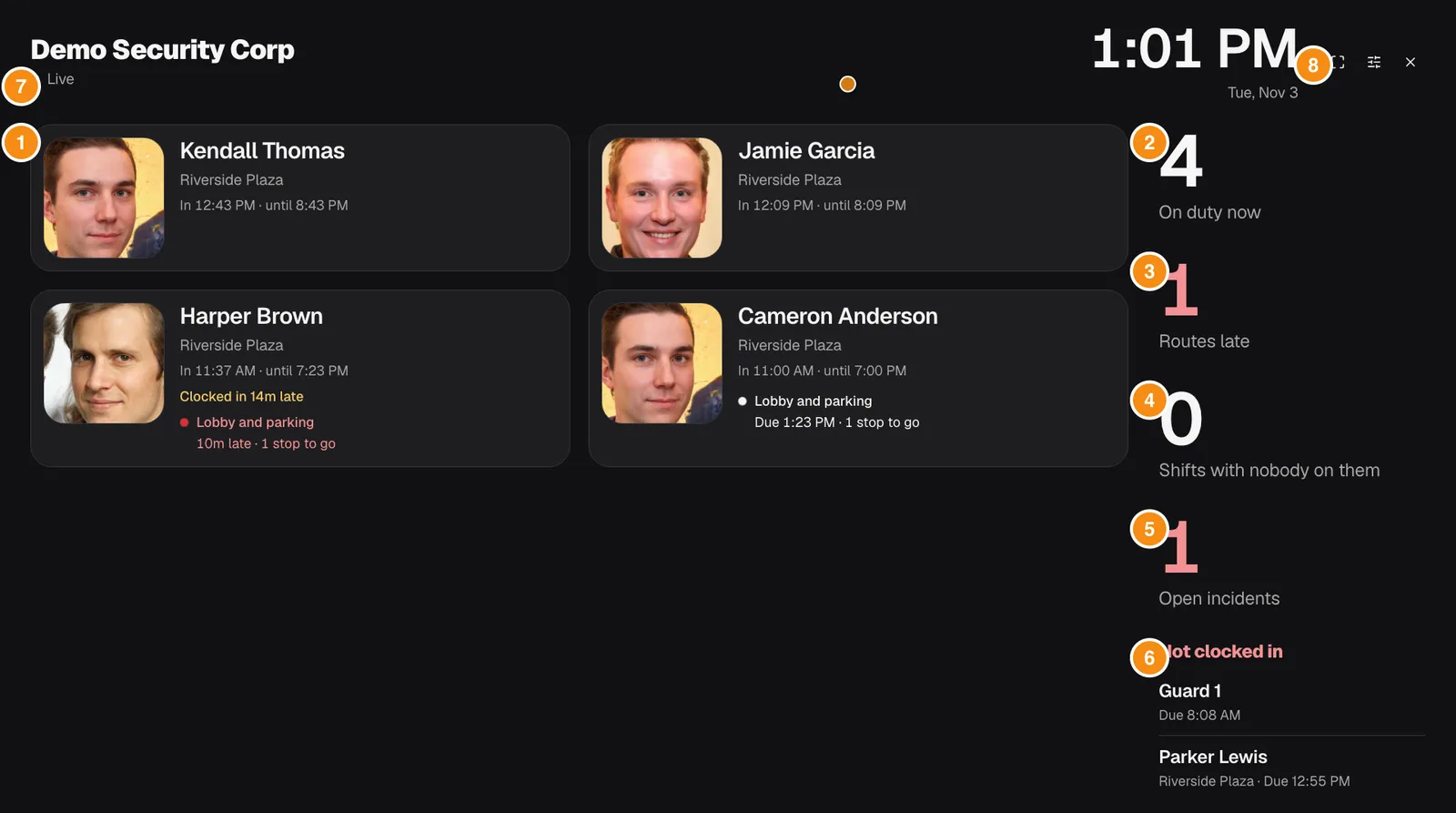
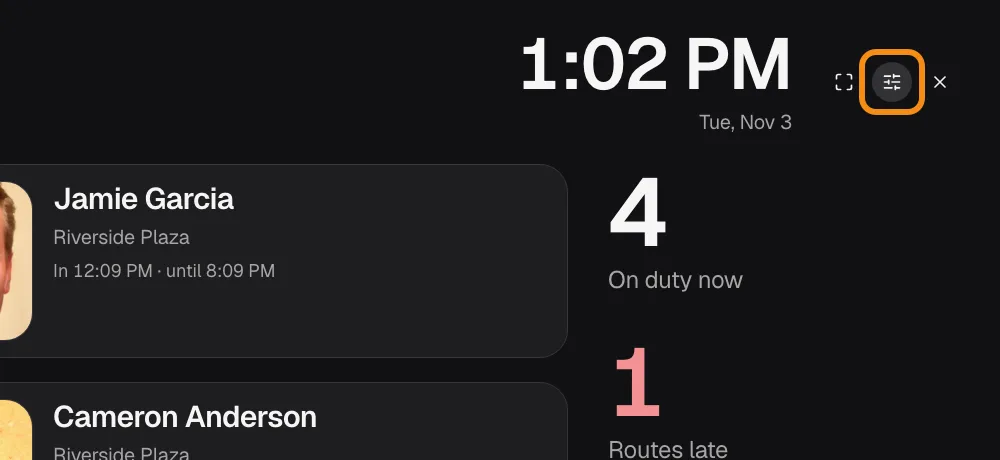
- 1Guards on shift: One card per guard who is clocked in, newest first: photo, name, location and hours. "Clocked in late", "On break" and "Away from the location" show on the card, and the route line says which route they are on or when the next one is due (red when late). Up to 8 cards fit; the rest show as a count.
- 2On duty now: How many guards are clocked in right now.
- 3Routes late: Routes of the guards on duty that are past due.
- 4Shifts with nobody on them: Shifts going on now that have no guard.
- 5Open incidents: Incidents not closed yet.
- 6Not clocked in: By name: guards whose shift has started but who have not clocked in.
- 7Live: The board is up to date. If the TV loses its connection, a yellow "Reconnecting" bar shows instead.
- 8Buttons: Full screen, Customize (the sliders) and Exit (X).
Step 3Go full screen
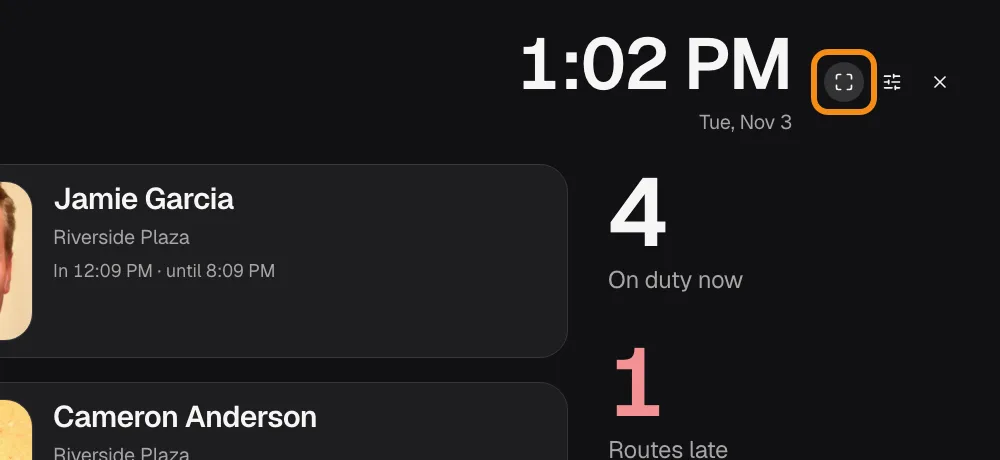
- Click the Full screen button at the top right. The browser bars go away.
- The screen stays on while TV mode is open.
- To leave full screen, press Esc. To leave TV mode, click X.
Step 4Choose what the TV shows
- Click Customize, the sliders button next to Full screen. It only shows when you are not in full screen.
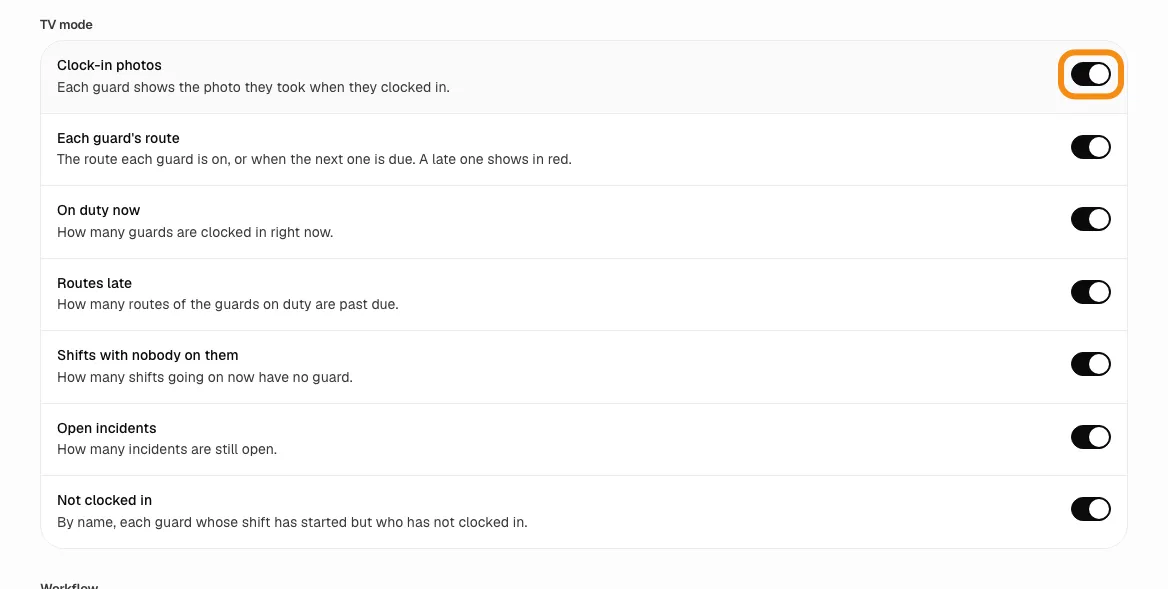
- Team settings opens on the Shifts tab. Scroll down to TV mode.
Step 5Turn parts off, then save
- Turn off each part you do not want on the TV. Everything is on to start.
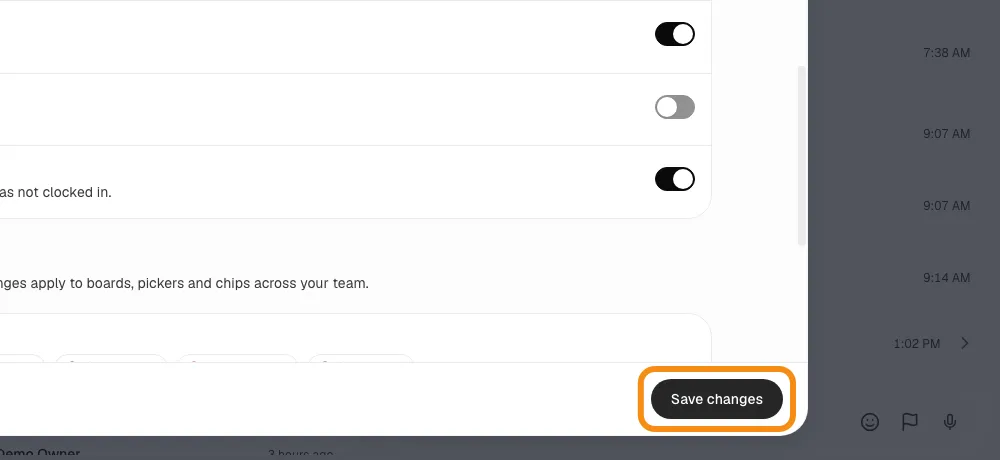
- Click Save changes at the bottom right.
Step 6Check the TV
- The TV changes by itself within a few seconds. No reload, nothing to press on the TV.
- To bring a part back, turn it on again the same way.
What each switch does (Team settings > Shifts > TV mode)
- Clock-in photos
- Each guard shows the photo they took when they clocked in.
- Each guard's route
- The route each guard is on, or when the next one is due. A late one shows in red.
- On duty now
- How many guards are clocked in right now.
- Routes late
- How many routes of the guards on duty are past due.
- Shifts with nobody on them
- How many shifts going on now have no guard.
- Open incidents
- How many incidents are still open.
- Not clocked in
- By name, each guard whose shift has started but who has not clocked in.
If something looks wrong
- "TV mode is for managers"
- The TV is signed in as a guard. Sign out and sign in with a manager or supervisor login.
- "Shifts are turned off"
- Turn on Shifts in Team settings > Shifts.
- A guard is missing
- Guards show once they clock in. Before that, once their shift has started, they are listed under Not clocked in. If more than 8 are on shift, the rest show as "N more on shift".
- Yellow "Reconnecting" bar
- The TV lost its internet connection. Check the TV's Wi-Fi; the board updates again once it is back.
- The screen goes dark
- Some TV browsers do not let a page keep the screen on. Turn off the TV's own sleep or screen-saver timer.
- No Customize button
- It is hidden in full screen (press Esc), and only people who can change Team settings see it.
Questions, or want TeamMap set up your way? Book a demo or contact us, and we will customize your account.