All guides
When TeamMap is down
If TeamMap stops answering, guards can still call dispatch from the SOS button and keep scanning their patrol. The scans are saved on the phone and sent with the time they were really made.
Version 2026-11-12 · TeamMap 3.0.59
Before you start
- An owner or admin login. Sign in at app.teammap.co on a computer.
- The two settings turned on for your team: "Call or text dispatch when an SOS can't send" and "Patrols keep working when TeamMap is down". Ask us at hello@teammap.co and we turn them on.
- Each guard signs in on their phone once while TeamMap is working, so the phone knows their team.
Set it up once
Step 1Add the dispatch phone number
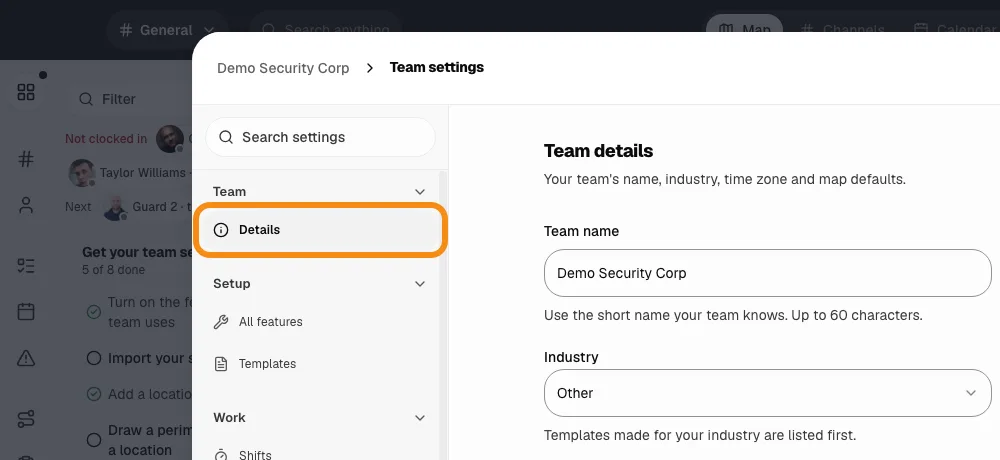
- Click Team settings, then Details.
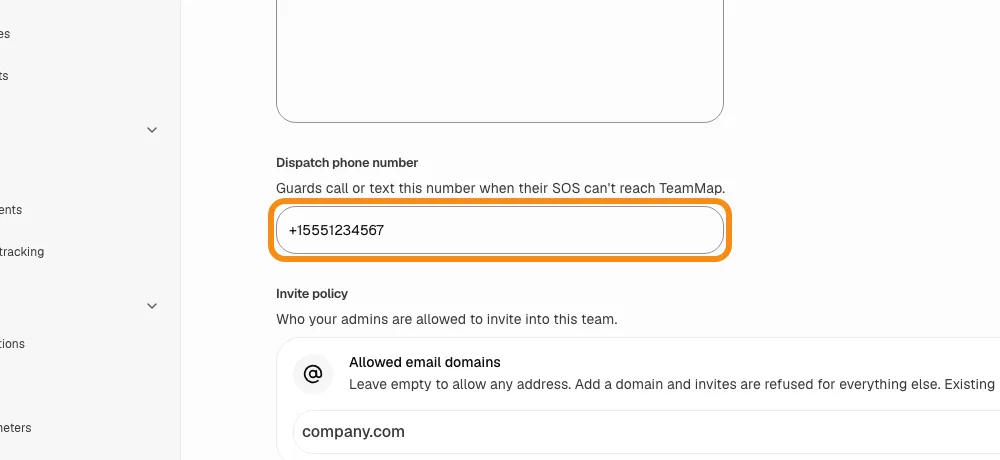
- Under Dispatch phone number, type the number someone answers day and night.
- Click Save.
What guards see
Step 2An SOS that has not gone through
- The guard holds the SOS button as usual.
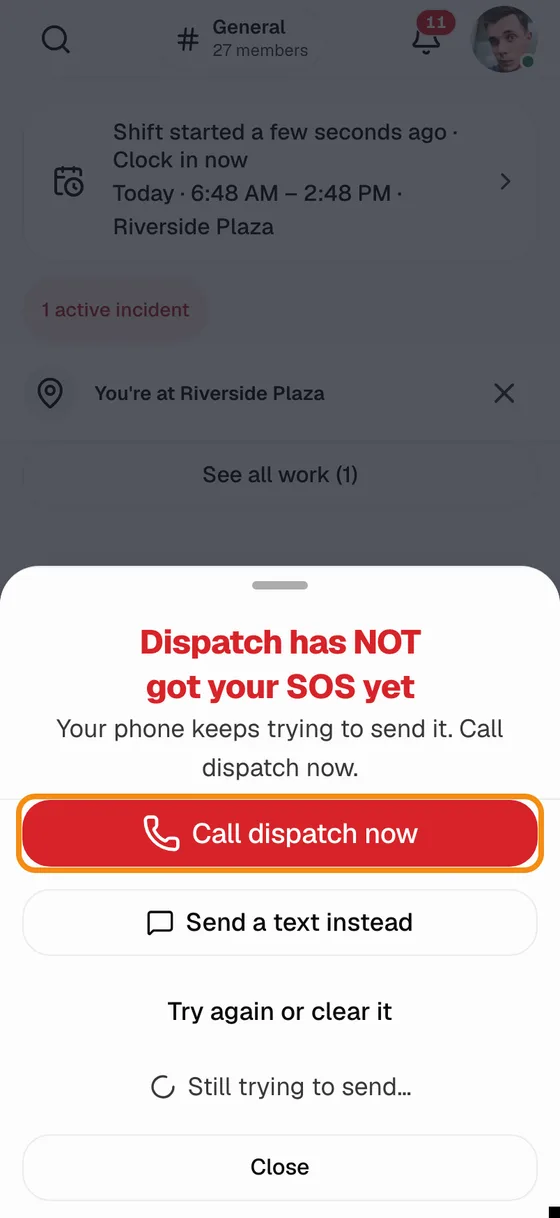
- If TeamMap does not answer, the phone says "Dispatch has NOT got your SOS yet".
- The guard taps Call dispatch now. Send a text instead sends a text with their name and a map link to where they are.
- The phone keeps trying to send the SOS the whole time. Once it goes through, the message goes away.
Step 3Patrolling while TeamMap is down
- A guard who is still signed in keeps patrolling as usual. Each scan is saved on the phone.
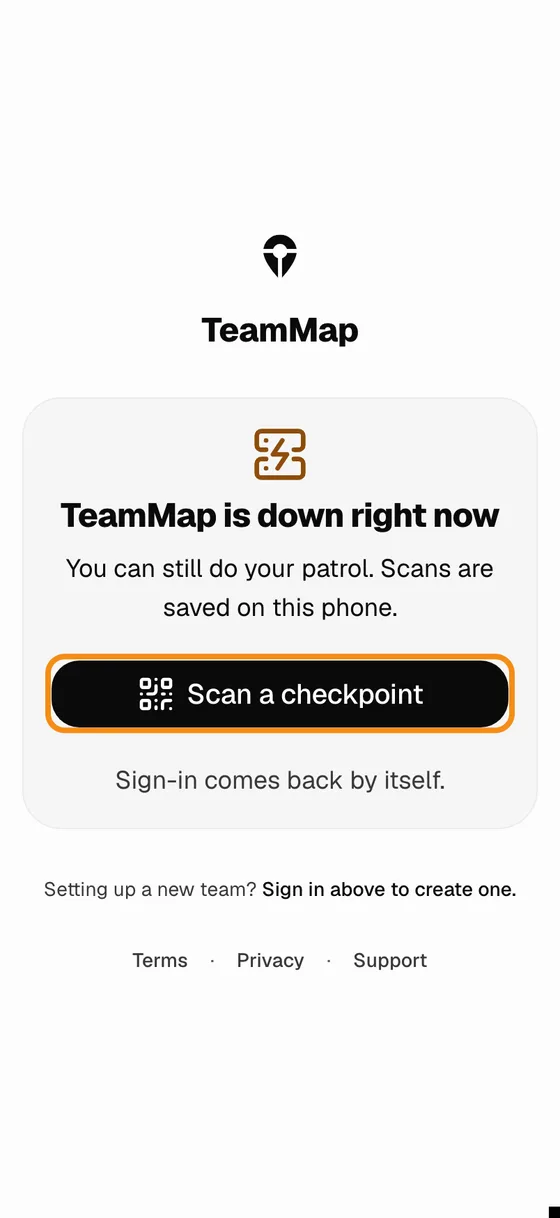
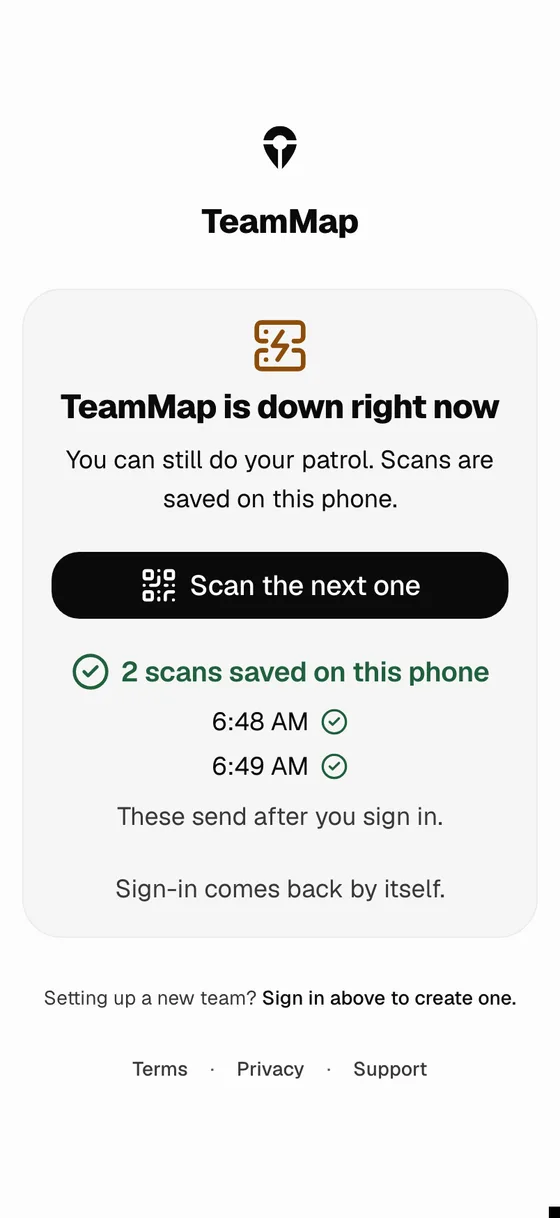
- A guard who is signed out sees "TeamMap is down right now" on the sign-in screen.
- They tap Scan a checkpoint and scan each sticker on their patrol. The phone buzzes and lists the time of each scan.
Step 4When TeamMap is back
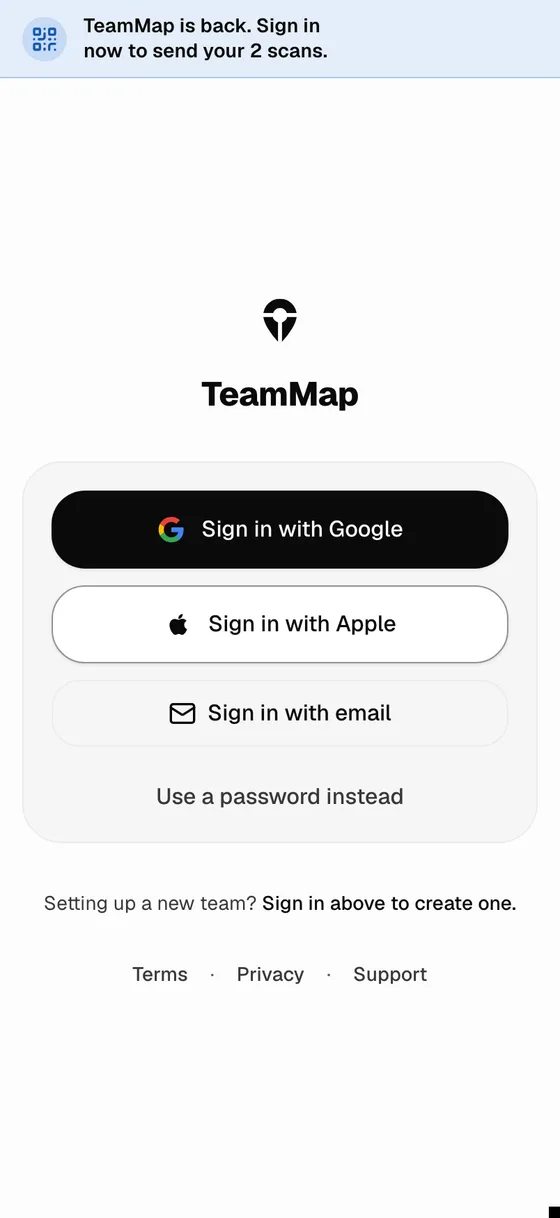
- The sign-in screen says TeamMap is back and how many scans are waiting.
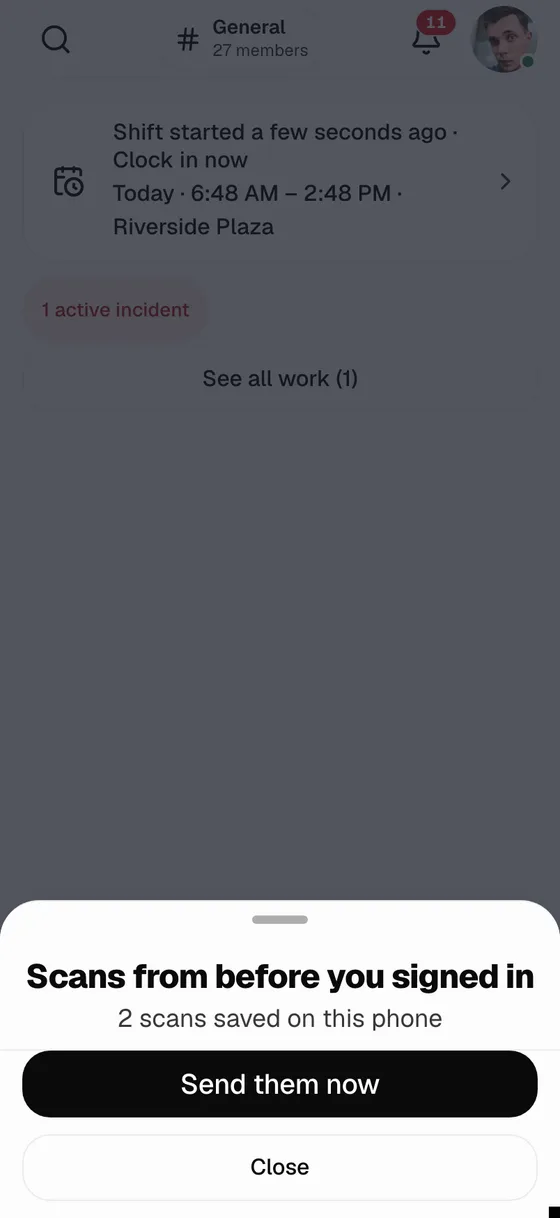
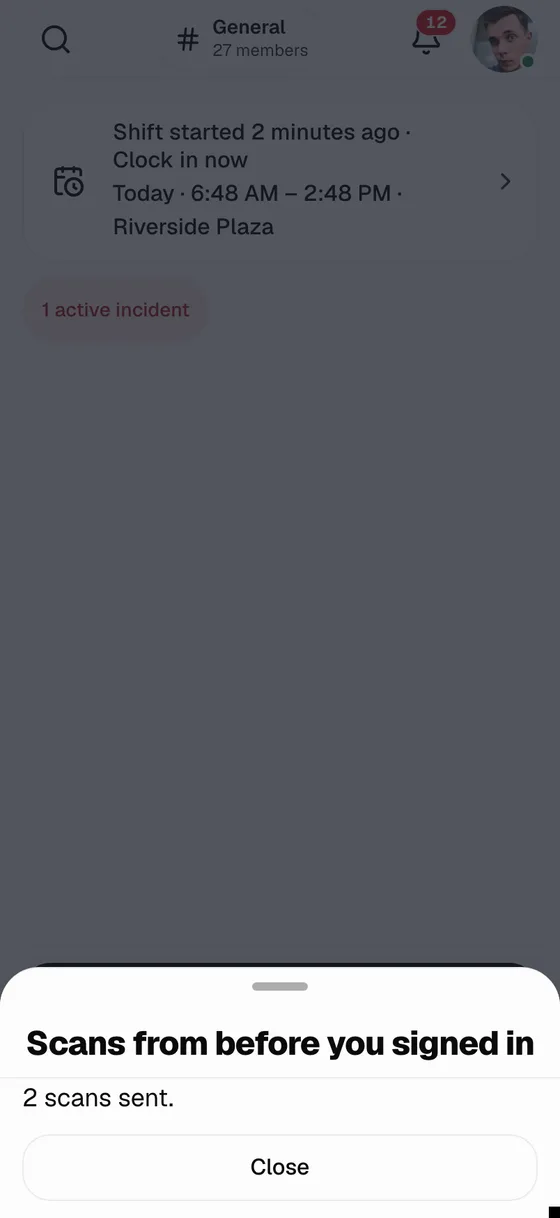
- The guard signs in and taps Send them now.
- Scans that match one of their patrols are sent with the time they were made. A stop that also needs a photo or a note says so, with a button to open the patrol.
What you see
Step 5Scans that arrived late
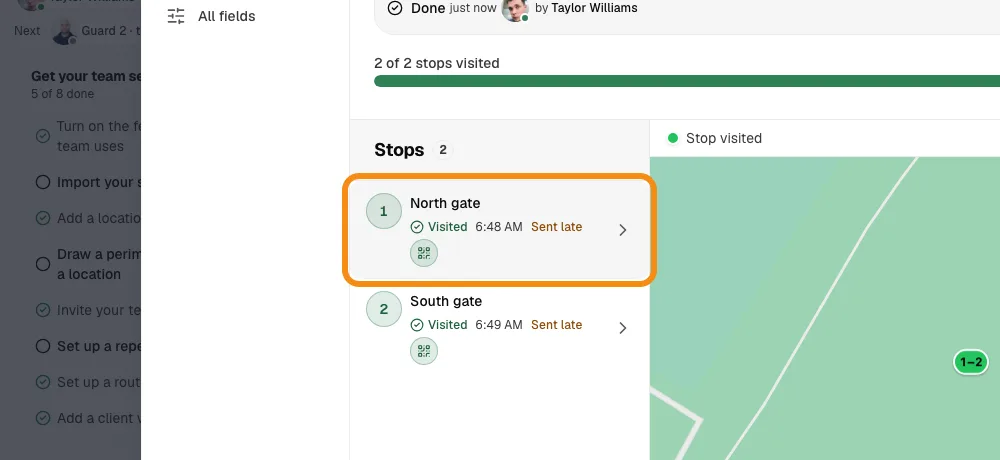
- Open the patrol. Each stop shows the time it was scanned, not the time it arrived.
- A stop that reached TeamMap more than 2 minutes after it was scanned says Sent late. Point at it to see when it arrived.
- Missed-stop alerts wait a few minutes after TeamMap comes back, so saved scans can arrive first. A stop that was really missed still alerts.
Good to know
- Who a scan counts for
- Scans made before sign-in count for the guard who signs in next on that phone, and only on their own patrols. A scan that matches nobody's patrol is not sent.
- Signing out
- Scans saved while signed in stay on the phone after sign-out and send when the same guard signs back in.
- A brand-new phone
- A phone that never signed in does not know the team, so it cannot save scans. Sign in once while TeamMap is working.
- QR stickers only
- Scanning from the sign-in screen works with QR stickers. NFC tags need the guard signed in.
If something looks wrong
- No Call dispatch now button
- No dispatch phone number is set. Add it in Team settings, Details.
- No Scan a checkpoint on the sign-in screen
- The phone has not signed in since the setting was turned on, or TeamMap is answering. Sign in normally.
- A scan says it needs you
- That stop also needs a photo, a note or a location. Open the patrol and finish the stop.