All guides
TeamMap for guards
Your whole shift in the TeamMap app, in pictures.
Version 2026-11-03 · TeamMap 3.0.41
Download PDFBefore you start
- Update your phone (iPhone: iOS 18.4 or newer), then get the app:
- Sign in with the email your invite came to. Allow Location (Always) and Notifications.
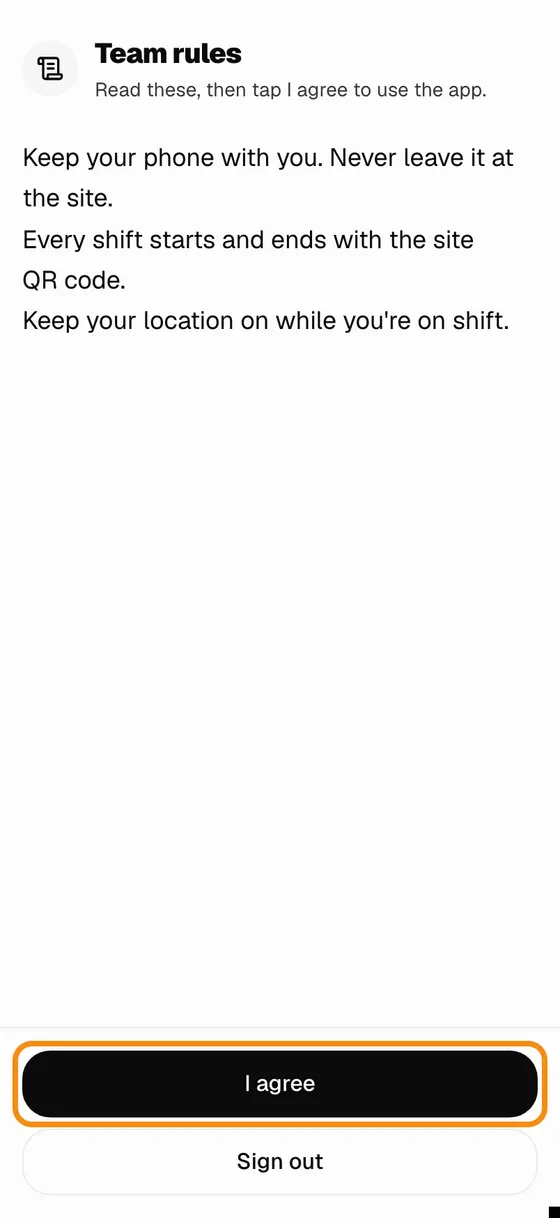
Step 1Agree to the team rules
- Read the rules, then tap I agree.
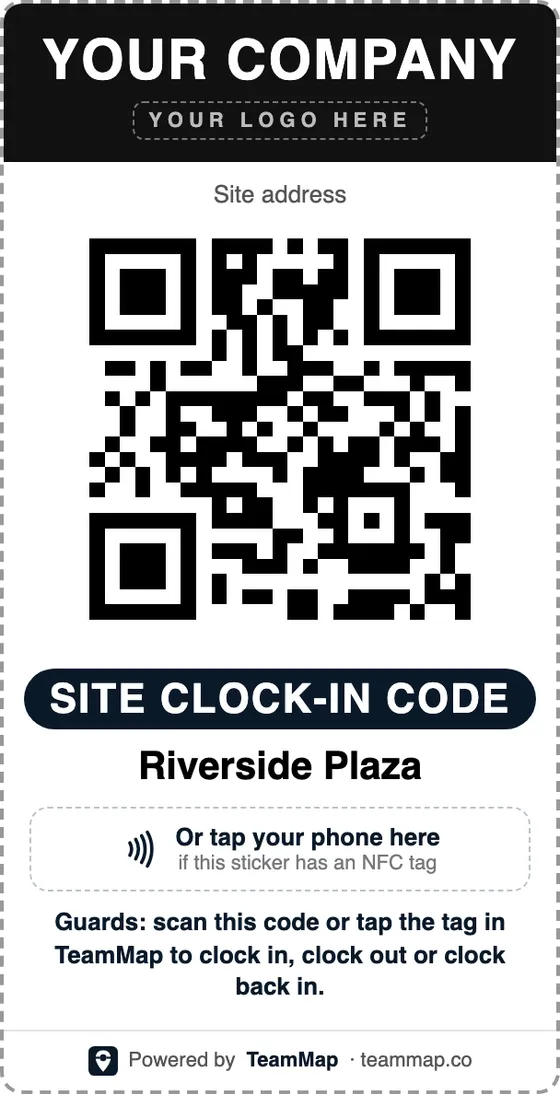
Step 2At the site, scan the site sticker
- Every site has its own QR sticker. On Home, tap Scan QR and point the camera at it.
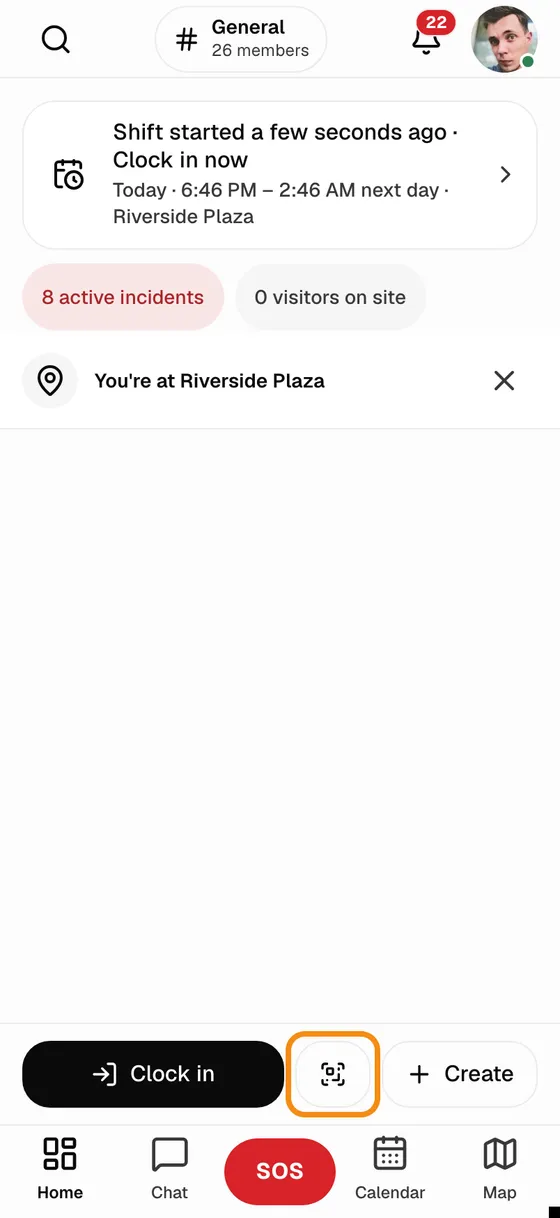
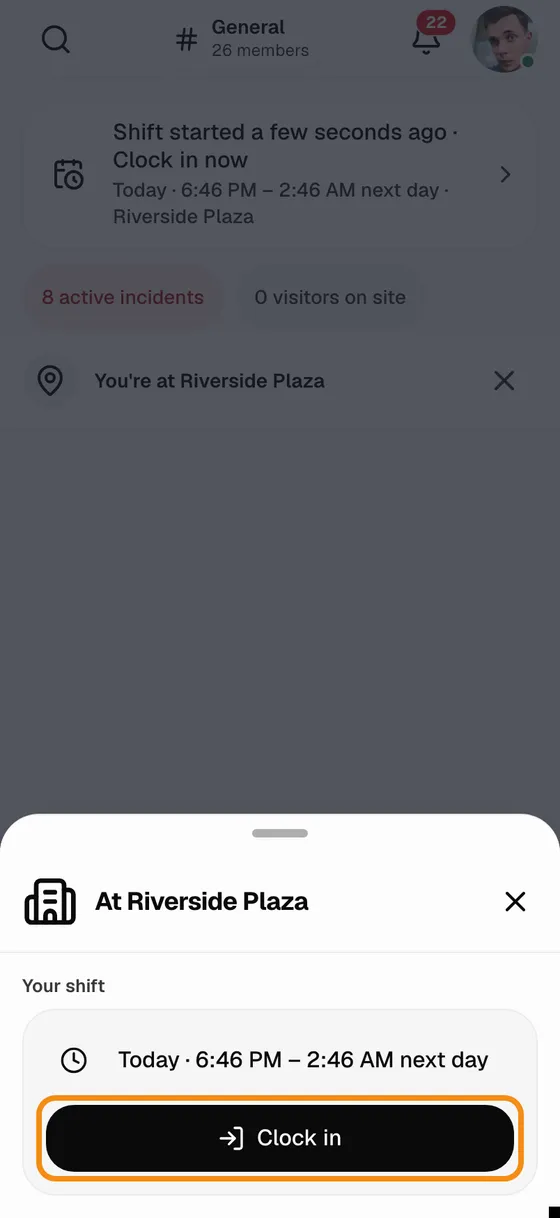
Step 3Clock in
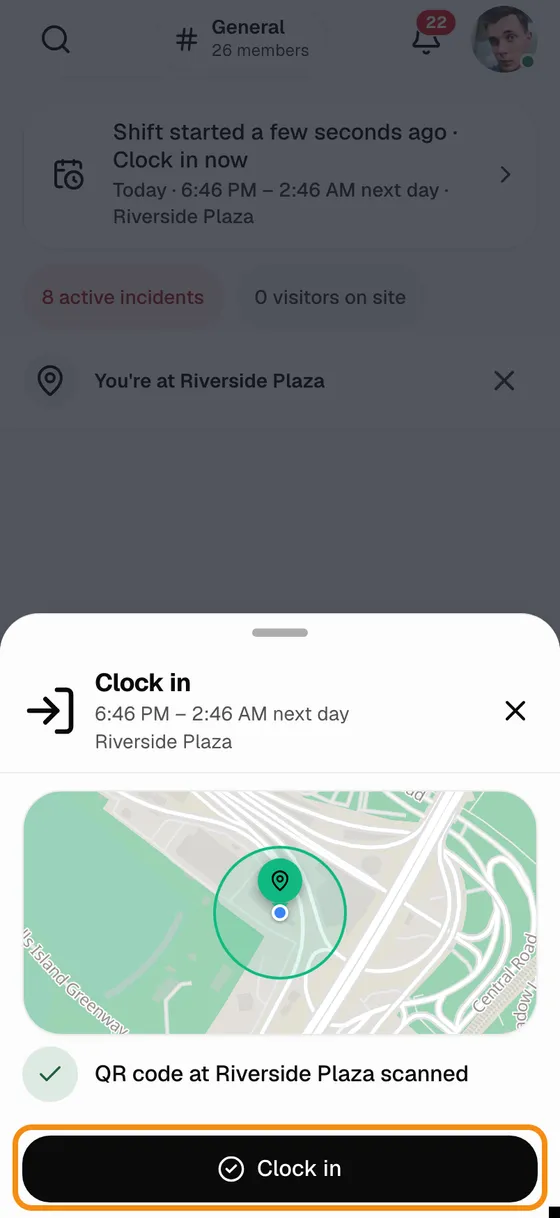
- Tap Clock in, then Clock in again. The circle on the map is the site.
Step 4Breaks
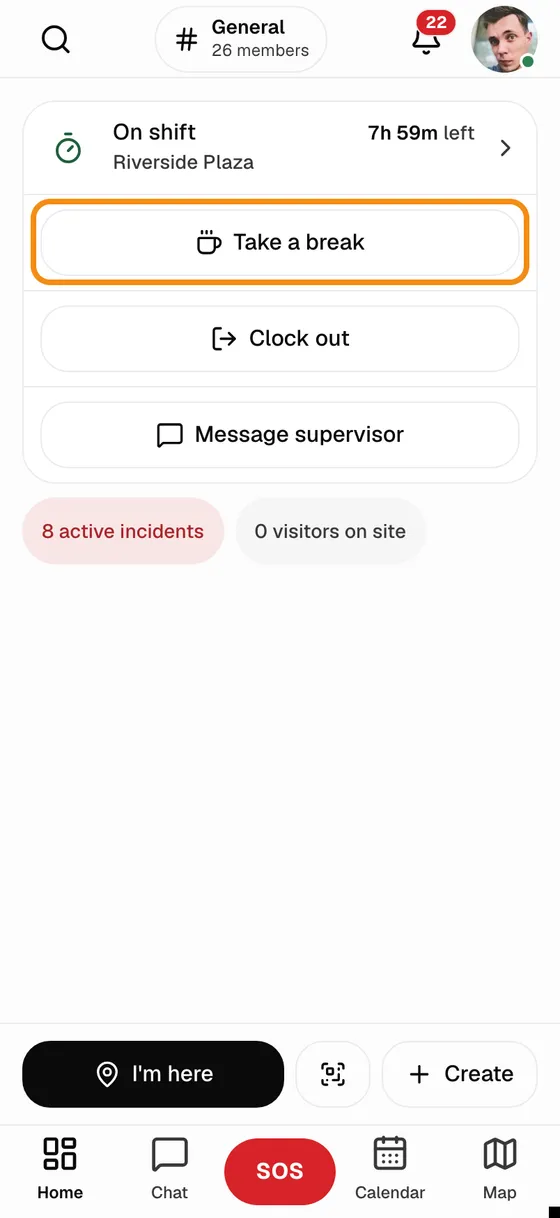
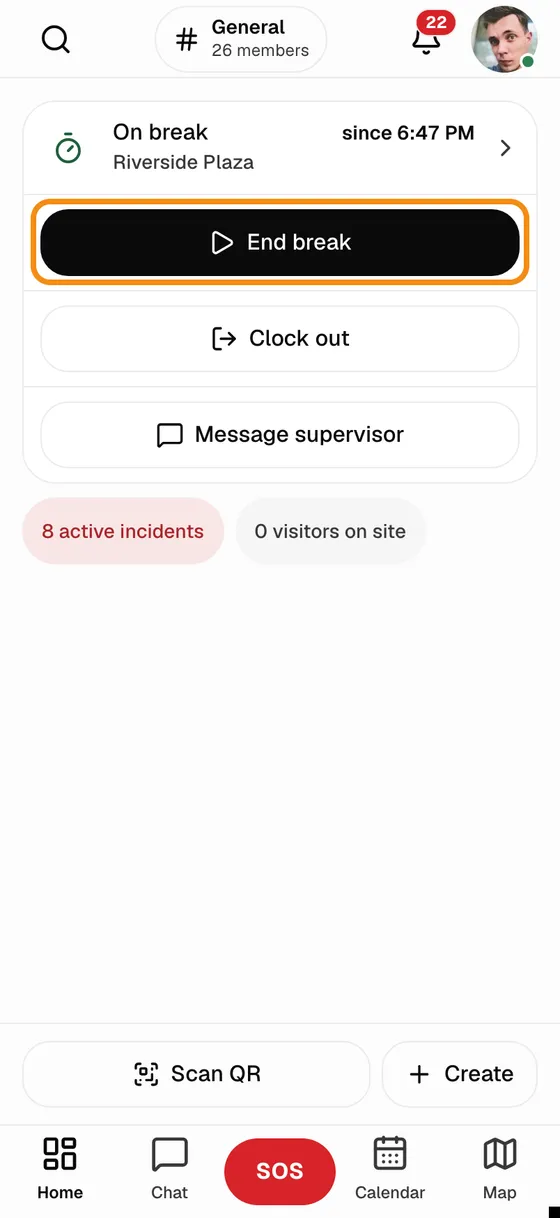
- On Home: Take a break, then End break when you are back.
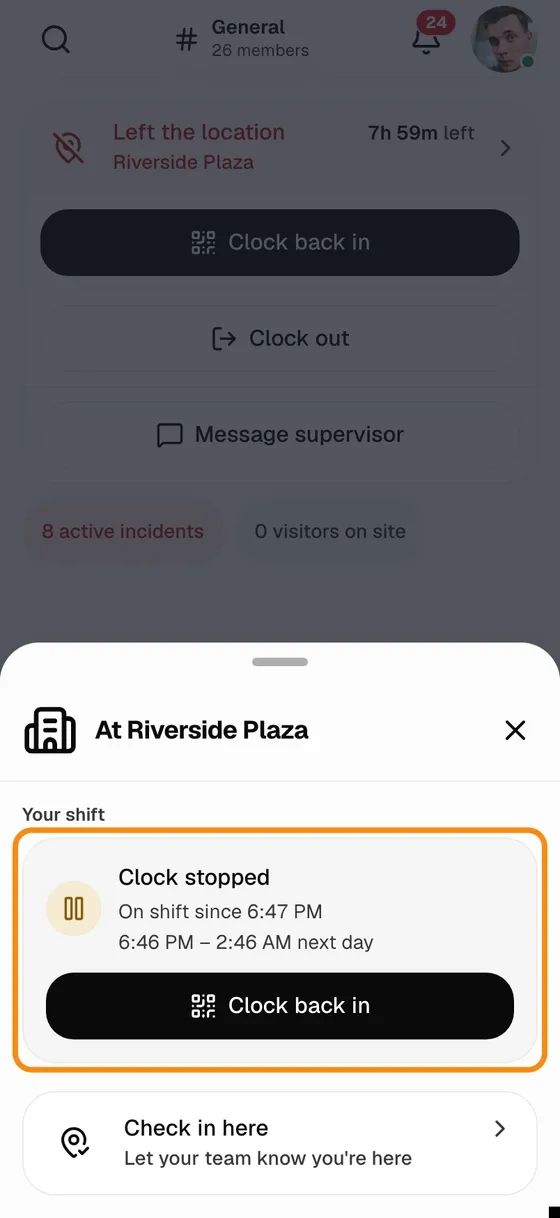
Step 5Leave the circle and the clock stops
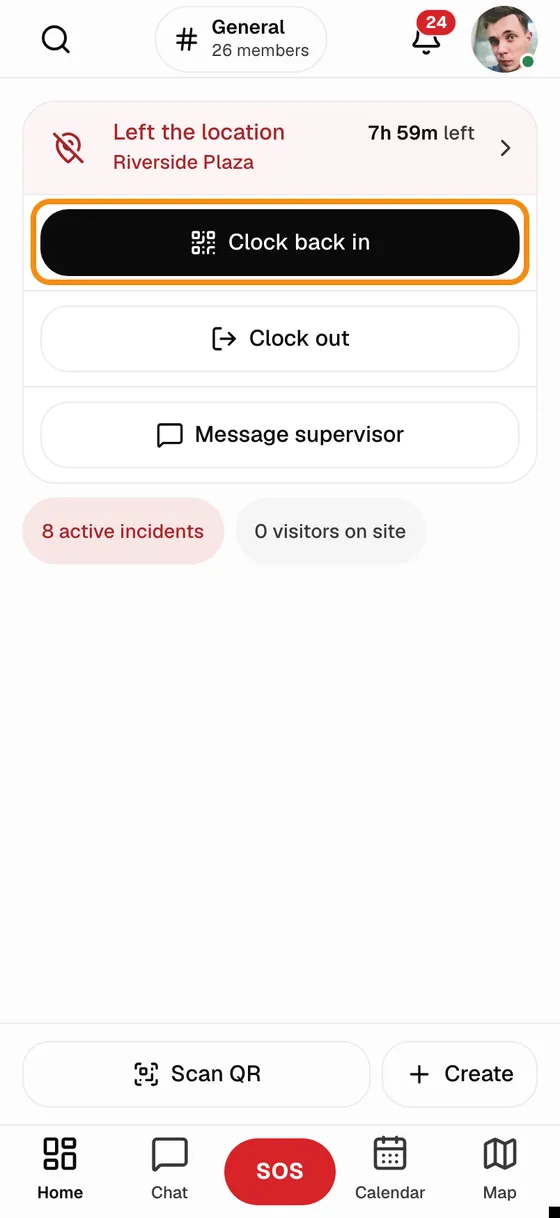
- Outside the site circle, your clock stops and your supervisor knows.
- Back at the site: scan the sticker, tap Clock back in.
Step 6Help
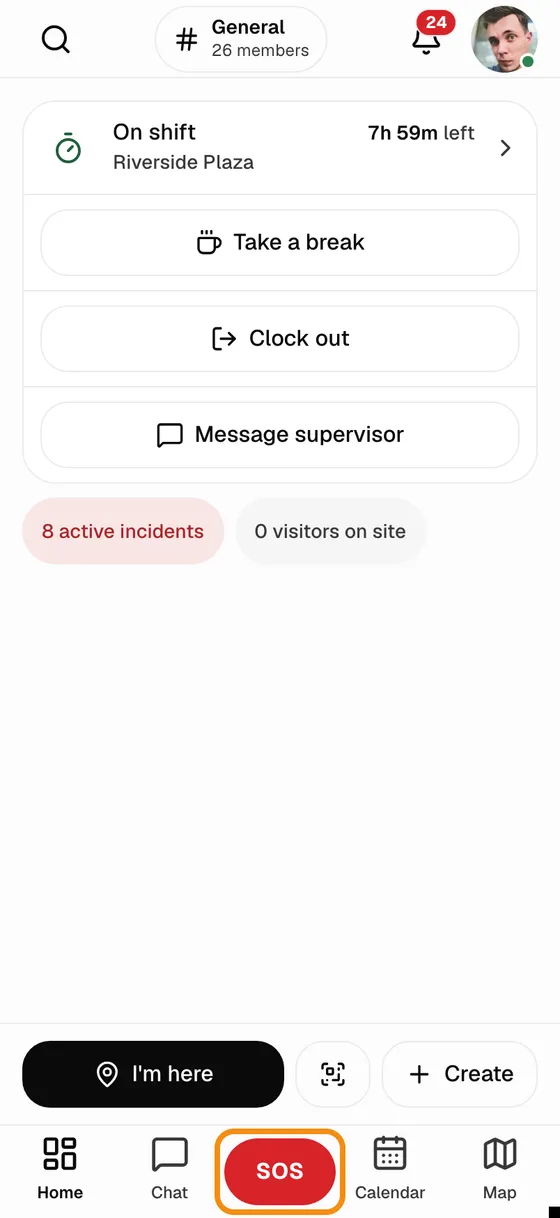
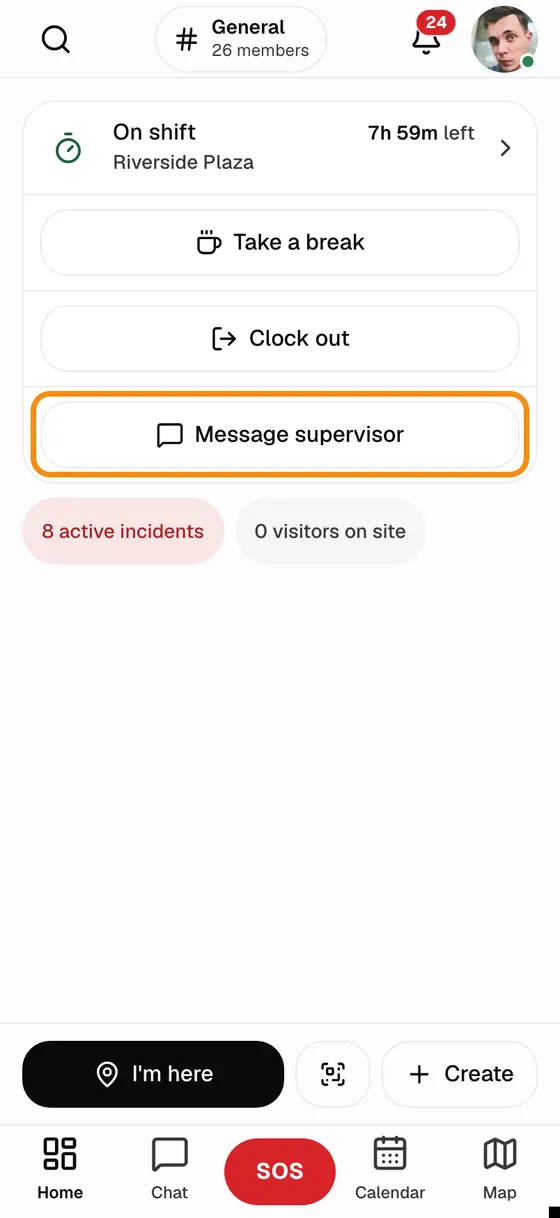
- In danger: tap SOS and hold. Anything else: Message supervisor on Home.
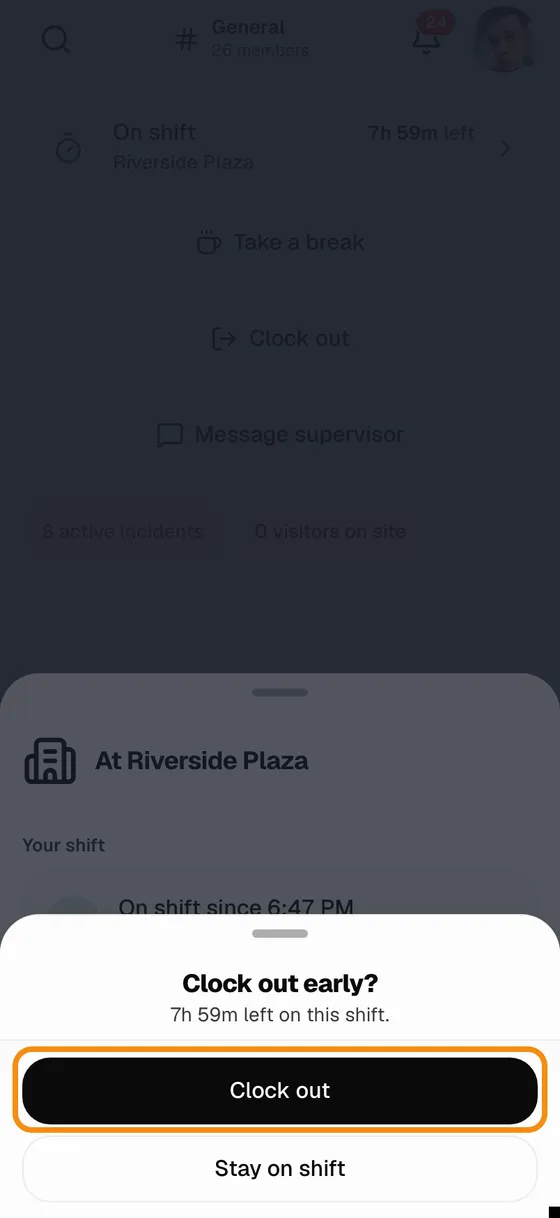
Step 7Clock out
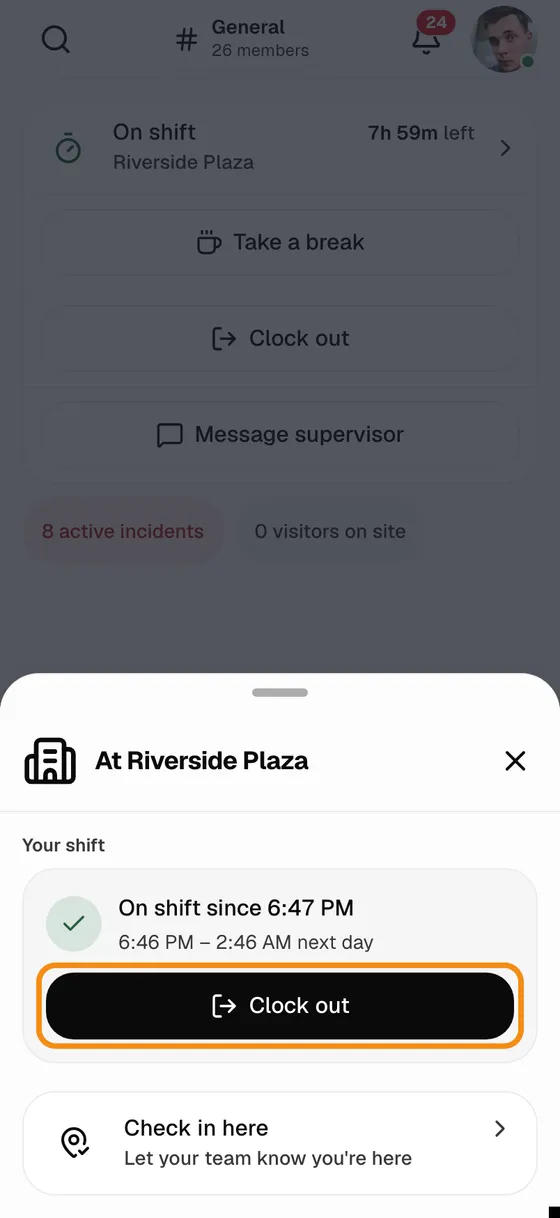
- At the end of your shift, at the site: scan the sticker, tap Clock out.
If something looks wrong
- Sticker will not scan
- Wipe the camera, hold still, add light. Still no: call your supervisor.
- "Clock stopped"
- You left the site circle. Go back, scan, Clock back in.
- App will not install
- Update the phone first (iOS 18.4 or newer).
- Forgot to clock out
- Call your supervisor.
Questions, or want TeamMap set up your way? Book a demo or contact us, and we will customize your account.