Shift scheduling and coverage in TeamMap
Shift scheduling in TeamMap: build and assign shifts, require GPS at clock-in, watch live coverage, catch no-shows, and hand the post over cleanly.

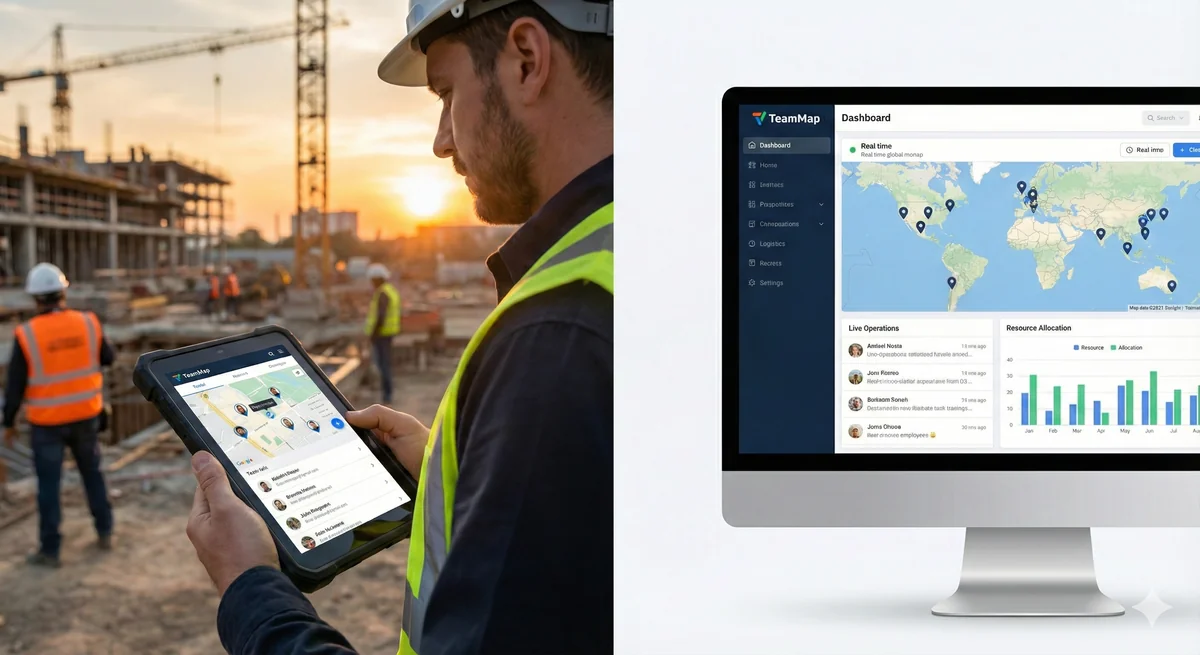
A schedule is only worth what it tells you at 3am. Who is on post right now, who was supposed to be, and what the last guard left behind. This walks through how shifts are built, assigned, clocked and handed over in TeamMap.
You build a shift against a client site with a start time, an end time and either named guards or an open slot anyone can claim. Guards clock in from the mobile app, with GPS on the clock-in if you require it. The web dashboard shows live coverage across every site, and each shift carries a pass-down log the next guard reads before they start.
What a shift record actually holds
The shift is the unit everything else hangs off. It carries the schedule, the assignment, the clock events and the handoff, so there is one record to look at when a client asks what happened Tuesday night.
- Scheduled times against actual clock-in and clock-out times
- Clock-in and clock-out location, distance from the site, and an optional photo
- Breaks started and ended
- Regular, overtime and double-time hours
- Timesheets submitted, approved, or sent back with a reason
- No-shows and late arrivals
Everything in that list is also what a paper schedule loses. The table below is the honest version of the trade.
| On paper | In TeamMap |
|---|---|
| Printed schedule goes stale the moment it changes | The roster on the guard's phone is the current one |
| You call six guards to tell them about one swap | The change pushes to the affected guards |
| Overtime shows up on the payroll run | Hours accumulate against a threshold you set |
| You find out about the empty post from the client | Coverage is on the dashboard while the shift is running |
| Handoff is a verbal at the gate | Pass-down entries carry from shift to shift |
How do you build a shift?
Most of the fields are what you would expect. Three of them decide how strict the shift is, and those are worth setting deliberately rather than accepting the default.
| Field | What it does | Example |
|---|---|---|
| Shift name | What the guard sees in their roster | Day Shift, Building A |
| Start and end time | The scheduled window | 0600 to 1400 |
| Client and site | Who the shift is billed to and which of their sites it covers | Acme Corp, North Campus |
| Assignees | Named guards, or left open to claim | 2 guards |
| GPS at clock-in | Whether clocking in requires being at the site | Required |
| Welfare checks | Lone worker check-ins during the shift | On for overnight posts |
| Attached reports | Reports the guard has to file before the shift closes | Daily Activity Report |
The order of work is short:
- Open the scheduler and go to the date and site you are covering
- Add a shift and set the start and end times
- Assign guards, or leave it open for someone to claim
- Decide whether clock-in needs GPS
- Add the notes the guard needs before they arrive
- Save
What repeats, and what does not
Each shift is created for the dates you schedule it. What repeats on its own is the work inside the shift. A route runs on an hourly, daily, weekly or shift-based recurrence, and a recurring task runs hourly, daily, weekly or monthly.
So build the recurring patrol once, then roster guards against the dates that need covering. Setting up a route that repeats on schedule covers the patrol side of that.
Who gets the shift?
Four things to check before you commit an assignment.
- Overlap. A guard whose shift is still running cannot clock in to a second one, so check the roster for a clash first
- Hours already worked. Watch the week's accumulated hours against your overtime threshold, not the day's
- Preference. Guards who like a site stay on it, and the ones who hate a post are the callouts you get at 5am
- Travel. Back-to-back shifts across town produce a late clock-in that is your scheduling error, not theirs
Overtime is the one that compounds quietly. If you are trying to bring the number down rather than just watch it, cutting overtime with better scheduling and the wider cost picture go into the patterns that create it.
Open shifts guards can claim
Leave a shift unassigned and it shows on the app as unclaimed. The first guard to tap "Assign to me and clock in" takes it, immediately, with no approval step in between. That is deliberate: an approval queue on a 2am coverage gap is a gap that stays open.
The trade is that you need your overtime thresholds set before you open shifts up, because a guard claiming their sixth day does not know your payroll math.
Clocking in, and proving where
The guard arrives, opens the app, taps clock in on the assigned shift. GPS is captured with the event. An NFC scan at the post can be added on top if you want the location tied to a physical tag rather than a coordinate.
How strict that is depends on one setting.
| Setting | Behavior | Fits |
|---|---|---|
| GPS off | Clock in from anywhere | Office and admin staff |
| GPS required, violations flagged | The clock-in goes through, but an out-of-radius one is flagged and the manager can be notified | Most guard posts |
| GPS required, geofence enforced | The clock-in is refused outside the site radius you set | Fixed posts with a tight perimeter |
| Photo at clock-in or clock-out | A photo is required before the shift starts or ends | Sites where identity matters as much as presence |
Enforced geofences fail in the places you would expect: parking structures, basements, dense downtown blocks where the fix drifts a hundred meters. Flag first, enforce only where you have watched the accuracy hold. Geofencing without the false alarms covers radius sizing and the drift problem in more detail.
Late arrivals and no-shows
- Late arrival. Set a threshold in minutes past the start time. Past it, the clock-in counts as late on the shift, in the shift report, and in the alert to your admins and supervisors
- Clock-in after the shift has ended. Allow it or block it, with a grace window you set in minutes
- No-show. An alert fires if nobody has clocked in by the end of the grace period
The alert is the easy half. Having somewhere to send the alert at 4am is the hard half, and it is a rostering problem before it is a software one. Nine ways to reduce guard callouts is about the causes rather than the notification.
Watching coverage while it is happening
The dashboard answers one question: is every post covered right now?
- Today's shifts across every site
- How many of your team are online right now
- Shifts nobody has claimed yet
- Overdue and unassigned work sitting against those shifts
- Every guard sharing location, live on the map
Alerts push the exceptions at you so you are not reading the board continuously.
| Alert | Trigger | Goes to |
|---|---|---|
| No-show | Nobody clocked in by the end of the grace window | Supervisor |
| Late arrival | Clock-in past your late threshold | Supervisor |
| Clocked in off site | Clock-in happened away from the site | Supervisor |
| Left the site | Guard crossed the site boundary mid-shift | Supervisor |
| Overtime | Shift crosses the overtime threshold | Supervisor and guard |
Overnight posts add one more layer. Welfare checks turn a lone worker shift into a scheduled prompt the guard has to answer, and a missed answer escalates rather than sitting there. That is covered separately in welfare check-ins for lone workers, and the feature page for lone worker monitoring has the configuration side.
Handing the post over
Most information loss in this industry happens in the ninety seconds between two guards at a gate. The pass-down log exists to stop that.
- The outgoing guard writes their handoff notes on the shift
- Anything still open goes in as a pass-down entry
- Each entry names the condition, the incident, or the equipment involved
- The incoming guard reads the pass-down before clocking in
- They work the entries during the shift
- Each one is marked resolved, and can be reopened if it comes back
What belongs in an entry, in practice: active incidents still running, tasks nobody finished, contractor and visitor activity that is still on site, broken equipment, open maintenance requests, standing instructions from the client, and every key or access card that changed hands.
The last one is the one that bites. A key handed over verbally at 2300 is a key nobody can account for by Friday. A key control policy and a written handoff SOP are the two documents that make the pass-down log fill itself in properly.
Key Takeaways
- The shift record carries schedule, assignment, clock events, hours and handoff in one place.
- GPS at clock-in has three levels: off, flagged, and enforced. Start at flagged and only enforce where accuracy holds.
- Open shifts are claimed instantly with no approval step, so set overtime thresholds before you open them.
- The dashboard answers coverage in the present tense; alerts push the exceptions rather than making you watch.
- Pass-down entries survive the shift change. Verbal handoffs at the gate do not.
Continue Reading

Offline mode: what TeamMap does with no signal
Offline mode holds scans, reports, clock-ins and photos on the phone until signal returns. What still works, what does not, and the radio fallback.
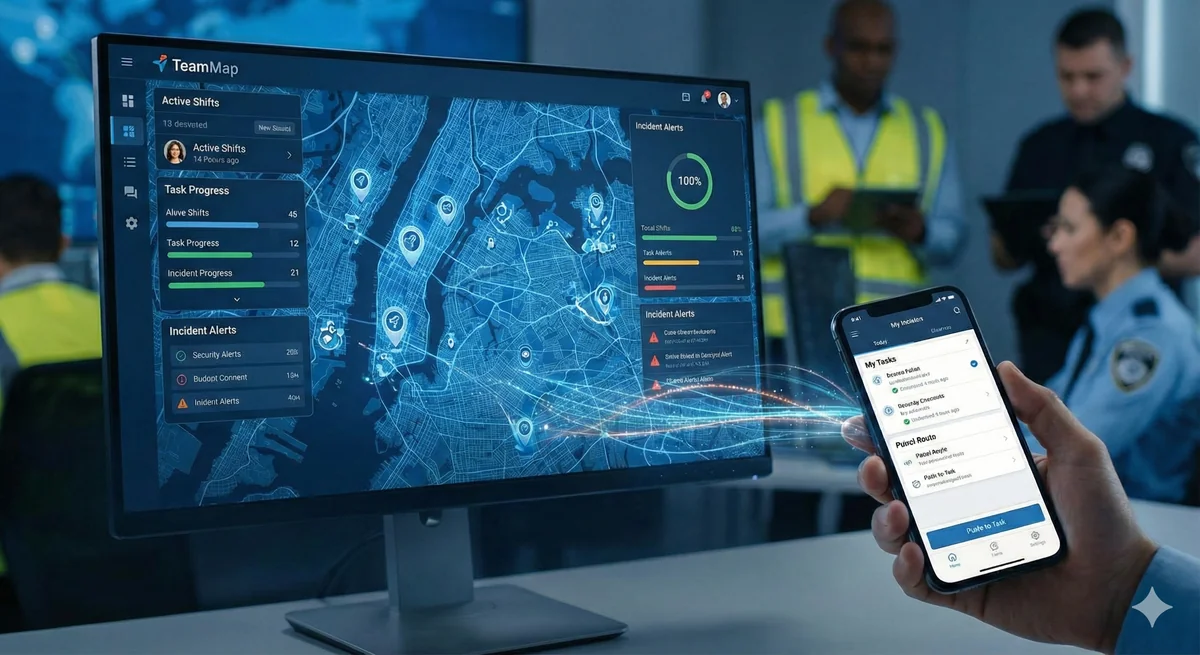
Channel communication in TeamMap: a setup guide
Set up channels in TeamMap by site, shift and incident, decide open or private, tune notifications, and export the history before retention closes.
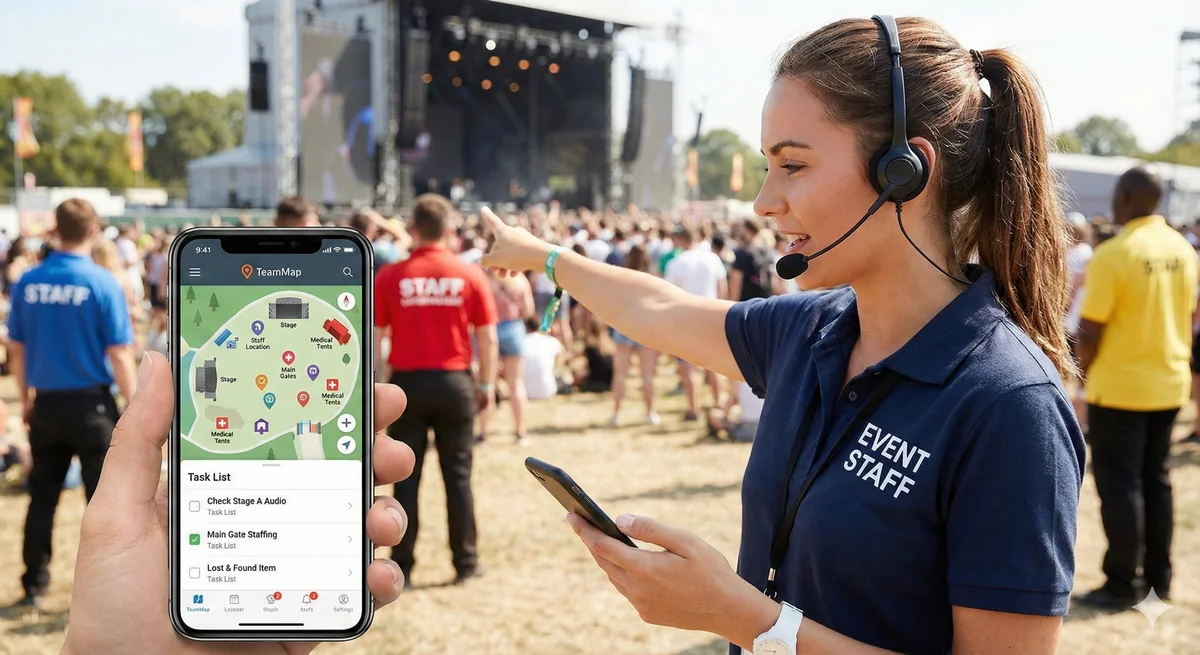
Task assignment and tracking in TeamMap: a guide
Task assignment in TeamMap: set priority and due time, require photo, GPS, NFC or QR proof, watch what is overdue, and keep the load even across the team.