Offline mode: what TeamMap does with no signal
Offline mode holds scans, reports, clock-ins and photos on the phone until signal returns. What still works, what does not, and the radio fallback.


Basements, stairwells, parking structures, remote yards. The places a guard is most alone are the places the network gives up first. Offline mode keeps the patrol working there. What it cannot do is deliver anything, and that difference matters before someone needs help.
Scans, GPS, photos, reports and messages written with no signal are held on the phone and go out on their own when it reconnects. The live map, and anything you need read right now, do not. An SOS is held too, and the app says so rather than showing a tick, so use the radio.
What still works with no signal?
| Feature | Offline | Notes |
|---|---|---|
| NFC checkpoint scanning | Full | Held on the phone until it reconnects |
| GPS location tracking | Full | Points buffered for sync |
| Reports and incident reports | Full | Saved locally, sent later |
| Photos | Full | Stored on the device |
| Clock in and clock out | Full | Held with its GPS stamp until it reconnects |
| Task viewing | Partial | Whatever was downloaded before the signal went |
| Schedule viewing | Partial | Pre-downloaded shifts only |
| Chat messages you type | Held | Queued on the phone. Nobody reads them until it reconnects |
| Voice notes and chat photos | None | The file has to upload, so it needs the network |
| Live map | None | Needs the network |
The pattern is consistent: recording is local, delivery is not. A queued message is not a read message, and the phone cannot tell you the difference from inside a basement.
How the app tells you where it stands
- The offline banner. "You're offline. Recent data stays available. Anything you create or change syncs automatically when you reconnect." It appears the moment the network drops and clears when it returns.
- Waiting to send. Settings shows a count of items still on the device, with the line that they go out on their own the moment you reconnect.
- Last synced. How long ago the queue last cleared.
- Never sent. Anything that failed for good is listed by name, so the guard can redo it rather than discover the gap in a month.
What do you do before the signal goes?
Four things, and they take about a minute.
- Sync while you still have bars. Whatever is not downloaded now will not be available in the basement.
- Read your tasks. You cannot fetch them later.
- Charge the phone. A radio hunting for a tower it cannot find drains a battery faster than a normal shift does.
- Test one NFC scan. Better to find a dead tag on the way in.
And at the site level
Dead zones are a property of the building, not of the shift. Map them once and they stay mapped.
Dead zones belong in the site instructions rather than in someone's head, which is what the post orders exist for. If the site also runs lone workers through those areas, the check-in cadence from welfare check-ins has to be built around the coverage, not the other way round.
Working through a dead zone
Checkpoints
- Scan as normal.
- The confirmation on screen means it saved to the phone.
- Time and position are recorded on the device at the moment of the scan.
- The row reads "held on your phone, it sends when you have signal."
- It uploads by itself when connectivity returns.
Reports
- Open Reports offline.
- Fill every field as normal.
- Take photos; they store on the device.
- Submit. It saves locally.
- It uploads when you are back in coverage.
An offline report is timestamped when it was written, not when it uploaded. The supervisor sees the time of the incident. That is the point of doing it on scene rather than in the car afterwards, and it is covered in more depth in digital incident reporting.
What not to assume
- Do not assume a message was read. It is queued on your phone, not on a screen in the office.
- Do not expect dispatch to see you moving. The live map has nothing to draw.
- Do not use the app to reach anyone. A voice note cannot even leave the phone.
- Do not sit on something urgent waiting for bars. Use the backup.
What happens to an SOS with no signal?
It does not go anywhere, and the app says so rather than showing a reassuring green tick. A guard who raises an SOS out of coverage sees "SOS not sent, no signal. Your phone is holding it and sends it the moment you have signal. Use your radio now." If the phone cannot even hold it, the message is blunter: "SOS not sent, use your radio NOW."
Nobody has seen it yet. That sentence is in the app on purpose, because the alternative design, a confirmation that means nothing, is how somebody waits in a stairwell for help that was never called.
So the procedure for an emergency in a dead zone is a radio procedure, not an app procedure.
- Make yourself safe first.
- Move toward signal if moving is safe.
- Radio. This is what the radio is for and why the post still carries one.
- Personal cell if there is no radio. A phone can have enough signal for a voice call and none for a data sync.
- Find a landline. Most buildings still have one, and many have emergency phones in the stairwells and elevator lobbies.
- Send another guard for help if there is another guard.
Which channel is used for what, at which severity, is exactly the kind of thing that should be decided in advance rather than at 3am. The emergency response quick reference and the escalation matrix both exist to settle it on paper first.
| Situation | Backup Method | Who |
|---|---|---|
| Routine check-in | Two-way radio | Dispatch |
| Non-urgent issue | Walk back to signal | Use the app normally |
| Urgent matter | Radio or phone call | Supervisor |
| Emergency | Radio, cell, landline | 911, then supervisor |
All of which assumes the radio is charged and the guard is carrying it, which is a kit discipline problem covered in essential equipment for security guards.
How does the queue clear?
On its own. There is no sync button, and adding one would only give people something to press instead of walking back into coverage.
When the network returns the app detects it, uploads the queued checkpoint scans, then the reports and photos, then the buffered GPS points, pulls down new tasks and messages, and clears the pending indicator.
To confirm it happened, open Settings and read the Sync section. "Everything sent" means the queue is empty. A count means those items are still on the phone. Reopening the app drains the queue again.
When something genuinely cannot be sent
The app distinguishes two failures, and the distinction matters.
- Rejected by the server. It reached the server and the server refused it.
- Never sent. It never left the phone.
Either way the wording is the same where it counts: it was NOT recorded. The item moves to the Never sent list in Settings, and the guard is told to redo it from the same place once they have signal, and to tell their supervisor.
Watch the clock-out in particular. A clock-out that never sends leaves the guard still on shift, which shows up in the timesheet and then in payroll. The app says exactly that, and a supervisor reviewing the shift handoff should be checking for it rather than discovering it on Friday.
Troubleshooting
Nothing is syncing. Confirm the connection is real by loading any web page. WiFi showing bars is not the same as WiFi with a route to the internet, and a captive portal that wants a login is the most common culprit on a client site. Then force close and reopen, toggle airplane mode, and restart the phone if it persists.
Data uploaded but is not showing. Give it a minute, pull to refresh, check for an error notification, and confirm with the supervisor at the other end before you redo the work.
Keeping it from happening. Keep the app updated, do not force-quit it out of habit, turn off battery optimization for TeamMap, keep enough free storage for photos, and sync deliberately before walking into a zone you already know is dead.
Offline behavior is also the thing to test hardest during a trial, because it is the thing every guard-tour system claims and not all of them do. What else to test is in choosing a mobile patrol app.
Key Takeaways
- Recording works offline. Delivery does not. Scans, GPS, photos, reports and clock-ins are held and sent automatically.
- Voice notes and the live map need the network, and a typed message sits queued until you reconnect.
- An SOS with no signal is held on the phone and nobody has seen it. Use the radio.
- Offline reports carry the time they were written, not the time they uploaded.
- A failed item goes to a Never sent list. A clock-out that never sends leaves the guard on shift.
Continue Reading
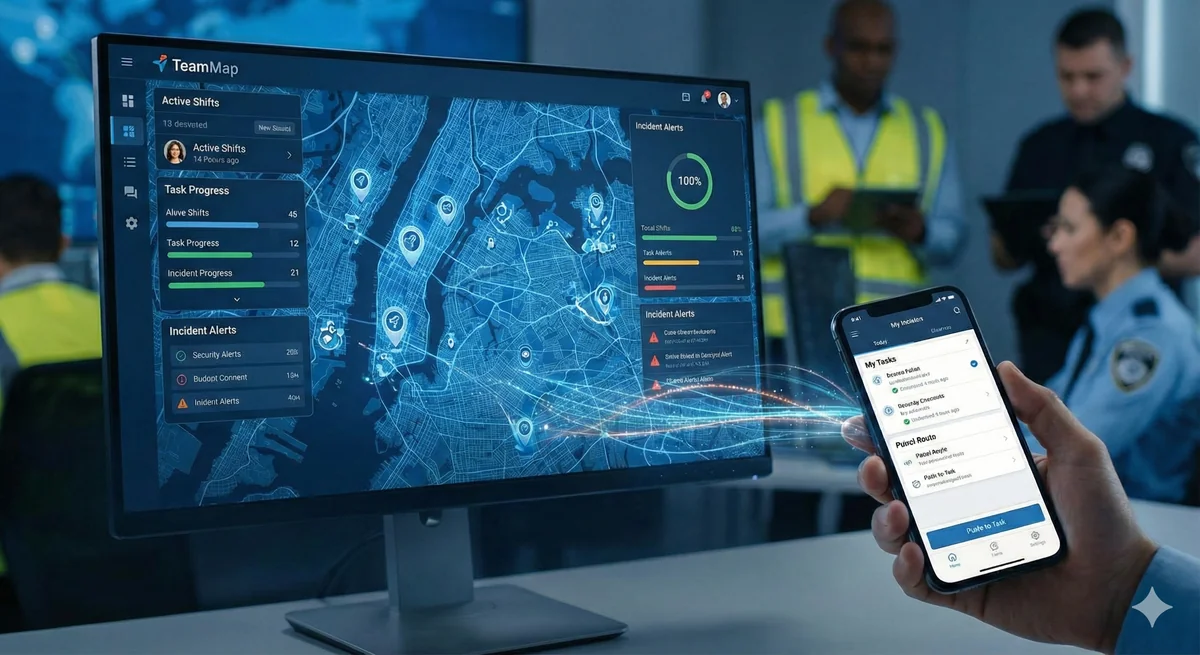
Channel communication in TeamMap: a setup guide
Set up channels in TeamMap by site, shift and incident, decide open or private, tune notifications, and export the history before retention closes.
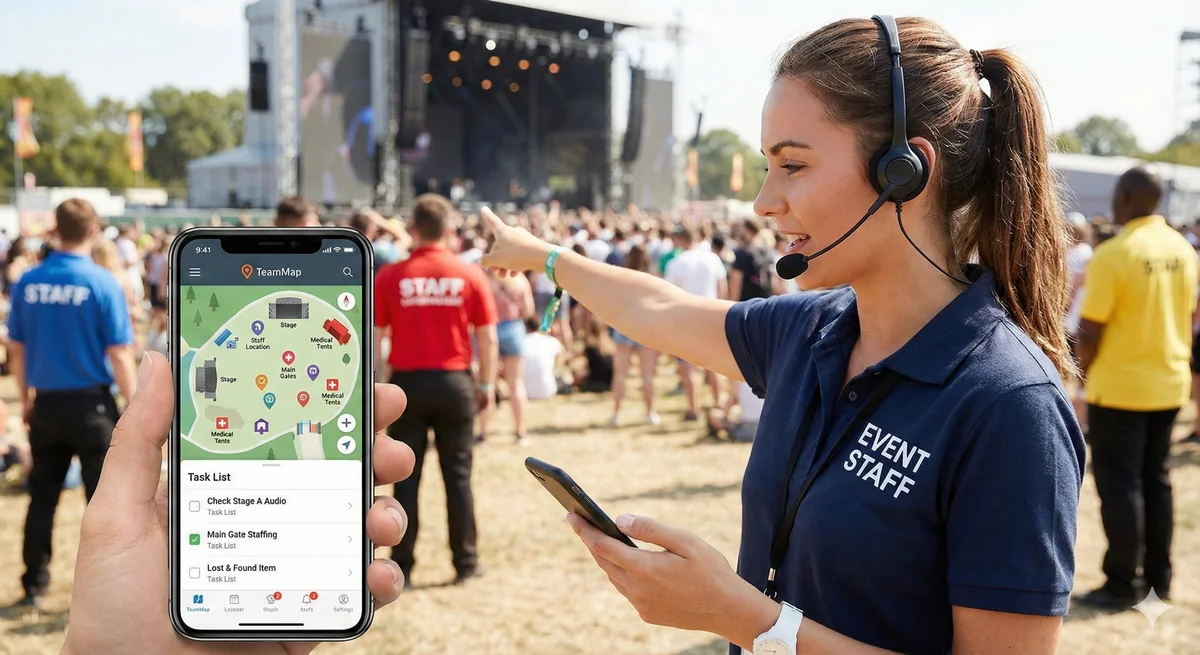
Task assignment and tracking in TeamMap: a guide
Task assignment in TeamMap: set priority and due time, require photo, GPS, NFC or QR proof, watch what is overdue, and keep the load even across the team.
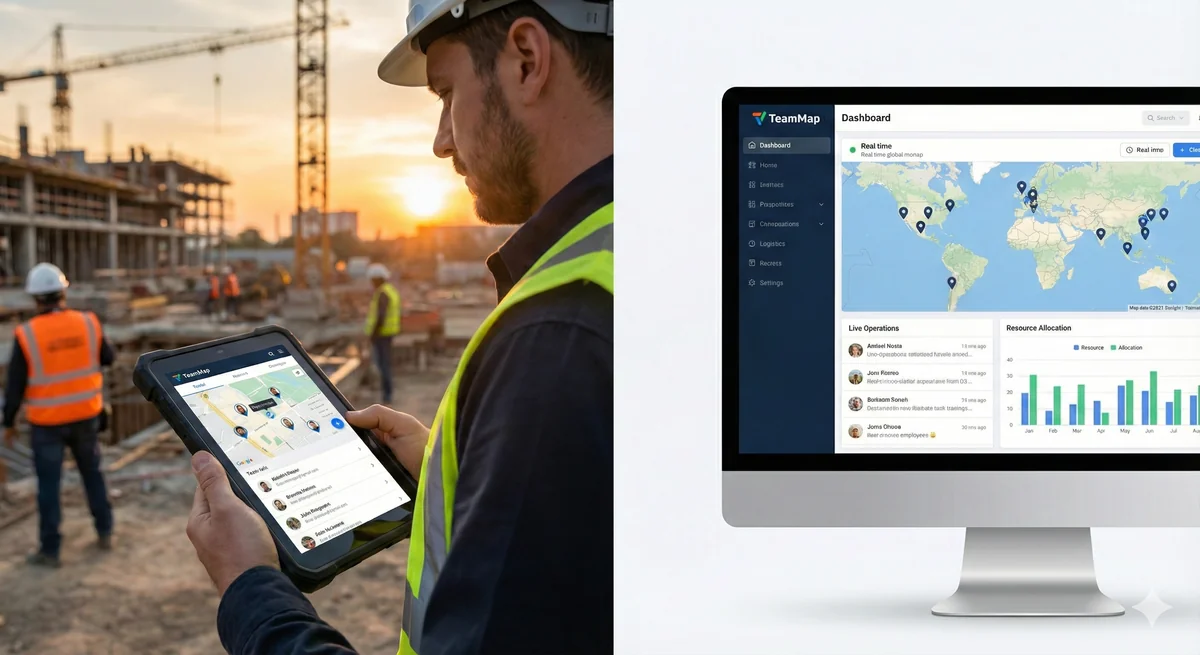
Shift scheduling and coverage in TeamMap
Shift scheduling in TeamMap: build and assign shifts, require GPS at clock-in, watch live coverage, catch no-shows, and hand the post over cleanly.